
- SureCookie Installation Guide
- Installing SureCookie Pro
- Updating SureCookie
- How to Set Up SureCookie: Onboarding Wizard Guide
- SureCookie Dashboard Overview
- Connecting Your Site to SureCookie (Scanner Setup)
- Using SureCookie on Multiple Sites
- Uninstalling SureCookie & Data Cleanup
- SureCookie Shortcodes Reference
- Preferences Settings (Menu, Branding, Analytics)
- Customizing Banner Content
- Customizing Banner Layout
- Custom CSS for Banner Styling
- How to Configure the Floating Widget
- Customizing the Preference Modal
- Controlling Where the Cookie Banner Appears
- Customizing Banner Colors (Custom Colors, WCAG)
- Customizing the Blocked Content UI
- Banner Text in the Wrong Language (WPML, Polylang, and Locales)
- Re-Consent
- Understanding SureCookie Logs
- How to Set Up Geographic Targeting
- Block Scripts Until Consent (Resource Blocking)
- Setting Up Google Consent Mode v2
- Consent Models Explained (Opt-in vs Opt-out)
- Exporting Consent Logs (PDF Proof + CSV)
- Consent & Data Settings (Duration, Retention, Renew)
- Consent Forwarding Across a Multisite Network
- Resource / Script Blocking (Add Embeds + Fixes)
- Troubleshooting SureCookie
- Fix a Stuck or Failed Cookie Scan
- Why Some Cookies Aren’t Detected
- Banner Not Appearing: Troubleshooting
- Settings or Cookie Categories Not Saving or Loading
- Embeds Blocked After Consent (YouTube, Maps, Vimeo)
- Site Performance / Page Speed
- Scanning Your Site From Your Browser
- Importing and Exporting SureCookie Settings
- Verifying Your Domain With a DNS Record
Manage Cookie Categories
Cookie categories help you organize and understand what data is being collected on your site. Assigning cookies to the correct category ensures your consent banner displays accurate information about the types of data you collect.
How to Access Manage Categories
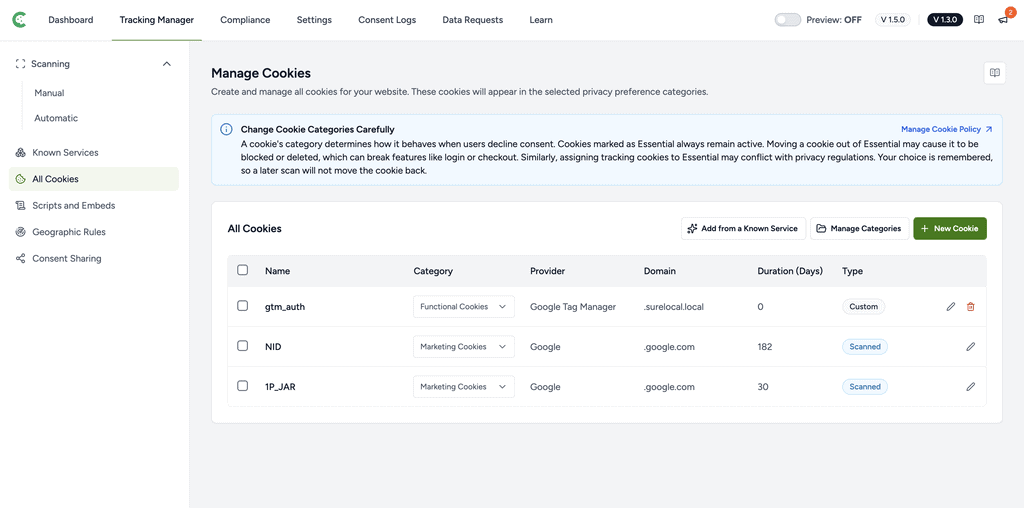
To manage cookie categories you need to follow below steps:
- Go to WordPress Dashboard
- Open SureCookie > Cookie Manager
- Locate the All Cookies section
- Click the Manage Categories button in the top right
Understanding the Default Cookie Categories
SureCookie includes five default categories based on how cookies are used and what data they collect.
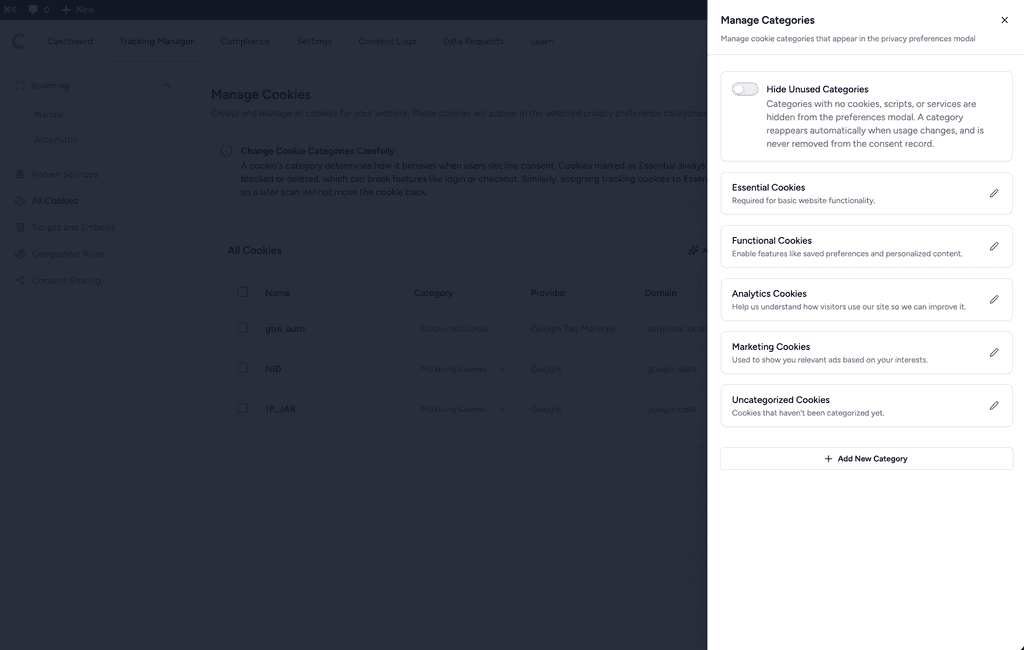
Here is what each category is for:
Essential Cookies
Cookies required for your site to function. These include login sessions, security tokens, form data, and shopping cart contents. Essential cookies do not require visitor consent. Use this category for cookies that are necessary to deliver the service.
Functional Cookies
Cookies that enhance user experience by remembering choices and preferences. Examples include language selection, theme preference, accessibility settings, and user interface preferences. Functional cookies typically require visitor consent.
Analytics Cookies
Cookies used to track and measure how visitors interact with your site. These include Google Analytics, page view tracking, session duration, and bounce rate measurement. Analytics cookies require explicit visitor consent.
Marketing Cookies
Cookies used for advertising, retargeting, and audience tracking across websites. These include Facebook Pixel, ad networks, and conversion tracking. Marketing cookies require explicit visitor consent.
Uncategorized
A holding category for cookies you have not yet reviewed or classified. Review uncategorized cookies and move them to the correct category. Do not display uncategorized cookies in your consent banner until they are properly classified.
Hide Unused Categories – Hide cookie categories from the Preferences modal if they don’t contain any cookies.
Assign Cookies to Categories
If a cookie has been assigned to the wrong category by the scanner, you can move it to the correct one. To do this, follow these steps:
- Find the cookie in the Cookie Manager list
- Click the edit icon on the right side of the row
- Select the correct category from the Category dropdown menu
- Click Save
The cookie will move to the new category immediately.
How to Know If You Have Categorized Correctly
If you are unsure about a cookie’s category, you can research it:
- Search for the provider name plus cookie type (example: Google Analytics cookie types)
- Check your installed plugins to see which ones might be setting the cookie
- Review the vendor’s privacy documentation
If you are unsure after research, leave the cookie in Uncategorized until you can verify its purpose. Do not publish your consent banner with uncategorized cookies.
Update an Existing Category
You can update the name or description of any of the five default categories.
- Click Manage Categories at the top right of the Cookie Manager
- Find the category you want to update and click the edit icon next to it
- Update the category name or description as needed
- Click Save
Your changes apply immediately to all cookies assigned to that category.
Add a Custom Category
If your site uses cookies that do not fit into the default categories, you can create custom ones.
- Click Manage Categories at the top right of the Cookie Manager
- Click Add Category
- Enter a name for the new category
- Enter a description that explains what this category is for
- Click Add Category
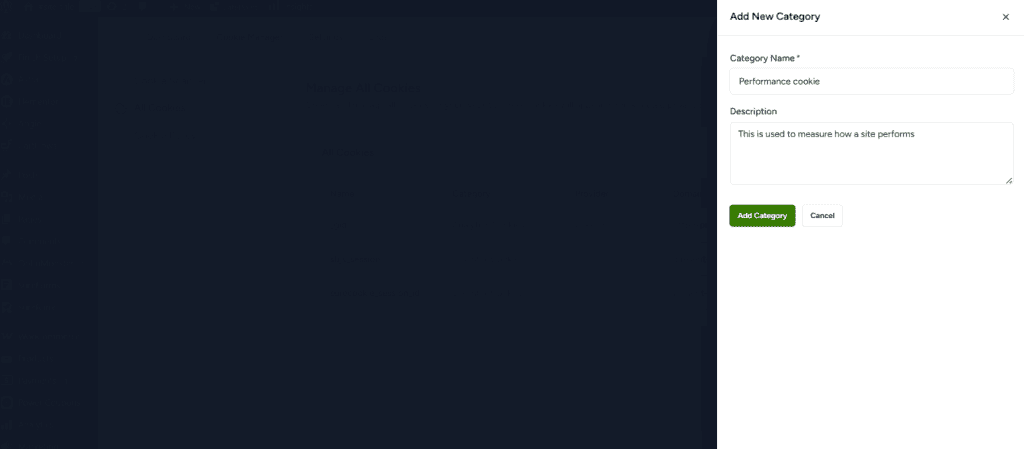
The new category appears in your category list and becomes available when you are assigning or updating cookies.
When to Create Custom Categories
You should create a custom category if you have cookies that do not fit into the five default categories. Examples include:
- Cookies from a custom-built feature that does not fall into Essential, Functional, Analytics, or Marketing
- A special purpose that requires its own category for clarity in your consent banner
- Multiple cookies serving the same special purpose that you want to group separately
Important Reminders
- Use clear, descriptive labels for each category so visitors understand their purpose
- Align your categories with actual cookie types on your website for better organization
- Keep category descriptions concise and user-friendly
- Categories can be modified anytime without affecting existing cookie data
- Review your categories regularly to stay compliant with privacy regulations
- Custom categories help differentiate your cookie management from competitors
We don't respond to the article feedback, we use it to improve our support content.