
- SureCookie Installation Guide
- Installing SureCookie Pro
- Updating SureCookie
- How to Set Up SureCookie: Onboarding Wizard Guide
- SureCookie Dashboard Overview
- Connecting Your Site to SureCookie (Scanner Setup)
- Using SureCookie on Multiple Sites
- Uninstalling SureCookie & Data Cleanup
- SureCookie Shortcodes Reference
- Preferences Settings (Menu, Branding, Analytics)
- Customizing Banner Content
- Customizing Banner Layout
- Custom CSS for Banner Styling
- How to Configure the Floating Widget
- Customizing the Preference Modal
- Controlling Where the Cookie Banner Appears
- Customizing Banner Colors (Custom Colors, WCAG)
- Customizing the Blocked Content UI
- Banner Text in the Wrong Language (WPML, Polylang, and Locales)
- Re-Consent
- Understanding SureCookie Logs
- How to Set Up Geographic Targeting
- Block Scripts Until Consent (Resource Blocking)
- Setting Up Google Consent Mode v2
- Consent Models Explained (Opt-in vs Opt-out)
- Exporting Consent Logs (PDF Proof + CSV)
- Consent & Data Settings (Duration, Retention, Renew)
- Consent Forwarding Across a Multisite Network
- Resource / Script Blocking (Add Embeds + Fixes)
- Troubleshooting SureCookie
- Fix a Stuck or Failed Cookie Scan
- Why Some Cookies Aren’t Detected
- Banner Not Appearing: Troubleshooting
- Settings or Cookie Categories Not Saving or Loading
- Embeds Blocked After Consent (YouTube, Maps, Vimeo)
- Site Performance / Page Speed
- Scanning Your Site From Your Browser
- Importing and Exporting SureCookie Settings
- Verifying Your Domain With a DNS Record
Scan Limits & Quotas Explained (5-Page Free Limit)
The cookie scanner comes with two limits: how many pages one scan can visit, and how many scans you can run per day. On the free plan that’s 5 pages per scan and 5 scans per day, and paid plans raise both. This article explains why the limits exist, exactly what each plan includes, and how to get complete cookie coverage within them.
First, note that these limits apply only to scanning. Your consent banner, script blocking, and consent logging are never limited, and they keep working at full strength whether or not you ever scan again.
Why Is There a Page Limit?
Two honest reasons.
A few pages is usually all detection needs. Cookies aren’t set page by page; they’re set by the theme, plugins, analytics, and marketing tags that load across your whole site. The tracker that appears on your homepage is almost always the same one on your other 500 pages. That’s why scanning a handful of representative pages typically finds the same cookies a full-site crawl would. More pages mostly re-detect what the first few already found.
Real-browser scanning is heavyweight by design. SureCookie doesn’t guess cookies from your HTML. Every scan starts a real browser session on our scanning infrastructure that visits each page the way an actual visitor would, waiting for scripts, embeds, and tag managers to run. That is what makes the results accurate, and it takes genuine computing time for every page visited. These limits keep the scanner fast and reliable for every site using it, and they make it possible to offer real-browser scanning on a free plan at all.
The Limits at a Glance
| Plan | Pages per day (per site) | Max pages per single scan | Scans per day | Sites |
|---|---|---|---|---|
| Free | – | 5 | 5 | 1 |
| Starter | 100 | 100 | Unlimited | 1 |
| Pro | 200 | 200 | Unlimited | 10 |
| Business | 500 | 200 | Unlimited | 1,000 |
Two details that clear up most plan confusion:
- Every site gets its own daily page budget. The pages-per-day figure in the table is what each connected site receives, not a pool they share. Scanning one site heavily does not shrink what the others can scan that day. The scanner says so on screen: the allowance line reads 200 of 200 daily pages remaining on this site.
- A license-wide ceiling sits above those budgets. It is the per-site figure multiplied by the number of sites the plan covers, so an ordinary setup exhausts a site’s own budget long before it reaches the ceiling. See Using SureCookie on Multiple Sites.
When a Paid Plan Still Shows the 5-Page Limit
Your license and your scanner plan travel over two different connections. The license is activated in WordPress against your SureCookie account. Your scanner plan is recorded separately, when the plugin tells the scanner which license this site belongs to. Activating the license starts that second step, but it is not the same thing as finishing it.
When the second step does not land, the license stays valid and every Pro feature keeps working, but the scanner keeps metering the site on free limits. That is why a paying customer can see 5 pages per scan, a daily scan counter, and an upgrade prompt on a site whose license is activated correctly.
How to Tell
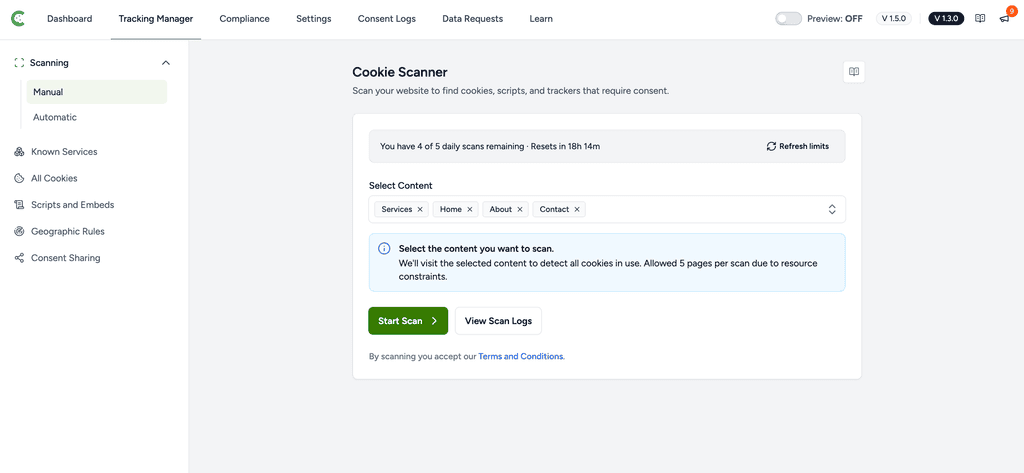
Go to SureCookie > Tracking Manager > Scanning > Manual and read the allowance line above the content picker.
- A site on free limits reads You have 5 of 5 daily scans remaining.
- A site on a paid plan reads 200 of 200 daily pages remaining on this site, with your own plan’s figure.
If a paid site shows the daily scans wording, click Refresh limits first. The allowance is cached for about 10 minutes, so the number on screen can lag a link that has only just been made.
If You Have Not Scanned This Site Yet
A licensed site that has never run a scan is not registered with the scanner yet, and its first scan is capped at 5 pages whatever the plan says. The scanner tells you when this is the case: Run your first scan to connect this site with SureCookie. Run one scan, then click Refresh limits. The full allowance appears on its own. Do not deactivate the license for this.
How to Re-Send the License
- Copy your license key somewhere safe. The field is cleared when you deactivate.
- Go to SureCookie > Settings > License.
- Click Deactivate License.
- Paste the same key back in and click Activate License.
- Return to the scanner and click Refresh limits.
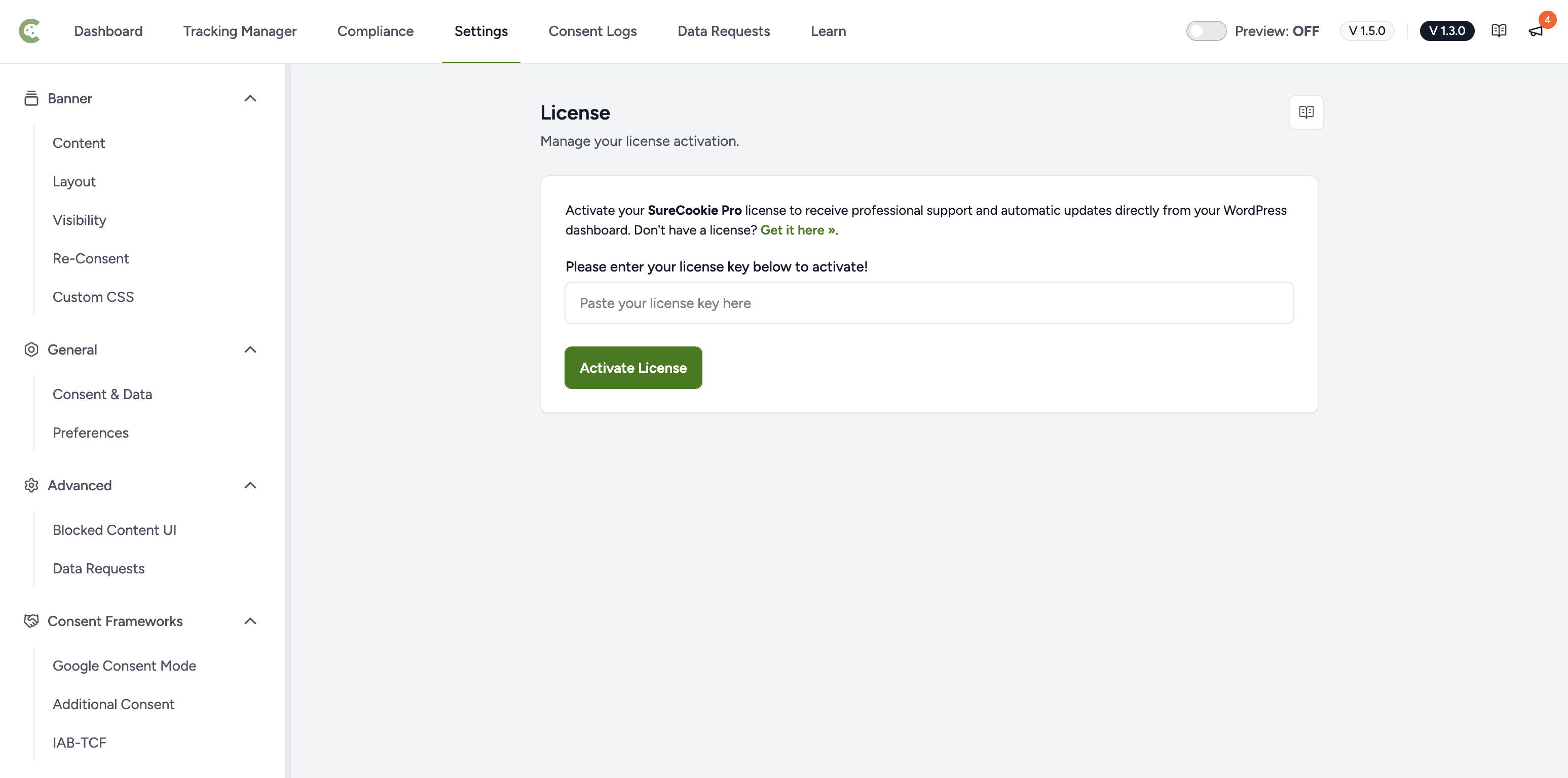
This is not the same as deactivating the plugin. Turning SureCookie Pro off and on again in Plugins changes nothing about the scanner link. Only deactivating and re-activating the license itself re-sends it.
Important: Re-activate before you spend the day’s free scans. A site still metered as free that has already used all 5 daily scans can be refused when it tries to re-send its license, which leaves it stuck until the counter resets. This is a known limitation. If you hit it, wait for the reset and start again at step 1.
Getting Full Coverage on 5 Pages
The free limit works well when you spend it on variety rather than volume.
- Go to SureCookie > Tracking Manager > Scanning > Manual.
- Under Select Content, choose different types of pages, such as your homepage, a blog post, a page with an embedded video or map, a contact form, or a checkout page.
- Click Start Scan.
Five distinct page types catch what five similar pages can’t. And detection isn’t your only net: known tracking services are blocked by Block Scripts Until Consent site-wide regardless of which pages you scanned, and any cookie the scan didn’t reach can be added by hand. See Why Some Cookies Aren’t Detected.
Tracking Your Usage
The scanner shows your live allowance at the top of the page: how many daily scans you have left, your remaining page budget, and when it resets.
Every counter resets at 00:00 UTC, not at midnight in your site’s timezone. The scanner converts it for you and shows the time left as a countdown, for example Resets in 4h 22m.
The figures are cached for about 10 minutes so the scanner does not call out on every page load. If they look out of date, or you have just changed plan or re-activated a license, click Refresh limits to pull them again.
What Happens When You Hit a Limit
Nothing breaks, and nothing is lost.
- Your page budget runs out mid-scan – The scan finishes the pages that fit and tells you the rest will be scanned after the budget resets. They’re picked up automatically.
- You’ve used the day’s scans – The scanner shows Daily Limit Reached, and your allowance refreshes the next day.
- Too many retries in a short burst – You may see an HTTP 429 message. Wait 15 to 30 minutes, and the temporary restriction should clear on its own. See Fix a Stuck or Failed Cookie Scan.
Remember: a paused or exhausted scan never affects your banner or blocking. It only delays cookie discovery.
If Your Site Needs More
Larger sites and agencies genuinely do need more pages, and that is what the paid plans in the table above are sized for.
Pro and Business are the same product. Every feature in one is in the other. They differ only in how many sites the license covers and how many pages each of those sites can scan per day, which is exactly what the table shows. Choose on volume and site count, not on a feature list.
The scanner shows an upgrade link beside the content picker when you select more pages than your plan allows. What it says depends on the install: Upgrade Now on a free site, Activate SureCookie Pro when Pro is installed but not activated, Activate License when Pro is active but no license has been entered, and Consider Plan Upgrade when the site is already licensed.
Read that link as a statement about what the scanner currently knows, not about what you bought. A licensed site whose plan has not reached the scanner shows the same prompt as a site that genuinely needs a bigger plan. See When a Paid Plan Still Shows the 5-Page Limit above before you buy anything.
Next Steps
To keep your cookie list current without using your manual scan allowance, see Automatic (Scheduled) Scanning.
We don't respond to the article feedback, we use it to improve our support content.