
- SureCookie Installation Guide
- Installing SureCookie Pro
- Updating SureCookie
- How to Set Up SureCookie: Onboarding Wizard Guide
- SureCookie Dashboard Overview
- Connecting Your Site to SureCookie (Scanner Setup)
- Using SureCookie on Multiple Sites
- Uninstalling SureCookie & Data Cleanup
- SureCookie Shortcodes Reference
- Preferences Settings (Menu, Branding, Analytics)
- Customizing Banner Content
- Customizing Banner Layout
- Custom CSS for Banner Styling
- How to Configure the Floating Widget
- Customizing the Preference Modal
- Controlling Where the Cookie Banner Appears
- Customizing Banner Colors (Custom Colors, WCAG)
- Customizing the Blocked Content UI
- Banner Text in the Wrong Language (WPML, Polylang, and Locales)
- Re-Consent
- Understanding SureCookie Logs
- How to Set Up Geographic Targeting
- Block Scripts Until Consent (Resource Blocking)
- Setting Up Google Consent Mode v2
- Consent Models Explained (Opt-in vs Opt-out)
- Exporting Consent Logs (PDF Proof + CSV)
- Consent & Data Settings (Duration, Retention, Renew)
- Consent Forwarding Across a Multisite Network
- Resource / Script Blocking (Add Embeds + Fixes)
- Troubleshooting SureCookie
- Fix a Stuck or Failed Cookie Scan
- Why Some Cookies Aren’t Detected
- Banner Not Appearing: Troubleshooting
- Settings or Cookie Categories Not Saving or Loading
- Embeds Blocked After Consent (YouTube, Maps, Vimeo)
- Site Performance / Page Speed
- Scanning Your Site From Your Browser
- Importing and Exporting SureCookie Settings
- Verifying Your Domain With a DNS Record
- Why reCAPTCHA Is Blocked, and How to Release It
- Is SureCookie a Google-Certified CMP?
- Where Banner and Widget Settings Live, and Which One Wins
- Why Trackers Still Fire Before Consent
- Is SureCookie GDPR Compliant? (Overview)
- Whitelisting the SureCookie Scanner
- Excluding the SureCookie Banner from LiteSpeed Cache
Importing and Exporting SureCookie Settings
SureCookie can save your configuration to a file and load it onto another site. Use it to roll a single approved setup out across several sites, or to take a snapshot before you make a large change.
The file carries your settings, cookie categories, and custom cookies. It does not carry anything a site earns for itself, so consent records, scan history, and your connection to the scanning service stay where they are.
You will find this at SureCookie → Settings → Tools → Import / Export.
What You Can Export
The picker lists only the sections your site can actually export, so a free install will not offer Pro sections.
- Banner – Banner content, layout, colors, buttons and display.
- General – Consent model, logging, preferences, custom CSS and other plugin settings.
- Cookies & Scripts – Cookie categories, custom cookies, known services, script blocking and scanning.
- Consent Frameworks – Google Consent Mode and other consent integrations.
- Geographic Rules – Region-based banner rules. This is a SureCookie Pro section.
Most sections open up into narrower ones, so you can take Buttons & labels without the rest of the banner, or Cookie categories without your custom cookies.
Step 1: Export Your Settings
Start on the site whose configuration you want to copy.
- Go to SureCookie → Settings → Tools → Import / Export.
- Under What to export, keep All Settings for your entire portable configuration, or pick the individual sections you want.
- Click Export settings.
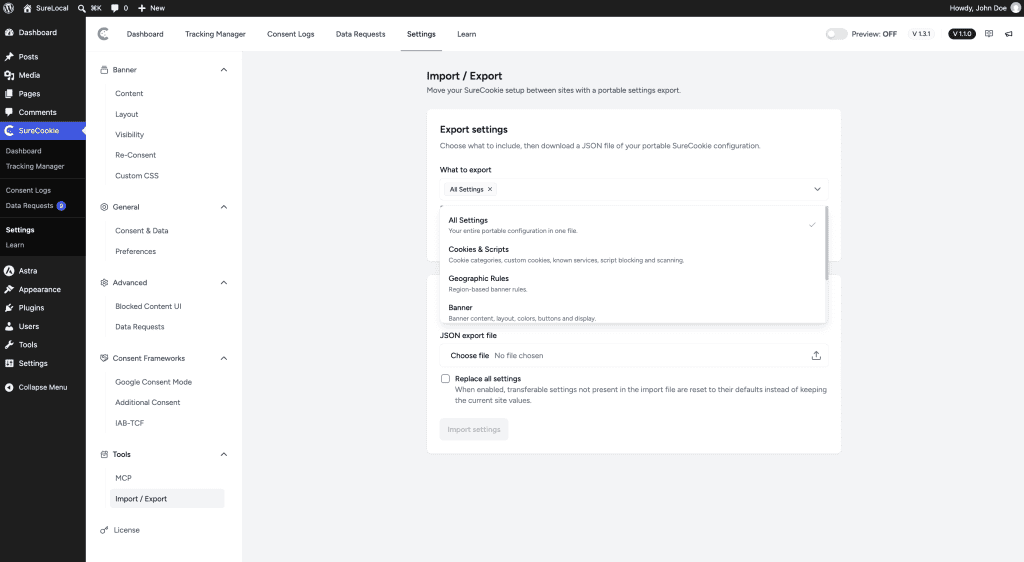
Your browser downloads a .json file named after the site and the date, for example surecookie-example-com-2026-08-14.json. Keep the name as it is. It tells you at a glance where a file came from and when.
Note: All Settings and individual sections are mutually exclusive. Selecting All Settings clears your section choices, and clearing every choice falls back to a full export.
Tip: Choosing Cookies also brings Cookie categories along. A custom cookie without its category has nowhere to sit, so SureCookie keeps the two together.
Step 2: Import on the Other Site
Now move to the site you want to configure.
- Go to SureCookie → Settings → Tools → Import / Export.
- Under JSON export file, choose the file you exported. The name appears next to Selected file.
- Decide whether to turn on Replace all settings. Leave it off unless you want a clean slate.
- Click Import settings.
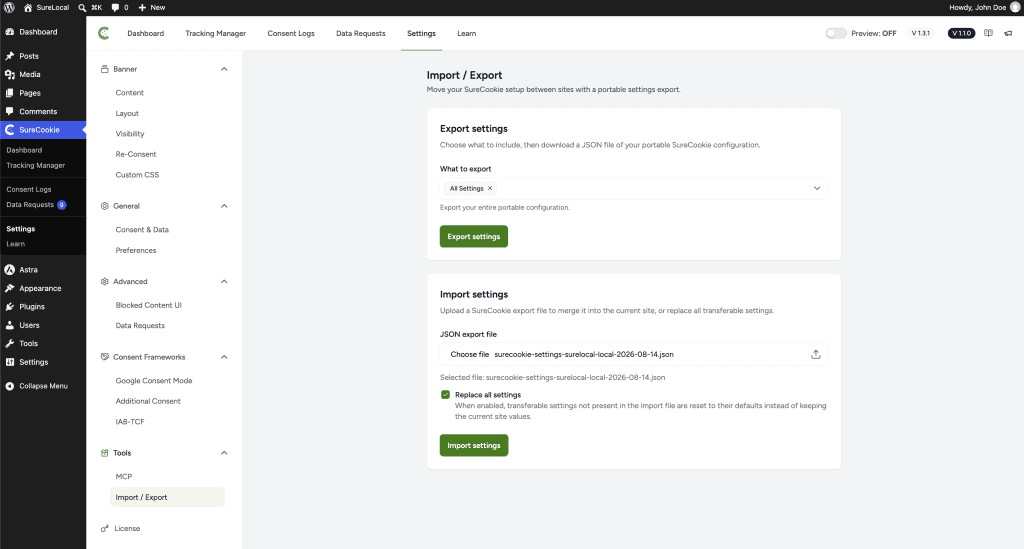
Important: Replace all settings resets transferable settings that are missing from the file back to their defaults, instead of leaving the current site’s values in place. Turn it on when you want the target site to match the source exactly. Leave it off when you are importing one section into a site you have already configured, otherwise the sections you did not export will be wiped.
Reading the Import Summary
After an import, SureCookie reports what it did with the file rather than a bare success message. Read it before you assume the site is configured.
- Applied – The sections that were imported and are now live.
- Skipped (Pro) – Settings in the file that belong to SureCookie Pro features this site does not have. They were left out, and the rest of the import still went through.
- Ignored – Keys this install does not recognise. This normally means the file came from a newer version of SureCookie than the one you are importing into.
If nothing at all could be used, you will see Nothing imported instead, and the site is left untouched.
Troubleshooting
- “The uploaded file does not contain any importable SureCookie settings for this site.” The file is not a SureCookie export, or every section in it is unavailable here. Confirm you selected the
.jsonfile you downloaded, not a zip or a scan report. - Everything landed under Skipped (Pro). The source site had SureCookie Pro and the target does not. Activate Pro on the target site and import again.
- Your banner looks unchanged after importing. Clear your caching plugin, then reload the front end in a private window.
- Cookies imported but sit in the wrong categories. The file was exported with Cookies but without Cookie categories from an older export. Re-export from the source site with both, then import again.
- The upload is rejected or times out. Very large exports can exceed your server’s upload limit. Export in sections instead of using All Settings, and import them one at a time.
Next Steps
Once the target site is configured, run a scan on it so its cookie list reflects what that site actually loads. Your imported categories and custom cookies stay intact.
We don't respond to the article feedback, we use it to improve our support content.