
- SureCookie Installation Guide
- Installing SureCookie Pro
- Updating SureCookie
- How to Set Up SureCookie: Onboarding Wizard Guide
- SureCookie Dashboard Overview
- Connecting Your Site to SureCookie (Scanner Setup)
- Using SureCookie on Multiple Sites
- Uninstalling SureCookie & Data Cleanup
- SureCookie Shortcodes Reference
- Preferences Settings (Menu, Branding, Analytics)
- Customizing Banner Content
- Customizing Banner Layout
- Custom CSS for Banner Styling
- How to Configure the Floating Widget
- Customizing the Preference Modal
- Controlling Where the Cookie Banner Appears
- Customizing Banner Colors (Custom Colors, WCAG)
- Customizing the Blocked Content UI
- Banner Text in the Wrong Language (WPML, Polylang, and Locales)
- Re-Consent
- Understanding SureCookie Logs
- How to Set Up Geographic Targeting
- Block Scripts Until Consent (Resource Blocking)
- Setting Up Google Consent Mode v2
- Consent Models Explained (Opt-in vs Opt-out)
- Exporting Consent Logs (PDF Proof + CSV)
- Consent & Data Settings (Duration, Retention, Renew)
- Consent Forwarding Across a Multisite Network
- Resource / Script Blocking (Add Embeds + Fixes)
- Troubleshooting SureCookie
- Fix a Stuck or Failed Cookie Scan
- Why Some Cookies Aren’t Detected
- Banner Not Appearing: Troubleshooting
- Settings or Cookie Categories Not Saving or Loading
- Embeds Blocked After Consent (YouTube, Maps, Vimeo)
- Site Performance / Page Speed
- Scanning Your Site From Your Browser
- Importing and Exporting SureCookie Settings
- Verifying Your Domain With a DNS Record
Cookie Scanner
SureCookie uses a cloud-powered scanner to automatically detect all cookies on your website. The scanner visits your pages using a headless browser, records every cookie being set, identifies the scripts and services behind them, and classifies them into the correct categories. This article explains how the scanning process works and how to use it effectively.
How the Scanner Works
When you initiate a scan, SureCookie accesses your website using a cloud-based headless browser. The scanner:
- Visits your selected website pages.
- Detects all cookies being set on each page.
- Identifies the scripts and third-party services behind each cookie.
- Sends the results back to your WordPress dashboard automatically.
Important: Your site must be publicly accessible on the internet for the scanner to reach it. Local development sites, staging URLs on localhost, or password-protected environments cannot be scanned.
Running a Scan
Here are all 5 steps in the format you want:
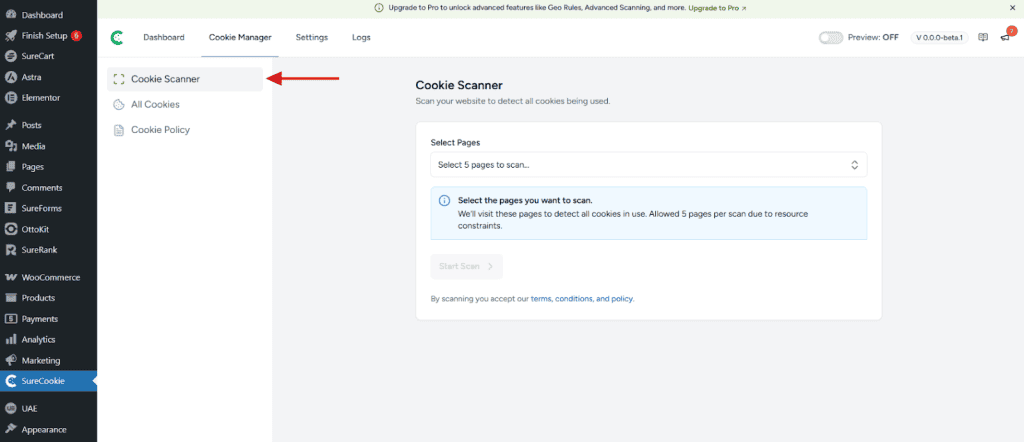
Access the Cookie Scanner
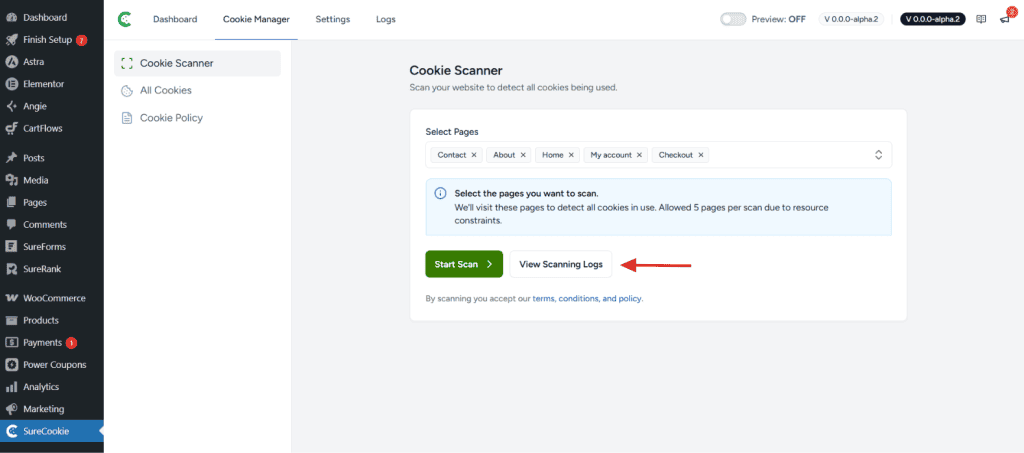
Go to your WordPress dashboard and navigate to SureCookie. Click on Cookie Manager. Once the Cookie Manager screen opens, you’ll see the Cookie Scanner option. This is where all your scanning and cookie management takes place.
Select Pages to Scan
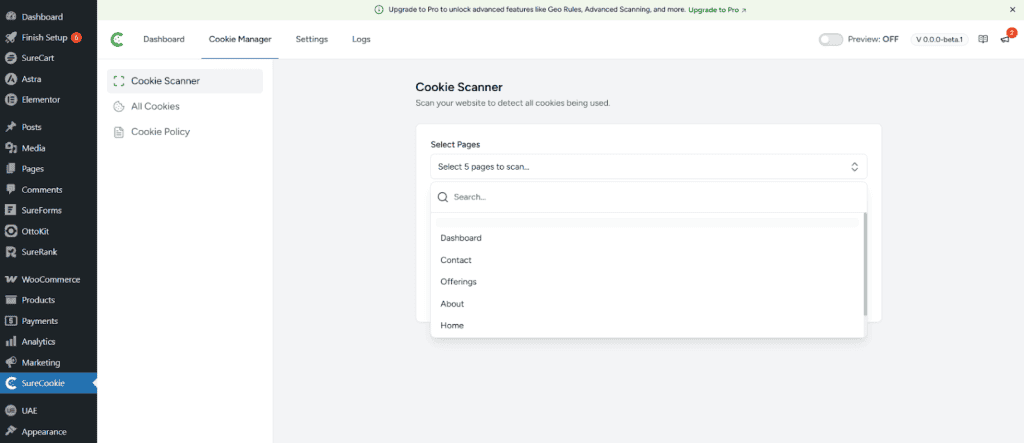
Click on the page selection dropdown menu to choose which pages you want to scan. You can select multiple pages from your website. The dropdown will display all publicly accessible pages on your site.
Note: In the free version of SureCookie, you can select up to 5 pages per scan. Premium versions support scanning more pages in a single scan.
Start the Scan
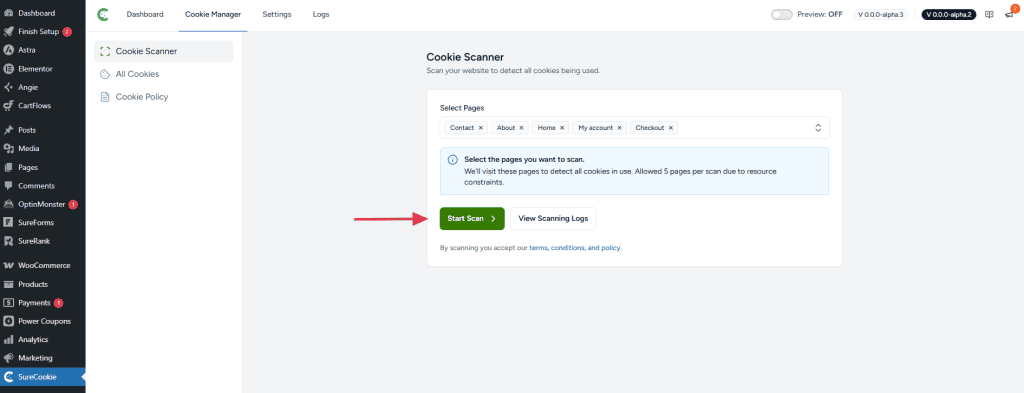
Click the Start Scan button to begin scanning your selected pages. The scanner will initiate immediately and begin visiting each page you’ve selected.
Monitor Progress
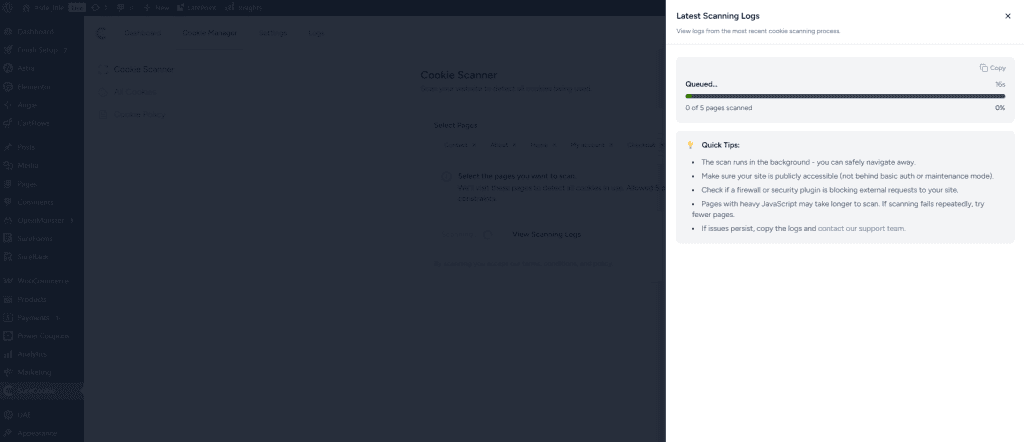
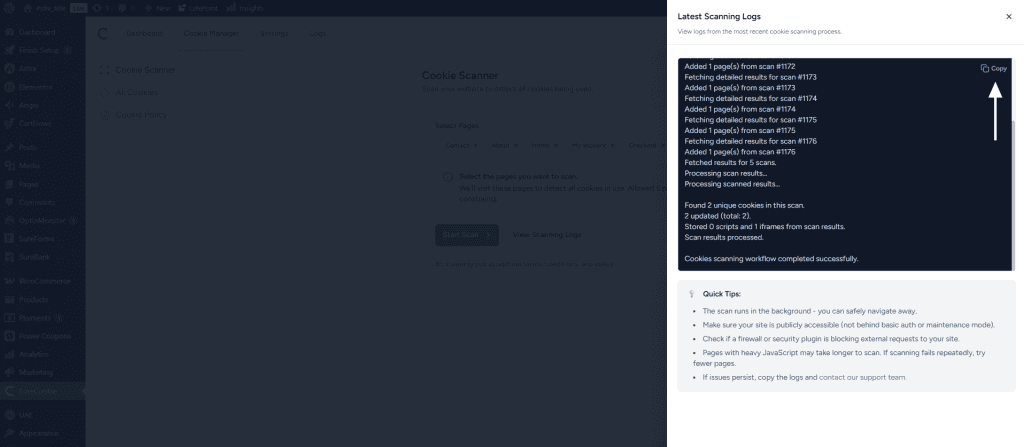
A real-time log displays the scanning progress as the scanner works through your pages. Wait for the scan to complete. Scan duration depends on page load times and the number of scripts on your site. Typically, scans complete within a few minutes.
Review Results
Once the scan is complete, the results will automatically appear in the Cookies tab. You’ll see a summary at the top showing the total number of cookies detected, followed by a detailed list of all detected cookies with their information.
Understanding Scan Results
After a scan completes, results are displayed in the Cookies tab. Here’s what each detected cookie shows:
| Item | Description |
| Cookie Name | The technical name of the cookie |
| Domain | The domain that set the cookie (first-party or third-party) |
| Category | GDPR category assigned to the cookie (Essential, Functional, Analytics, Marketing, etc.) |
| Source | The script or service that set the cookie |
| Status | Whether the cookie is new (first detected in this scan) or known from previous scans |
Results Summary
- Total Cookie Count: The total number of unique cookies detected across all scanned pages.
- Category Breakdown: Cookies grouped by their GDPR category (Necessary, Analytics, Marketing, etc.)
- New vs. Known: Newly detected cookies are flagged so you know which ones need your attention.
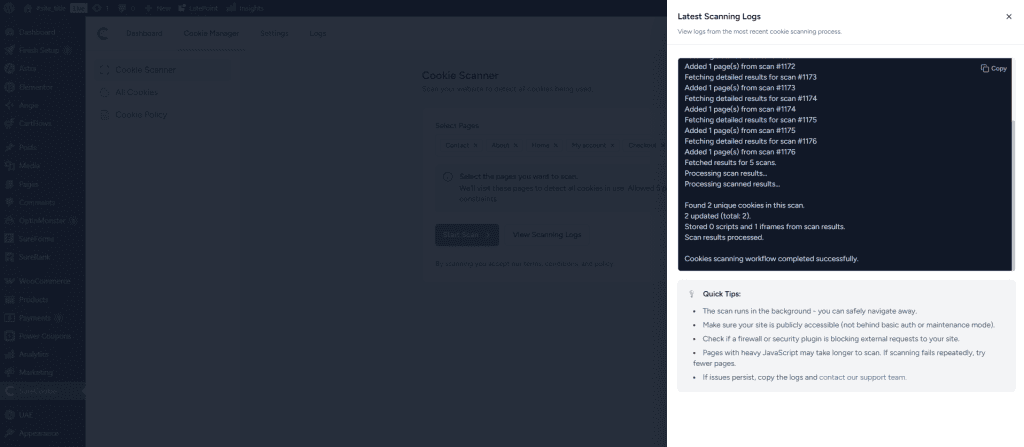
Tip: Use the Copy button at the top of the results to copy the scanning data to your clipboard for external analysis or documentation.
Review each cookie and verify that it has been assigned to the correct category. If a cookie is miscategorized, click on it and select the correct category from the dropdown menu.
Scan History
SureCookie saves a history of all your previous scans. You can view them from the Scanner tab by clicking “View Scanning Logs”. This lets you compare results over time and spot new cookies that have appeared after a plugin update or site change.
When to Re-Scan
You should re-scan your site whenever you:
- Install or update a plugin that adds new scripts or third-party services
- Add new third-party integrations such as a live chat tool or marketing platform
- Make significant changes to your site’s pages or templates
- Want to verify that your cookie inventory is still accurate
Running a scan once a month is a good habit for keeping your cookie policy up to date.
Troubleshooting Scan Issues
- Scan fails to start: Make sure your SureCookie account is connected.
Go to Settings > SureCookie > Settings > Account and check the connection status. - Scan is stuck in progress: This can happen if the scanner times out while loading a slow page. Try removing that page from the scan list and re-running the scan.
- No cookies detected: Check that your site loads scripts on the homepage. If all scripts are blocked by another plugin or server configuration, the scanner may not find any cookies.
- Cannot scan a localhost or development site: The scanner requires your site to be accessible on the public internet. Use a staging URL or deploy to a live environment to scan.
We don't respond to the article feedback, we use it to improve our support content.