
- SureCookie Installation Guide
- Installing SureCookie Pro
- Updating SureCookie
- How to Set Up SureCookie: Onboarding Wizard Guide
- SureCookie Dashboard Overview
- Connecting Your Site to SureCookie (Scanner Setup)
- Using SureCookie on Multiple Sites
- Uninstalling SureCookie & Data Cleanup
- SureCookie Shortcodes Reference
- Preferences Settings (Menu, Branding, Analytics)
- Customizing Banner Content
- Customizing Banner Layout
- Custom CSS for Banner Styling
- How to Configure the Floating Widget
- Customizing the Preference Modal
- Controlling Where the Cookie Banner Appears
- Customizing Banner Colors (Custom Colors, WCAG)
- Customizing the Blocked Content UI
- Banner Text in the Wrong Language (WPML, Polylang, and Locales)
- Re-Consent
- Understanding SureCookie Logs
- How to Set Up Geographic Targeting
- Block Scripts Until Consent (Resource Blocking)
- Setting Up Google Consent Mode v2
- Consent Models Explained (Opt-in vs Opt-out)
- Exporting Consent Logs (PDF Proof + CSV)
- Consent & Data Settings (Duration, Retention, Renew)
- Consent Forwarding Across a Multisite Network
- Resource / Script Blocking (Add Embeds + Fixes)
- Troubleshooting SureCookie
- Fix a Stuck or Failed Cookie Scan
- Why Some Cookies Aren’t Detected
- Banner Not Appearing: Troubleshooting
- Settings or Cookie Categories Not Saving or Loading
- Embeds Blocked After Consent (YouTube, Maps, Vimeo)
- Site Performance / Page Speed
- Scanning Your Site From Your Browser
- Importing and Exporting SureCookie Settings
- Verifying Your Domain With a DNS Record
Customizing Banner Content
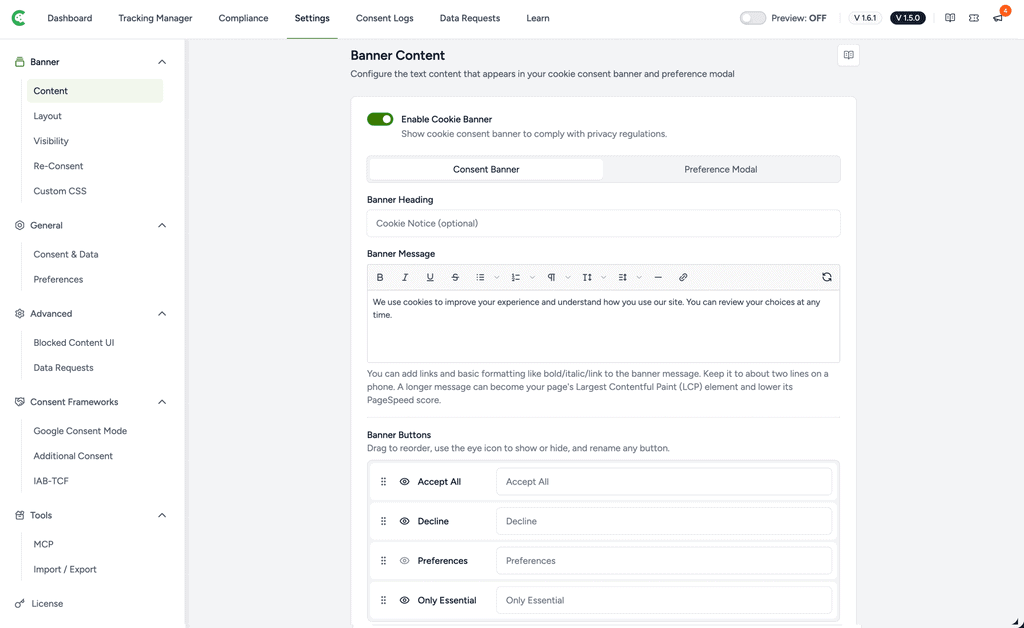
The Banner Content settings let you control what your cookie consent banner says and how it behaves. Configure the banner’s heading and message, choose whether to display an Accept All button, and toggle the banner on or off.
Quick Start
- From your WordPress dashboard, click SureCookie
- Click the Settings tab
- Under the Banner menu on the left, select Content
Enable Cookie Banner
This controls whether the banner displays on your site. When enabled, visitors who haven’t yet given consent will see the banner. When disabled, your settings are saved but the banner hides.
Banner Heading
This is the title text that appears at the top of your banner. It introduces visitors to the purpose of the banner before they read the full message.This field is optional. Leave it blank if you prefer a heading-free banner
Keep it short and direct (3-5 words):
- Cookie Notice
- We Use Cookies
- Your Privacy Choices
- Cookie Consent
Banner Message
This is the main body text that explains why your site uses cookies. Keep it simple, clear, and easy to understand in a few seconds.
Default message: “We use cookies to improve your experience and understand how you use our site. You can review your choices at any time.”
This default works well for most sites because it: explains purpose clearly, reassures visitors they can change preferences, and doesn’t use overly technical language.
Banner Buttons
You can configure the banner’s button order, labels, visibility from the provided controls. Basically just drag to reorder, use the eye icon to show or hide, and rename any button from the give input field.
Save Your Changes
When you’re ready, just follow the steps below:
- Click the green Save button at the bottom of the page
- Your changes apply immediately to your site
- All settings are preserved if you later disable the banner
Troubleshooting
Banner not showing on my site?
Check that the Enable Cookie Banner toggle is turned on. Also verify you’ve clicked Save and wait a few moments for changes to propagate.
Changes aren’t saving?
Make sure you click the green Save button. Editing fields alone doesn’t apply changes.
Want to temporarily hide the banner?
Toggle Enable Cookie Banner to Off. Your text, heading, and button settings will remain intact when you turn it back on.
Continue Customizing
- Review Layout settings to customize banner position, size, and button styling
- Set up Cookie Categories to define which cookies require consent
- Configure Re-Consent settings if you need to re-prompt visitors after updates
We don't respond to the article feedback, we use it to improve our support content.