
- SureCookie Installation Guide
- Installing SureCookie Pro
- Updating SureCookie
- How to Set Up SureCookie: Onboarding Wizard Guide
- SureCookie Dashboard Overview
- Connecting Your Site to SureCookie (Scanner Setup)
- Using SureCookie on Multiple Sites
- Uninstalling SureCookie & Data Cleanup
- SureCookie Shortcodes Reference
- Preferences Settings (Menu, Branding, Analytics)
- Customizing Banner Content
- Customizing Banner Layout
- Custom CSS for Banner Styling
- How to Configure the Floating Widget
- Customizing the Preference Modal
- Controlling Where the Cookie Banner Appears
- Customizing Banner Colors (Custom Colors, WCAG)
- Customizing the Blocked Content UI
- Banner Text in the Wrong Language (WPML, Polylang, and Locales)
- Re-Consent
- Understanding SureCookie Logs
- How to Set Up Geographic Targeting
- Block Scripts Until Consent (Resource Blocking)
- Setting Up Google Consent Mode v2
- Consent Models Explained (Opt-in vs Opt-out)
- Exporting Consent Logs (PDF Proof + CSV)
- Consent & Data Settings (Duration, Retention, Renew)
- Consent Forwarding Across a Multisite Network
- Resource / Script Blocking (Add Embeds + Fixes)
- Troubleshooting SureCookie
- Fix a Stuck or Failed Cookie Scan
- Why Some Cookies Aren’t Detected
- Banner Not Appearing: Troubleshooting
- Settings or Cookie Categories Not Saving or Loading
- Embeds Blocked After Consent (YouTube, Maps, Vimeo)
- Site Performance / Page Speed
- Scanning Your Site From Your Browser
- Importing and Exporting SureCookie Settings
- Verifying Your Domain With a DNS Record
- Why reCAPTCHA Is Blocked, and How to Release It
- Is SureCookie a Google-Certified CMP?
- Where Banner and Widget Settings Live, and Which One Wins
- Why Trackers Still Fire Before Consent
- Is SureCookie GDPR Compliant? (Overview)
- Whitelisting the SureCookie Scanner
- Excluding the SureCookie Banner from LiteSpeed Cache
Scanning Your Site From Your Browser
SureCookie normally scans your site from our servers. That scan is the one to use: it opens your pages in a real browser on our side, reads cookies that page scripts cannot see for themselves, and needs nothing from you while it runs.
Some hosts block it. A firewall, bot protection, or a security plugin can serve our scanner a security challenge instead of your page, and the scan then finishes without results. On a site like that, SureCookie can also run the scan inside your own browser, using your own connection. Your host has no reason to block you, so the scan gets through.
This is a fallback for a blocked scan, not a replacement for one. It finds less than the standard scan does, for reasons explained below. If your standard scan works, use it and ignore this page.
When to Use This
Reach for a browser scan only when the standard scan cannot reach your site:
- Your scan finished with the notice Your host blocked the scanner, or told you that a security challenge was served instead of your page.
- Your site could not be verified, so it was never able to register with our scanner at all.
- Your site is not reachable from the public internet: it is behind a login, on a private network, or on a local development machine.
Note: if your host is blocking the scanner, the better fix is to unblock it. See How to Allowlist the SureCookie Scanner and run the standard scan again. Use a browser scan to get a cookie list in place while you sort that out, or when unblocking is not possible.
What a Browser Scan Cannot See
A browser scan only sees what a browser can see. That is a real limit, not a small one:
- HttpOnly cookies – deliberately hidden from all browser code, including ours. Many login and session cookies are HttpOnly.
- Cookies set by response headers – cookies your server sets directly, rather than through JavaScript on the page.
- Anything your extensions block – an ad blocker or privacy extension in your browser stops those trackers from loading, so the scan never sees them.
- Cookies that need a real visitor action – anything set only after someone accepts your banner, adds to a cart, or submits a form. The standard scan has this limit too.
What it does see, it matches against the Known Services library to fill in the provider, purpose, and category. Anything the library does not recognise is saved as Uncategorized for you to review.
Run the standard scan again once your host allows it. Its richer data replaces what the browser scan found, automatically.
Before You Start
A cookie’s duration is only visible at the moment it is set. To read those durations, the scan clears the cookies for your site in your browser once, at the start.
That includes your own consent choice, so your banner will reappear on your next visit. Your WordPress login is kept, so you will not be signed out. If clearing your own cookies for this site is a problem, run the scan in a different browser, or in a private window signed in as an administrator.
The scan also runs in a tab that has to stay in front. Browsers slow down background tabs, which stalls the scan. Plan on a minute or two of not switching away.
Step 1: Open the Browser Scan
- Go to SureCookie → Tracking Manager → Scanning → Manual – View Scan Logs.
- Click Switch to Assisted Scanner from the Quick Tips section.
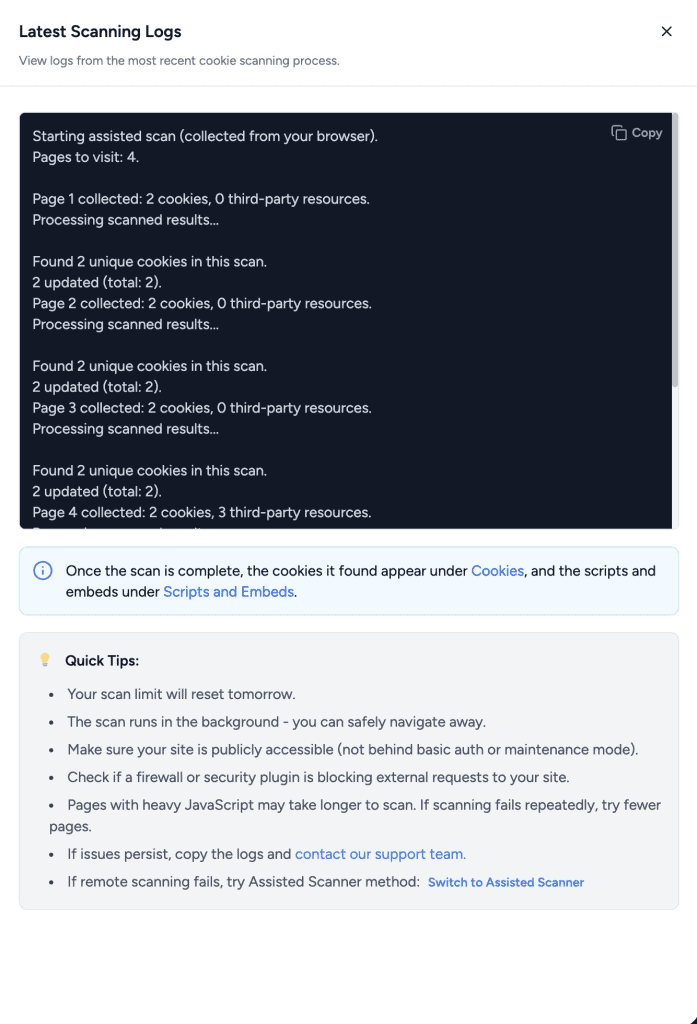
If your last scan was blocked, you do not need to look for it. The failure notice offers Scan from Your Browser directly, and clicking it switches the screen for you.
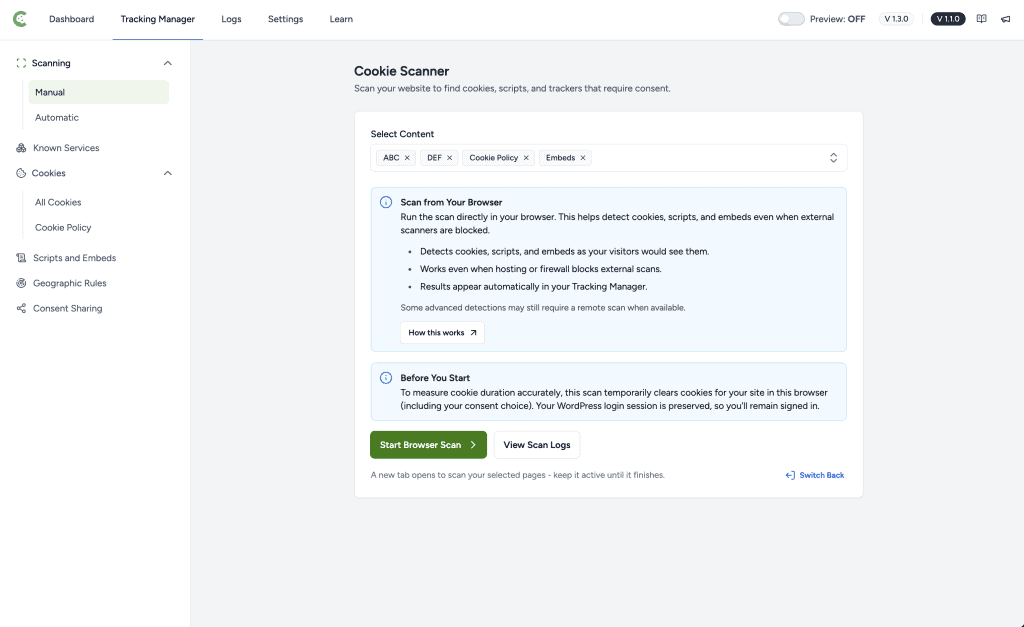
Step 2: Choose Your Pages
- Under Select Content, choose the pages you want scanned.
- Keep the count within the page allowance shown on screen.
A browser scan uses the same per-scan page allowance as your standard scan. On a site that was never able to register with our scanner, it allows up to 10 pages.
Tip: choose pages that differ from each other rather than many of the same kind. Your home page, a shop or product page, cart or checkout, a contact page, and one blog post will surface far more distinct trackers than ten blog posts will.
Step 3: Run the Scan
- Click Start Assisted Scan.
- A new tab opens and starts working through your pages. A small badge in the corner shows SureCookie is scanning page 1 of 5.
- Leave that tab in front until it finishes.
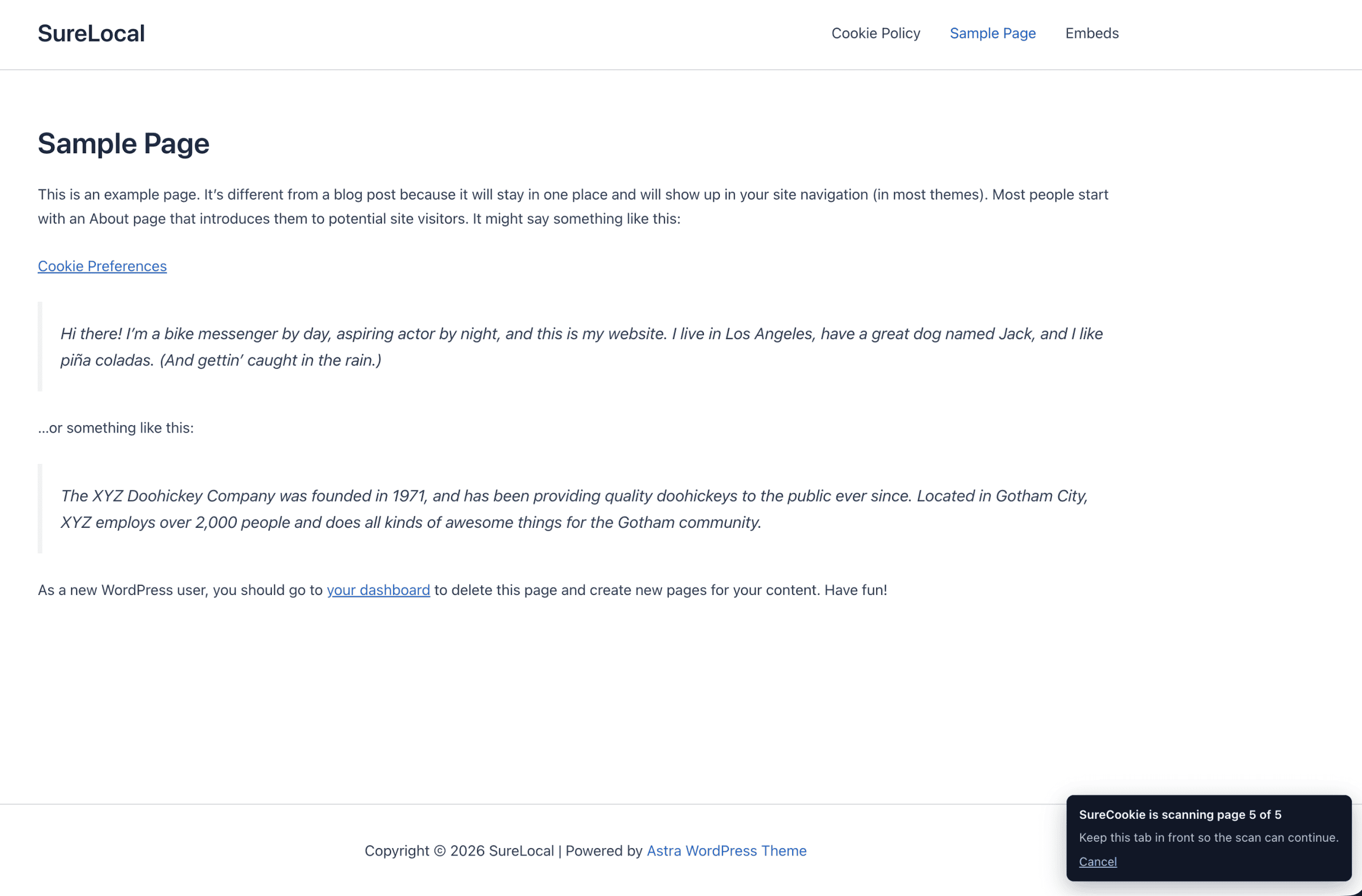
The tab moves between your pages on its own. When it is done it shows Scan complete, with the number of cookies and services found, then closes itself. The Scanning screen behind it updates as the scan runs, the same way it does for a standard scan, and View Scanning Logs shows the same detail.
Note: if no tab opens, your browser blocked it. Allow pop-ups for your site’s admin address and click Start Assisted Scan again.
Nothing is lost if the scan is interrupted. Every page is saved as it is collected, so closing the tab part-way through keeps whatever it had already found.
Step 4: Review What It Found
- Go to SureCookie → Tracking Manager → Cookies → All Cookies to see the cookies that were added.
- Check anything listed as Uncategorized and set its category yourself.
- Open Scripts and Embeds to see the services that were detected and choose which to block.
Back on the Scanning screen, Pages In This Scan lists each page with what it found there, and flags any page that could not be collected. Use Re-scan on a single row to try that page again.
Important: a browser scan is an incomplete picture by design. Review the categories before you rely on your cookie policy, and add anything you know your site uses that the scan did not find. See Adding Cookies Manually.
Going Back to the Standard Scan
Click Use the cloud scanner instead to switch the screen back at any time.
Once your host allows our scanner, run a standard scan as usual. It recognises the cookies the browser scan found and upgrades them in place with its own better data, so there is nothing to clean up first.
Troubleshooting
- No tab opened when I clicked Start. Your browser’s pop-up blocker stopped it. Allow pop-ups for your admin address and start the scan again.
- The badge says “Paused. Bring this tab to the front to continue.” The scan tab lost focus and your browser throttled it. Click the tab and the scan resumes.
- A page shows “This page did not load the scanner, so it was skipped.” Something between the request and the page interfered, usually a redirect that drops query parameters or a page that requires a login. Try Re-scan on that row, and skip login-only pages.
- “No cookies found in this browser scan”, and it mentions an ad blocker. We detected services on your pages that your browser refused to load. Run the scan again with extensions disabled, or in a browser that has none.
- “No cookies found in this browser scan”, with no ad blocker mentioned. Your pages genuinely set no cookies before a visitor interacts. Services that wait for banner consent will not appear in any scan.
- A cookie has no duration. That cookie was already in your browser before the scan started, so its lifetime could not be read. Run the scan in a browser that has not visited your site, or set the duration yourself.
- My banner reappeared, or my consent choice is gone. Expected. The scan clears cookies for your site once at the start, including your consent choice.
- Start Assisted Scan is greyed out. Either no pages are selected, or you have selected more than the allowance. Adjust the selection under Select Content.
- A scan is already running. Only one scan can run at a time. Wait for it to finish, or cancel it from the Scanning screen.
Next Steps
Fixing the block is still worth doing. See How to Allowlist the SureCookie Scanner for the addresses to allow, then run a standard scan to get the fuller cookie list. Until then, keep your cookie list accurate by reviewing new cookies as you add services to your site.
We don't respond to the article feedback, we use it to improve our support content.