
- SureCookie Installation Guide
- Installing SureCookie Pro
- Updating SureCookie
- How to Set Up SureCookie: Onboarding Wizard Guide
- SureCookie Dashboard Overview
- Connecting Your Site to SureCookie (Scanner Setup)
- Using SureCookie on Multiple Sites
- Uninstalling SureCookie & Data Cleanup
- SureCookie Shortcodes Reference
- Preferences Settings (Menu, Branding, Analytics)
- Customizing Banner Content
- Customizing Banner Layout
- Custom CSS for Banner Styling
- How to Configure the Floating Widget
- Customizing the Preference Modal
- Controlling Where the Cookie Banner Appears
- Customizing Banner Colors (Custom Colors, WCAG)
- Customizing the Blocked Content UI
- Banner Text in the Wrong Language (WPML, Polylang, and Locales)
- Re-Consent
- Understanding SureCookie Logs
- How to Set Up Geographic Targeting
- Block Scripts Until Consent (Resource Blocking)
- Setting Up Google Consent Mode v2
- Consent Models Explained (Opt-in vs Opt-out)
- Exporting Consent Logs (PDF Proof + CSV)
- Consent & Data Settings (Duration, Retention, Renew)
- Consent Forwarding Across a Multisite Network
- Resource / Script Blocking (Add Embeds + Fixes)
- Troubleshooting SureCookie
- Fix a Stuck or Failed Cookie Scan
- Why Some Cookies Aren’t Detected
- Banner Not Appearing: Troubleshooting
- Settings or Cookie Categories Not Saving or Loading
- Embeds Blocked After Consent (YouTube, Maps, Vimeo)
- Site Performance / Page Speed
- Scanning Your Site From Your Browser
- Importing and Exporting SureCookie Settings
- Verifying Your Domain With a DNS Record
- Why reCAPTCHA Is Blocked, and How to Release It
- Is SureCookie a Google-Certified CMP?
- Where Banner and Widget Settings Live, and Which One Wins
- Why Trackers Still Fire Before Consent
- Is SureCookie GDPR Compliant? (Overview)
- Whitelisting the SureCookie Scanner
- Excluding the SureCookie Banner from LiteSpeed Cache
Banner Not Appearing: Troubleshooting
Your consent banner shows to visitors who have not made a choice yet. If it is not appearing, it is almost always one of a few things: the banner is turned off, you have already responded on this browser, a cache is serving an old copy of the page, a visibility or region rule is hiding it, an optimization plugin is holding back the banner script, or the browser you are testing in is hiding it.
Work through the checks below from the top. The first two resolve most reports, and none of this affects your stored consent logs or script blocking.
Make Sure the Banner Is Turned On
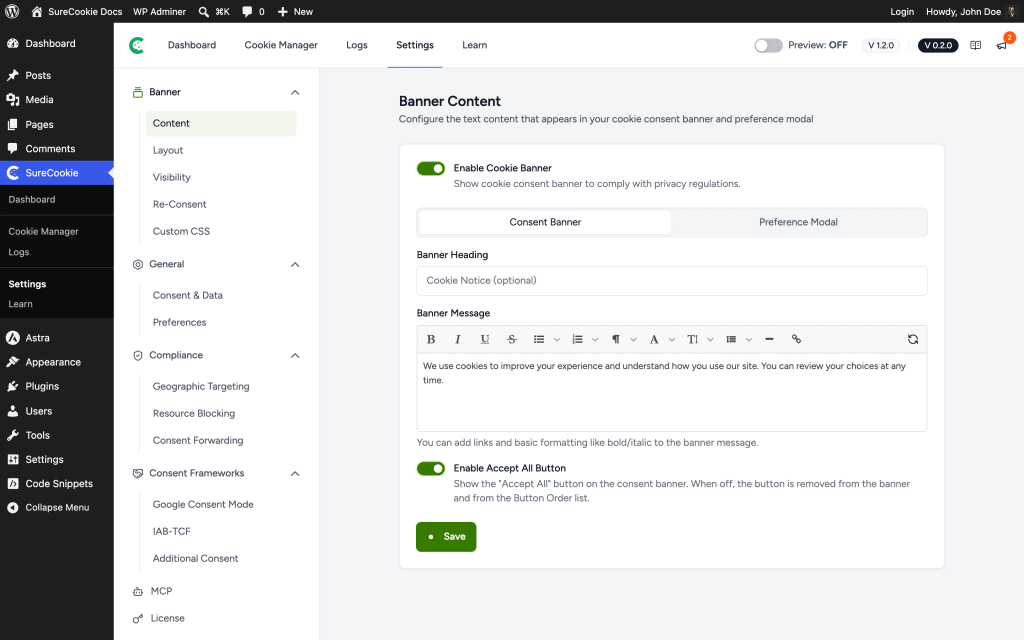
The Enable Cookie Banner toggle controls whether the banner shows at all.
- Go to SureCookie > Settings > Banner > Content.
- Confirm Enable Cookie Banner is on.
- If you changed it, save your settings.
Check Whether You’ve Already Responded
The banner only shows until a visitor makes a choice. Once you accept or decline, SureCookie remembers your decision (in a cookie named surecookie_user_consent) for up to a year, so the banner stays hidden on later visits from the same browser.
To view the banner as a first-time visitor:
- Open your site in a private or incognito window, or
- Clear your browser’s cookies and site data for your domain, then reload.
Tip: To re-show the banner for every visitor at once, for example after updating your cookie policy, use Re-request Consent under SureCookie > Settings > General > Consent & Data.
Clear Your Caches
A page cache, CDN, or optimization plugin can serve a stored copy of your page that was generated without the banner.
- Clear your WordPress page cache.
- Purge your CDN, such as Cloudflare.
- Clear your browser cache.
- Reload the page in a private window.
Check Your Visibility Rules
Visibility control is a SureCookie Pro feature. It can hide the banner on selected pages, posts, or archives, or for specific user roles. If a rule matches the page you’re viewing, the banner is hidden on purpose.
- Go to SureCookie > Settings > Banner > Visibility.
- Review your rules and confirm the page you’re testing isn’t excluded.
Check Your Geographic Rules
Geographic rules show the banner only to visitors in the regions you choose. If you are browsing from a region you have not included, the banner does not appear, and that is the rule working as configured.
- Go to SureCookie > Tracking Manager > Geographic Rules.
- Confirm your own location is covered by one of your rules, or test from a region you do target.
Rule Out an Optimizer, Your Browser, or a Theme Conflict
SureCookie draws the banner in the browser, from its own script at /wp-content/plugins/surecookie/build/public.js. Three unrelated things can stop that script running or hide what it draws, and all three look identical from the outside. Run the checks in order. Guessing between them is what turns a five-minute fix into a week of back and forth.
Check 1: A Second Browser
Open your site in a private window of a different browser, with ad blockers and privacy shields switched off.
If the banner appears there but not in your usual browser, nothing on your site is at fault. Go to When a Visitor’s Own Browser Hides the Banner below. If the banner is missing in both, carry on with Check 2.
Check 2: Your Caching or Optimization Plugin
This is the most common cause, and the one most often mistaken for a browser problem.
- In your optimization plugin, turn off JavaScript deferral, delay until interaction, combining and minification, plus any unused-CSS or critical-CSS feature.
- Purge every cache, including your CDN.
- Reload your site in a private window.
If the banner comes back, that plugin is the cause. These are the settings behind most of the reports we receive:
- LiteSpeed Cache: Load JS Deferred, under Page Optimization > JS Settings.
- Perfmatters: Delay JavaScript and Defer JavaScript.
- FlyingPress: its JavaScript delay and defer options.
- Cloudflare: Rocket Loader.
SureCookie already tells these plugins to leave its own files alone. It adds itself to the exclusion lists used by LiteSpeed Cache, WP Rocket, Perfmatters, FlyingPress, Autoptimize, SiteGround Optimizer and Hummingbird, and marks its own tags so Cloudflare Rocket Loader skips them. That has shipped since SureCookie 1.4.0, so update first if you are on an older version.
It does not reach every option in every plugin, and an exclusion list you maintain by hand can still miss it. Turn the feature back on, then add surecookie to its exclusion box. That single word matches both the banner script and the banner stylesheet. For unused CSS and critical CSS, allow the selector .surecookie-* instead, because those lists match selectors rather than files.
The exact boxes for LiteSpeed, with screenshots, are in Excluding the SureCookie Banner from LiteSpeed Cache.
Note: A banner that appears as unstyled text in the top left corner, whether it settles afterwards or stays that way, is the same problem on the CSS side. The stylesheet was delayed, or an unused-CSS pass decided it was dead because the banner container is empty until the script fills it.
Check 3: Your Theme or Another Plugin
Switch to a default WordPress theme and reload in a private window. If the banner returns, switch back and deactivate your other plugins one at a time until it returns again.
Open the browser console (press F12) before you start and read the first JavaScript error on the page. A script that throws before SureCookie runs stops the banner from mounting, and that first error usually names the file responsible.
When a Visitor’s Own Browser Hides the Banner
Ad blockers and privacy browsers carry filter lists aimed specifically at cookie notices, such as Fanboy’s Cookie Monster and the EasyList Cookie list. uBlock Origin, AdGuard and Brave all ship them. They are separate from ordinary ad blocking, and the visitor has to switch them on.
Those lists work in two ways: they hide a consent banner with a CSS rule, or they block a file by its address. Two signs identify it:
- The banner is missing in one browser and present in another, with nothing changed on your site in between.
- On the Network tab of your browser’s developer tools, a SureCookie file comes back as HTTP 204 with an empty body and no server header. A file your own server failed to send looks different: it carries a status from your server, such as 404.
This is the visitor’s choice, not a fault in your setup. Someone who turns on a cookie-notice filter list has decided not to see consent banners anywhere, and nothing on your site can override that. It is not a compliance failure either. A hidden banner grants nothing on the visitor’s behalf, because blocking runs on your server before the page reaches the browser, so every tracker SureCookie holds back stays held back for that visitor.
This has happened once. The stylesheet behind the cookie policy tables carried a file name that matched an exact-path rule in Fanboy’s Cookie Monster, so browsers running that list blocked it and the tables on cookie policy pages lost their header shading, borders and padding. The file was renamed in SureCookie 1.6.0. Update, clear your caches, and the tables render normally again for those visitors.
The line between their problem and ours is the file name. If a filter list matches one of SureCookie’s own file names, that file is blocked for every visitor running the list, on every site, and no setting of yours can release it. That one is our bug to fix, not something for you to configure around. Send support the URL and the 204 from your Network tab and we will rename the file.
This has happened once. The stylesheet behind the cookie policy tables carried a file name that matched an exact-path rule in Fanboy’s Cookie Monster, so browsers running that list blocked it and the tables on cookie policy pages lost their header shading, borders and padding. The file was renamed in SureCookie 1.6.0. Update, clear your caches, and the tables render normally again for those visitors.
Still Not Showing?
If the banner is still missing after these checks, contact support with the details so we can investigate.
- Your site URL, and whether it’s a live or staging site.
- Whether you tested in a private or incognito window.
- Your caching and optimization setup, and whether the banner appears once its JavaScript features are turned off.
- Which browser you tested in, and whether it has an ad blocker, shields or tracking prevention on.
- Any JavaScript errors from the browser console.
We don't respond to the article feedback, we use it to improve our support content.