
- SureCookie Installation Guide
- Installing SureCookie Pro
- Updating SureCookie
- How to Set Up SureCookie: Onboarding Wizard Guide
- SureCookie Dashboard Overview
- Connecting Your Site to SureCookie (Scanner Setup)
- Using SureCookie on Multiple Sites
- Uninstalling SureCookie & Data Cleanup
- SureCookie Shortcodes Reference
- Preferences Settings (Menu, Branding, Analytics)
- Customizing Banner Content
- Customizing Banner Layout
- Custom CSS for Banner Styling
- How to Configure the Floating Widget
- Customizing the Preference Modal
- Controlling Where the Cookie Banner Appears
- Customizing Banner Colors (Custom Colors, WCAG)
- Customizing the Blocked Content UI
- Banner Text in the Wrong Language (WPML, Polylang, and Locales)
- Re-Consent
- Understanding SureCookie Logs
- How to Set Up Geographic Targeting
- Block Scripts Until Consent (Resource Blocking)
- Setting Up Google Consent Mode v2
- Consent Models Explained (Opt-in vs Opt-out)
- Exporting Consent Logs (PDF Proof + CSV)
- Consent & Data Settings (Duration, Retention, Renew)
- Consent Forwarding Across a Multisite Network
- Resource / Script Blocking (Add Embeds + Fixes)
- Troubleshooting SureCookie
- Fix a Stuck or Failed Cookie Scan
- Why Some Cookies Aren’t Detected
- Banner Not Appearing: Troubleshooting
- Settings or Cookie Categories Not Saving or Loading
- Embeds Blocked After Consent (YouTube, Maps, Vimeo)
- Site Performance / Page Speed
- Scanning Your Site From Your Browser
- Importing and Exporting SureCookie Settings
- Verifying Your Domain With a DNS Record
- Why reCAPTCHA Is Blocked, and How to Release It
- Is SureCookie a Google-Certified CMP?
- Where Banner and Widget Settings Live, and Which One Wins
- Why Trackers Still Fire Before Consent
- Is SureCookie GDPR Compliant? (Overview)
- Whitelisting the SureCookie Scanner
- Excluding the SureCookie Banner from LiteSpeed Cache
Settings or Cookie Categories Not Saving or Loading
SureCookie settings can fail in two directions. A change you make does not stick, or the screen never fills in and shows a red Failed to load settings notice reading “An error occurred while loading settings. Please refresh the page to try again.” Both come from the same short list of causes: a required field is blocking the save, your account lacks permission, a security plugin or host firewall is blocking the request, your login has expired, or a cache is showing you old values.
SureCookie stores your settings and categories in your WordPress database and reads and writes them through the WordPress REST API, at /wp-json/surecookie/v1/admin/settings. Loading a screen is a GET to that address; clicking Save is a POST to the same address. That is why a rule that blocks one blocks both. A successful save shows Settings saved! and a failed one shows Save failed!.
Your banner is still protecting visitors. The banner, the preference modal, and script blocking all run from data that PHP writes into each page, and the visitor’s choice is stored in a cookie in their own browser. None of that passes through the admin REST route. While this screen is broken your banner still appears, consent is still honoured, and blocked scripts stay blocked. What you have lost is the ability to change the configuration, not the protection itself.
One exception is worth knowing. Consent records are written through the REST API too, so a rule that blocks every /wp-json/ request also stops new entries appearing under SureCookie > Consent Logs.
Start With What the Screen Says
The message on screen tells you which half of the article you need.
- Failed to load settings – the screen could not read your settings, so there is nothing to save yet. The request was refused before it reached WordPress, or your login expired. Go to Read the Failing Request in the Network Tab.
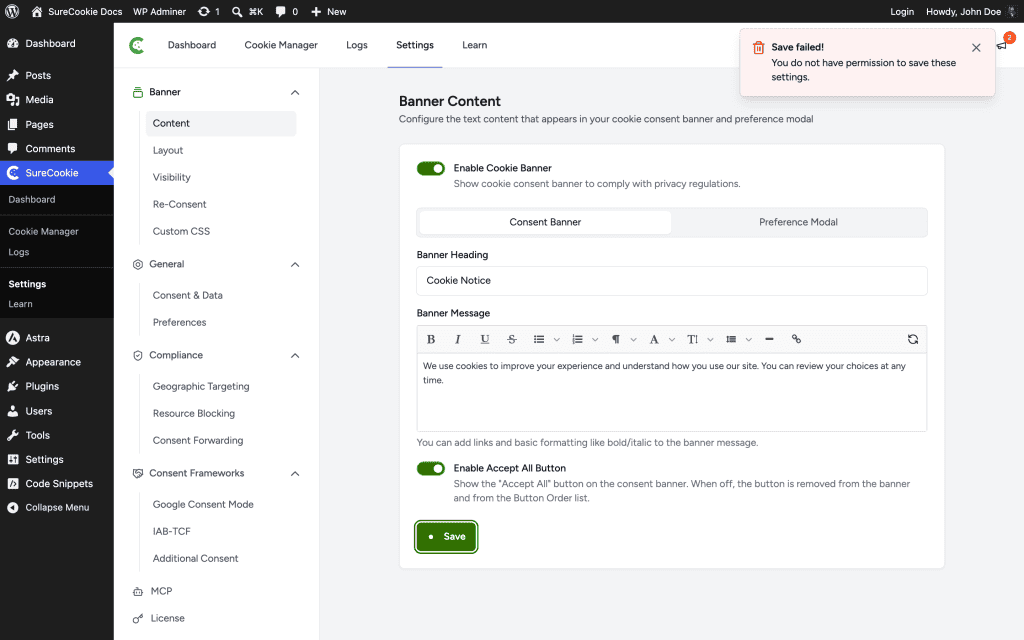
- Save failed! – the request reached the server but did not complete. Work through the sections below, starting with the validation check.
- Settings saved!, but the values still look old – the save worked and a cache is showing you stale data. Jump to Clear Your Caches.
Check for a Validation Error
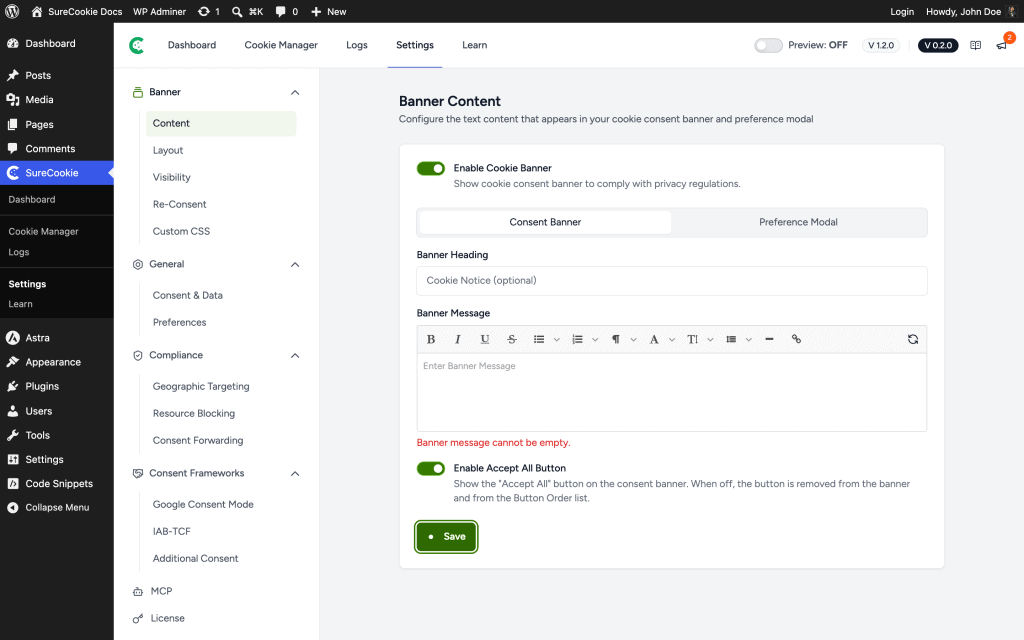
Some fields are required, and leaving one empty blocks the entire save.
- The Banner Message and the Preference Modal Description can’t be empty. If either is blank, SureCookie shows an inline error such as Banner message cannot be empty and the save doesn’t go through.
- Fix the flagged field, then click Save again.
Make Sure You Have Permission
Saving SureCookie settings requires an administrator account. Every SureCookie screen is gated on the same capability, so Editors and other non-administrator roles do not see SureCookie in the admin menu at all, and opening a SureCookie URL directly shows You don’t have access to this page. Sign in as an administrator, or ask one to make the change for you.
If you can see the screens but a save fails, permission is not your problem. Keep reading.
Unblock the REST API
Read the Failing Request in the Network Tab
When the screen shows Failed to load settings or Save failed!, your browser already recorded the reason. One request holds it, and reading it replaces a week of guesswork.
- Open the SureCookie screen that is failing.
- Press F12 to open developer tools, then open the Network tab.
- Type
settingsin the filter box. - Reload the page, or click Save again.
- Click the
settingsrequest and read its status and its response body.
Under plain permalinks the same request appears as /?rest_route=/surecookie/v1/admin/settings. Match what you see against the three cases below.
Status 401 With an HTML Body
If the response body is a web page rather than JSON, your host’s firewall answered before WordPress ran. Some hosts challenge any request whose URL contains the word settings, which catches SureCookie and WordPress itself. 20i StackProtect is one confirmed case: it returns a security verification page for those URLs.
Prove it is not SureCookie before you contact anyone. Open these two addresses in a normal browser tab:
https://yoursite.com/wp-json/wp/v2/settingshttps://yoursite.com/wp-json/wp/v2/users
Both are core WordPress routes with no SureCookie code behind them. Each should return JSON, and a JSON error still counts as JSON. If the first returns a security or verification page while the second returns JSON, your host is filtering on the word in the URL, not on anything the plugin does.
Send your host both addresses and what each returned, and ask them to exempt the /wp-json/ path from URL keyword filtering. Only the host can make that change.
Status 403 With rest_cookie_invalid_nonce in the Body
The response reads {"code":"rest_cookie_invalid_nonce","message":"Cookie check failed"}. Your login is still recognised, but the security token attached to the screen has expired. This is the overnight tab.
Fix it as described in Refresh a Stale Session: reload the screen, and if that does not clear it, log out, log back in, and tick Remember Me.
Status 301 or 302 to a Different Hostname
The request is redirected before WordPress sees it, so the answer the screen is waiting for never arrives. Two things cause this, and neither is fixed anywhere in SureCookie.
- A stale site address. Go to Settings > General and check WordPress Address (URL) and Site Address (URL). Both must match the hostname and the scheme your site actually serves, including
wwwor its absence. - A CDN or proxy rule. If those two values are already correct, the redirect is being added in front of WordPress by a CDN, a reverse proxy, or a host rule. No setting inside WordPress can undo it. Remove or bypass the rule for
/wp-json/.
When you click Save, SureCookie sends your changes to the WordPress REST API at /wp-json/surecookie/v1/admin/settings. If a security plugin, firewall, or server rule blocks REST requests, the save fails with Save failed!.
- Temporarily disable security or firewall plugins (for example Wordfence or iThemes Security), then save again.
- If that fixes it, re-enable the plugin and add an exception for the
/wp-json/path. - If it persists, ask your host whether a server firewall or security rule is blocking REST requests.
Clear Your Caches
A page cache, a persistent object cache (Redis or Memcached), or a CDN can keep serving your old settings even after a successful save.
- Clear your WordPress page cache and flush any object cache.
- Purge your CDN.
- Reload the settings screen in a private window to confirm the new values.
Refresh a Stale Session
If you left the screen open overnight, or signed out in another tab, the security token behind the request expires. The failure is not silent: you get Save failed!, or Failed to load settings if the screen was reloading at the time. WordPress rotates that token every twelve to twenty-four hours.
Reload the screen first. That mints a fresh token and is usually enough. If it still fails, log out of WordPress, log back in, and tick Remember Me on the login form. Remember Me keeps you signed in for fourteen days instead of two, which is what stops this recurring.
Rule Out a Plugin or Theme Conflict
A JavaScript error from another plugin can stop the Save button from working.
- Open your browser’s developer console (press F12) and watch for errors when you click Save.
- Temporarily switch to a default theme, or pause other plugins one at a time, to find the conflict.
Cookie Categories Won’t Save
Cookie categories are saved together with your settings, so every cause above applies to them too. A few category-specific points:
- Category Name is required. A blank name blocks the save.
- Built-in categories cannot be deleted. Essential Cookies, Functional Cookies, Analytics Cookies, Marketing Cookies, and Uncategorized Cookies show no delete action, only an edit action. Custom categories you added can be deleted.
- Manage categories under SureCookie > Tracking Manager > All Cookies > Manage Categories.
When to Contact Support
If none of the above works, send us the details so we can investigate.
- What you changed, and on which screen.
- Whether you saw Settings saved! or Save failed!.
- The status code and the response body of the failing
settingsrequest, from the Network tab. - Any errors in the browser console when you click Save.
- Your caching, security, and hosting setup.
We don't respond to the article feedback, we use it to improve our support content.