
- SureCookie Installation Guide
- Installing SureCookie Pro
- Updating SureCookie
- How to Set Up SureCookie: Onboarding Wizard Guide
- SureCookie Dashboard Overview
- Connecting Your Site to SureCookie (Scanner Setup)
- Using SureCookie on Multiple Sites
- Uninstalling SureCookie & Data Cleanup
- SureCookie Shortcodes Reference
- Preferences Settings (Menu, Branding, Analytics)
- Customizing Banner Content
- Customizing Banner Layout
- Custom CSS for Banner Styling
- How to Configure the Floating Widget
- Customizing the Preference Modal
- Controlling Where the Cookie Banner Appears
- Customizing Banner Colors (Custom Colors, WCAG)
- Customizing the Blocked Content UI
- Banner Text in the Wrong Language (WPML, Polylang, and Locales)
- Re-Consent
- Understanding SureCookie Logs
- How to Set Up Geographic Targeting
- Block Scripts Until Consent (Resource Blocking)
- Setting Up Google Consent Mode v2
- Consent Models Explained (Opt-in vs Opt-out)
- Exporting Consent Logs (PDF Proof + CSV)
- Consent & Data Settings (Duration, Retention, Renew)
- Consent Forwarding Across a Multisite Network
- Resource / Script Blocking (Add Embeds + Fixes)
- CCPA / CPRA Compliance with SureCookie
- Handling Data Requests
- Setting Up Your Business Details
- Generating a Privacy Policy Page
- Recording Consent Without Storing Visitor IP Addresses
- Generating a Cookie Policy Page
- Troubleshooting SureCookie
- Fix a Stuck or Failed Cookie Scan
- Why Some Cookies Aren’t Detected
- Banner Not Appearing: Troubleshooting
- Settings or Cookie Categories Not Saving or Loading
- Embeds Blocked After Consent (YouTube, Maps, Vimeo)
- Site Performance / Page Speed
- Scanning Your Site From Your Browser
- Importing and Exporting SureCookie Settings
- Verifying Your Domain With a DNS Record
Re-Consent
Privacy regulations require that visitors can update or withdraw their cookie consent at any time. SureCookie’s Re-Consent settings give you flexible ways to make this easy through a navigation menu link, a shortcode button, or a floating widget that appears on every page.
Choosing Your Re-Consent Method
Before diving into setup, decide which method works best for your site:
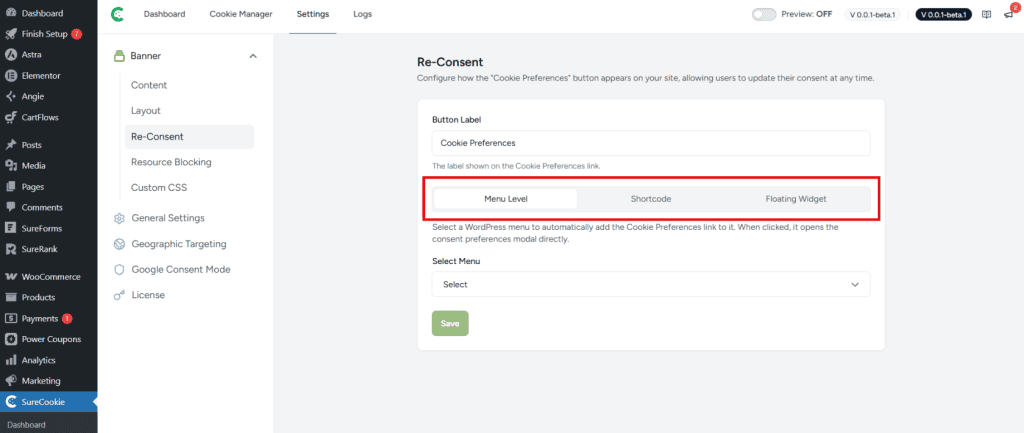
Navigation Menu Link – Best if you already have a footer menu or dedicated privacy links. Visitors find it naturally alongside other site links.
Shortcode Button – Most flexible option. Place a “Manage Cookie Preferences” button anywhere on your site on a specific page, in your footer, or in a widget area.
Floating Widget – Always visible on every page. Ensures maximum visibility and compliance, but requires SureCookie Pro.
Accessing Re-Consent Settings
To access these settings, go to SureCookie > Settings > Banner and scroll to the Re-Consent section.
Setting Consent Duration
The Consent Duration field controls how many days a visitor’s consent remains valid before the banner reappears asking them to consent again.
To update this:
- Go to Sure Cookie > Settings > General Settings
- Enter the number of days (most privacy guidelines recommend a maximum of 365 days)
- Save your settings
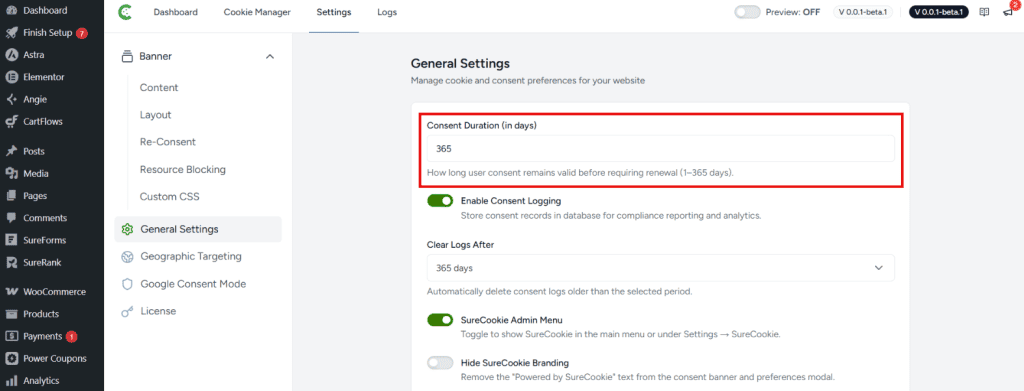
Note: A shorter duration means visitors see the banner more often, keeping your consent records fresh but potentially affecting user experience. A longer duration (up to 365 days) improves user experience but requires more frequent manual updates to meet compliance standards if your policies change.
Using the Re-Consent Shortcode
The shortcode method gives you complete control over where the re-consent button appears on your site.
To add the shortcode:
- Copy this shortcode: Cookie Preferences
- Go to the page, post, or widget area where you want the button to appear
- Open the block editor and add a Shortcode block
- Paste the shortcode into the block
- Publish or update the page
When visitors click this button, the consent banner reopens so they can update their cookie preferences.
Where to use the shortcode:
- On a dedicated Privacy or Cookie Policy page
- In your site footer (using a text widget or footer widget area)
- In a sidebar widget
- On any page where you want to offer easy access to cookie settings
Adding a Re-Consent Link to Your Navigation Menu
SureCookie can automatically add a re-consent link to your WordPress navigation menu without needing a shortcode.
To enable this feature:
- Go to SureCookie > Settings > Re-Consent
- Select your preferred display option from the tabs: Menu Level, Shortcode, or Floating Widget
- If choosing Menu Level, simply select the menu from the dropdown list of available WordPress menus
- The Cookie Preferences link will automatically be added to that menu
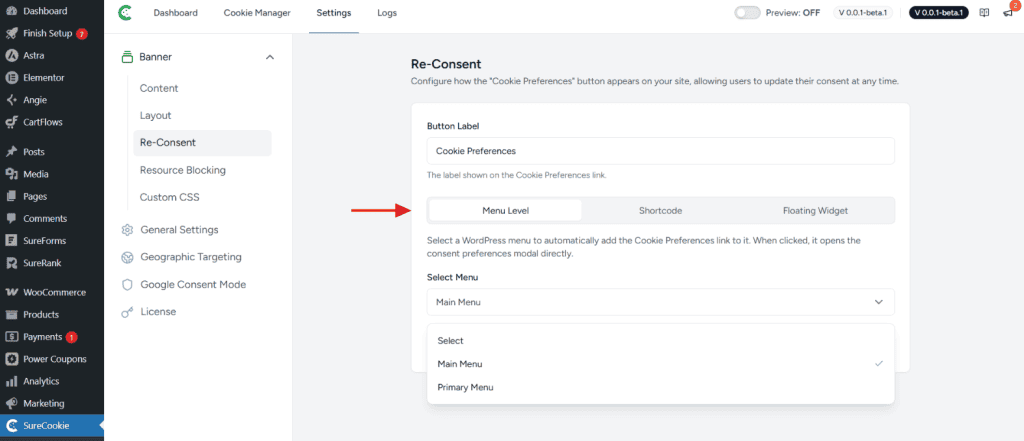
The link will now appear in your site navigation. When visitors click it, the consent banner opens so they can update their preferences.
Tip: This method works best if you already have a footer menu or a “More” dropdown menu where privacy-related links belong. If you don’t have a dedicated menu, the shortcode method gives you more placement flexibility.
Using the Floating Widget (SureCookie Pro)
The floating widget is a persistent button that stays visible on every page of your site, giving visitors constant and easy access to their cookie preferences without having to hunt for a link or button.
When enabled, the floating widget:
- Appears on every page automatically
- Stays visible while visitors browse
- Opens the consent banner when clicked
- Can be customized with colors and positioning
For detailed setup instructions once you upgrade, see Floating Widget Configuration.
Troubleshooting
The re-consent button or menu item isn’t appearing on my site
- Confirm you’ve saved your Re-Consent settings
- Clear your browser cache and check for a page cache plugin (flush its cache too)
- For the shortcode, verify you’ve pasted it into a Shortcode block, not a regular text block
- For the menu link, make sure you’ve assigned the menu to a menu location in Appearance > Menus > Display location
The consent banner doesn’t open when visitors click the re-consent button
- Verify the SureCookie banner is enabled in SureCookie > Settings > Banner
- Check your browser console (F12) for JavaScript errors that might prevent the banner from loading
- Disable any conflicting plugins that may be blocking banner functionality
Visitors see the consent banner too frequently
- Increase the Consent Duration value (in days) in your Re-Consent settings
- Check if you’ve recently updated your cookie policy, as this may trigger a re-consent prompt
We don't respond to the article feedback, we use it to improve our support content.