
- SureCookie Installation Guide
- Installing SureCookie Pro
- Updating SureCookie
- How to Set Up SureCookie: Onboarding Wizard Guide
- SureCookie Dashboard Overview
- Connecting Your Site to SureCookie (Scanner Setup)
- Using SureCookie on Multiple Sites
- Uninstalling SureCookie & Data Cleanup
- SureCookie Shortcodes Reference
- Preferences Settings (Menu, Branding, Analytics)
- Customizing Banner Content
- Customizing Banner Layout
- Custom CSS for Banner Styling
- How to Configure the Floating Widget
- Customizing the Preference Modal
- Controlling Where the Cookie Banner Appears
- Customizing Banner Colors (Custom Colors, WCAG)
- Customizing the Blocked Content UI
- Banner Text in the Wrong Language (WPML, Polylang, and Locales)
- Re-Consent
- Understanding SureCookie Logs
- How to Set Up Geographic Targeting
- Block Scripts Until Consent (Resource Blocking)
- Setting Up Google Consent Mode v2
- Consent Models Explained (Opt-in vs Opt-out)
- Exporting Consent Logs (PDF Proof + CSV)
- Consent & Data Settings (Duration, Retention, Renew)
- Consent Forwarding Across a Multisite Network
- Resource / Script Blocking (Add Embeds + Fixes)
- Troubleshooting SureCookie
- Fix a Stuck or Failed Cookie Scan
- Why Some Cookies Aren’t Detected
- Banner Not Appearing: Troubleshooting
- Settings or Cookie Categories Not Saving or Loading
- Embeds Blocked After Consent (YouTube, Maps, Vimeo)
- Site Performance / Page Speed
- Scanning Your Site From Your Browser
- Importing and Exporting SureCookie Settings
- Verifying Your Domain With a DNS Record
Using Known Services
Known Services is a built-in library of common third-party services, from Google Analytics and YouTube to Meta Pixel and Intercom. Each entry already knows two things: which scripts and embeds that service loads, and which cookies it sets. Adding a service from the library configures both at once.
This saves you from identifying trackers by hand. Instead of finding a script URL, guessing its category, and typing in each cookie name and purpose, you pick the service and SureCookie fills in the details. Your banner then blocks that service until a visitor consents, and your cookie policy lists its cookies accurately.
Some services in the library are marked as SureCookie Pro. The rest are available in the free plugin.
What a Known Service Includes
Every entry in the library carries:
- Blocking patterns – The script and iframe addresses that identify the service on your site.
- Declared cookies – The cookies the service sets, each with its own name, purpose, and category.
- A consent category – Essential, Functional, Analytics, or Marketing. This decides when the service is allowed to load.
Step 1: Browse the Service Library
- Go to SureCookie → Tracking Manager → Known Services.
- Use Search services… to find a service by name.
- Use the All Categories dropdown to narrow the list to one category.
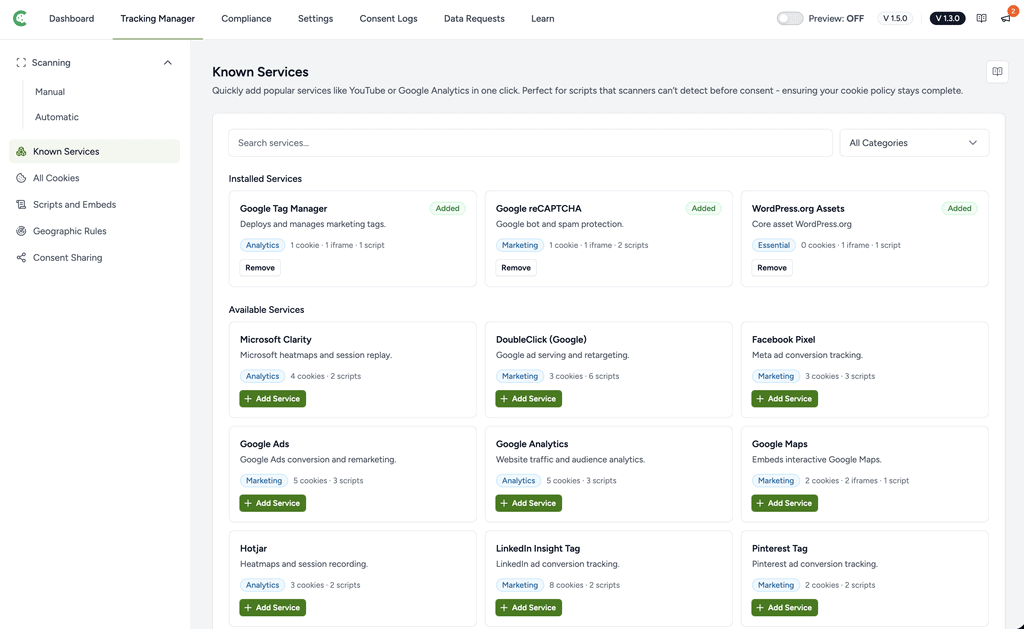
The screen is split into Installed Services (what you have already added) and Available Services (everything else). Each card shows the service name, a short description, its category, and how many cookies, scripts, and iframes it covers.
Cards also carry a status badge:
- Added – Already installed on your site.
- Detected – Found on your site by the cookie scanner, but not yet added. These are the ones worth adding first.
Step 2: Add a Service
- Find the service you want and click Add Service.
- Review the summary of what will be added, including each cookie and its category.
- Click Confirm Add.
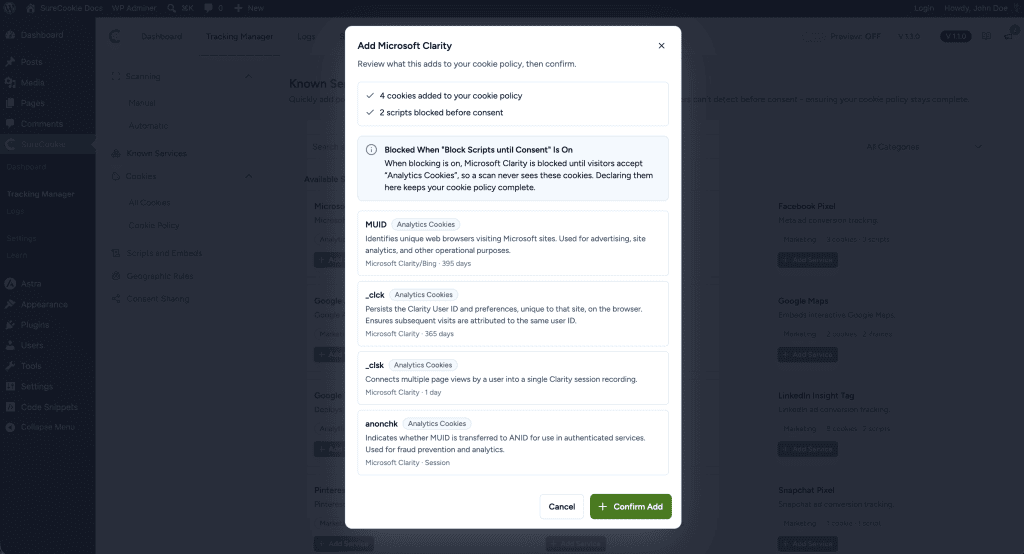
SureCookie then adds the service to your managed list, adds its cookies to your cookie policy, and starts blocking its scripts and embeds until visitors consent.
Note: If a cookie is already in your list, SureCookie leaves your existing entry alone rather than creating a duplicate. Those cookies are reported as skipped.
A service with no cookies of its own is still worth adding. It stays blocked before consent, which is the point for embeds like a map or a video player.
Adding a Service From Other Screens
You do not have to start from the library. The same flow is available where you are already working:
- SureCookie → Tracking Manager → Cookies → All Cookies has an Add from a Known Service button. Here the list shows only services that declare cookies.
- SureCookie → Tracking Manager → Scripts and Embeds has the same button. Here the list shows only services that have scripts or embeds to block.
- When the scanner spots a tracker that matches the library, a Looks like suggestion appears with an Add as Service button. This is the fastest route, because SureCookie has already identified the service for you.
How Categories Control Loading
A service’s category decides whether it loads before a visitor responds to your banner.
| Category | When It Loads |
|---|---|
| Essential | Immediately, before consent |
| Functional | Only after consent for functional cookies |
| Analytics | Only after consent for analytics cookies |
| Marketing | Only after consent for marketing cookies |
Only Essential loads before consent. Reserve it for services your site genuinely cannot work without, such as a security or payment provider.
Important: Moving a tracking service into Essential means it runs before visitors agree to it. Confirm your legal basis with counsel before doing that.
What Visitors See
While a service is blocked, its scripts do not run. A blocked embed such as a video or map is replaced by a placeholder that explains why, with an Accept & Load button. Clicking it grants consent for that category and loads the content in place, without a page reload.
Once a visitor accepts the matching category, the service loads normally on every page.
Managing Installed Services
To stop managing a service, open Known Services, find its card under Installed Services, and click Remove.
Removing a service deletes the cookies it added and stops blocking its scripts. Two kinds of cookies are deliberately kept:
- Cookies another installed service also declares. Removing YouTube will not strip a cookie that Google Analytics also uses.
- Cookies you added by hand. Your own entries are never removed, even if the name matches.
Known Services on the Scripts and Embeds Screen
Go to SureCookie → Tracking Manager → Scripts and Embeds to see every resource SureCookie is aware of, under Detected and Managed Resources. Rows that match the library are labelled so you can tell them apart:
- Managed Service – Part of a service you have installed.
- Known Service – Recognised from the library, but not added yet. Use Add as Service on the row to add it.
Everything on this screen depends on the Block Scripts Until Consent toggle at the top. Turn that off and nothing is blocked, regardless of your service list.
You can also override an individual resource here. Changing its category moves just that resource, and setting it to Behavior: Always Allowed lets it load before consent. Script and iframe versions of the same domain are handled separately, so allowing a script does not also allow an embed from the same host.
SureCookie Pro Services
Services marked with a Pro badge require an active SureCookie Pro licence. Their cards show the badge instead of an Add Service button. Activating SureCookie Pro unlocks them, with no extra configuration.
How the Service Library Stays Up to Date
SureCookie refreshes the library from our servers about once a day in the background, so newly covered services and corrected categories reach your site without a plugin update.
A full copy of the library also ships inside the plugin. If your site cannot reach our servers, or you are working offline, Known Services keeps working from that copy. If a refresh fails, SureCookie keeps the last known good version rather than falling back to something older.
Troubleshooting
- I added a service but its cookies are not in my list – They were probably already there. SureCookie skips cookies that already exist so it never creates duplicates. Check your cookie list for the names.
- I removed a service but one cookie remains – Another installed service declares the same cookie, or you added that cookie yourself. Both are kept on purpose.
- A service I need is not in the list on this screen – The All Cookies screen lists only services that declare cookies, and Scripts and Embeds lists only services with scripts or embeds. Open Known Services to see the whole library.
- The scanner found a tracker but no Known Service badge appears – That service is not in the library yet. Add it as a custom resource on the Scripts and Embeds screen, and add its cookies manually.
- An embed still shows a placeholder after I accepted cookies – Check the category the resource is in. A visitor who accepted only analytics will still see marketing embeds blocked.
- Nothing is being blocked – Confirm Block Scripts Until Consent is on, and that your banner is enabled. Blocking depends on both.
Next Steps
After adding your services, review how their cookies are grouped so your banner and cookie policy read correctly. See Manage Cookie Categories and Cookie Policy Page.
We don't respond to the article feedback, we use it to improve our support content.