
- SureCookie Installation Guide
- Installing SureCookie Pro
- Updating SureCookie
- How to Set Up SureCookie: Onboarding Wizard Guide
- SureCookie Dashboard Overview
- Connecting Your Site to SureCookie (Scanner Setup)
- Using SureCookie on Multiple Sites
- Uninstalling SureCookie & Data Cleanup
- SureCookie Shortcodes Reference
- Preferences Settings (Menu, Branding, Analytics)
- Customizing Banner Content
- Customizing Banner Layout
- Custom CSS for Banner Styling
- How to Configure the Floating Widget
- Customizing the Preference Modal
- Controlling Where the Cookie Banner Appears
- Customizing Banner Colors (Custom Colors, WCAG)
- Customizing the Blocked Content UI
- Banner Text in the Wrong Language (WPML, Polylang, and Locales)
- Re-Consent
- Understanding SureCookie Logs
- How to Set Up Geographic Targeting
- Block Scripts Until Consent (Resource Blocking)
- Setting Up Google Consent Mode v2
- Consent Models Explained (Opt-in vs Opt-out)
- Exporting Consent Logs (PDF Proof + CSV)
- Consent & Data Settings (Duration, Retention, Renew)
- Consent Forwarding Across a Multisite Network
- Resource / Script Blocking (Add Embeds + Fixes)
- CCPA / CPRA Compliance with SureCookie
- Handling Data Requests
- Setting Up Your Business Details
- Generating a Privacy Policy Page
- Recording Consent Without Storing Visitor IP Addresses
- Generating a Cookie Policy Page
- Troubleshooting SureCookie
- Fix a Stuck or Failed Cookie Scan
- Why Some Cookies Aren’t Detected
- Banner Not Appearing: Troubleshooting
- Settings or Cookie Categories Not Saving or Loading
- Embeds Blocked After Consent (YouTube, Maps, Vimeo)
- Site Performance / Page Speed
- Scanning Your Site From Your Browser
- Importing and Exporting SureCookie Settings
- Verifying Your Domain With a DNS Record
Generating a Privacy Policy Page
Requires SureCookie 1.5.0 or later version.
SureCookie can build a privacy policy page for your site from your cookie and consent settings. It covers the two things only SureCookie knows: what your consent records contain, and what leaves your server when a visitor answers the banner.
The result is a reviewed starting point, not a finished legal document. SureCookie creates a policy based on your site’s configuration. You should review and adjust it to meet your legal requirements, and have it checked by someone qualified for your jurisdiction before you publish.
Before you begin: fill in SureCookie → Compliance → Business Details. The page cannot be published until the required details are saved. See Setting Up Your Business Details.
Where to Find the Generator
- In the WordPress menu, go to SureCookie → Compliance.
- In SureCookie, click the Compliance tab at the top.
- Open Legal Pages and click Privacy Policy.
The WordPress menu item drops you on the Compliance Check screen, so the second and third steps matter. Compliance is a tab across the top of SureCookie, not a heading in the left column.
The screen is titled Privacy Policy Page and has two tabs: Auto Generate and Shortcodes.
Note: generating is the only way in. Unlike the Cookie Policy screen, this one has no page picker, so you cannot point it at a privacy policy you already wrote. If you have one, either keep using it and place the shortcodes below into it by hand, or generate a draft and move your wording across.
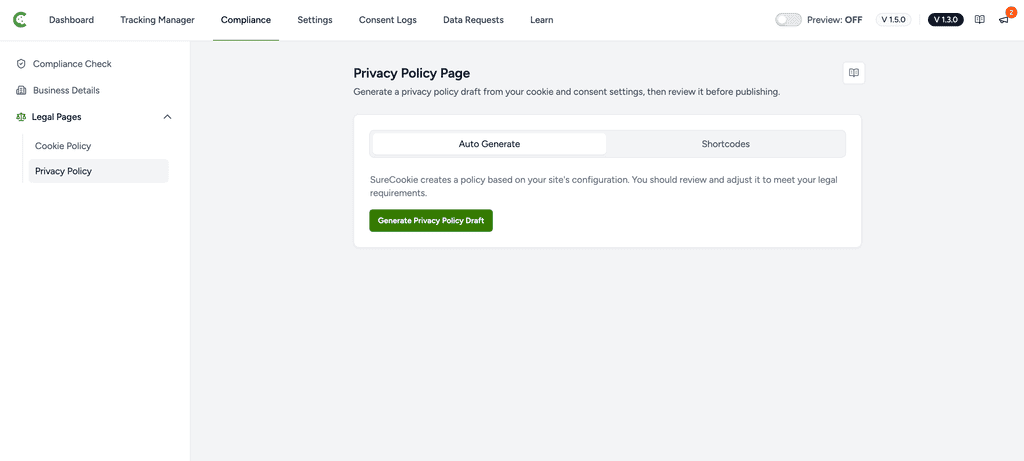
Step 1: Generate the Draft
- On the Auto Generate tab, click Generate Privacy Policy Draft.
- Wait for the confirmation that the draft was created.
SureCookie creates the page as a draft, never as a published page. This page is a draft. Nothing is visible to visitors until you publish it.
To start again, move the page to the trash in WordPress. The screen then reports that the linked page is gone and offers Generate Privacy Policy Draft again.
The new page takes the /privacy-policy/ address when nothing else holds it. If another page already uses that address, the draft waits at /privacy-policy-new/ until you decide to swap them, which Step 4 covers.
Step 2: Review the Draft
The generated page mixes three kinds of content, and only one needs your attention:
- Sections built from your settings. Your cookie categories, what a consent record holds, how long records are kept, the third-party services found by the last scan. These stay current on their own.
- General prose. Standard wording that applies to any website, safe to edit freely.
- Blocks marked “Replace this block”. Prompts for the facts only you know, such as what your own contact forms collect.
After the draft exists, the screen shows a What’s Next checklist:
- Replace the blocks marked “Replace this block” with your own wording, then delete the markers. The bullet shows how many are left.
- Fill in the parts only you know: What your own forms collect, how long you keep it, and why you are allowed to.
- Leave the shortcodes in place. Those sections rewrite themselves when your cookie and consent settings change.
- Finally have it reviewed by a qualified professional in your jurisdiction before publishing.
The count updates as you work, and reads No “Replace this block” sections are left in the draft. once you have cleared them all.
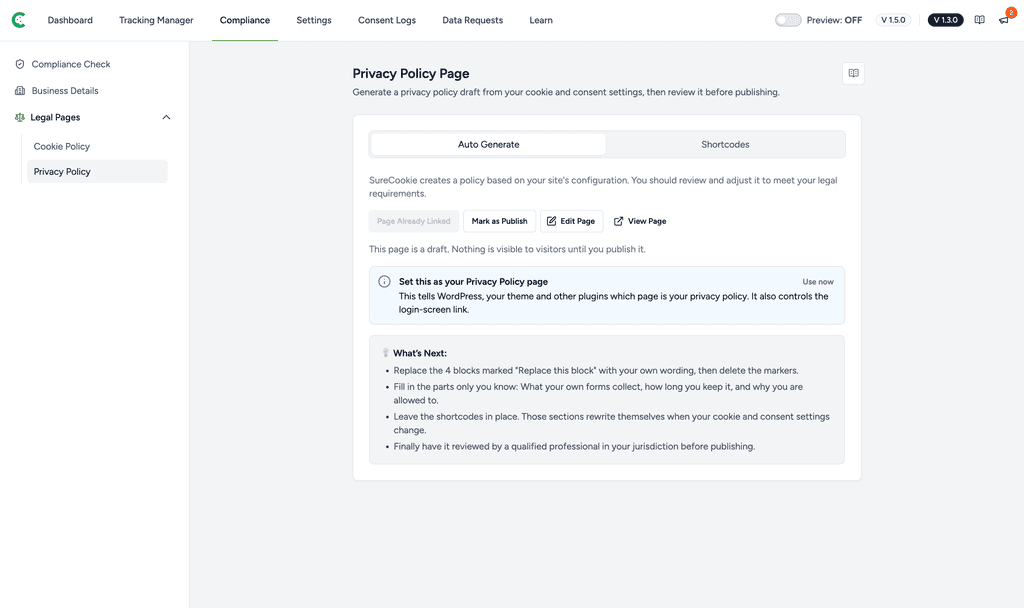
Click Edit Page to open the draft in the WordPress editor, or View Page to preview it.
Important: leave the shortcodes in place. Deleting one removes a section that keeps itself accurate, and replacing it with typed text means the wording stops matching your settings the next time you change them.
Step 3: Publish
When the draft reads the way you want and has been reviewed, click Mark as Publish.
If the button is unavailable, the screen tells you why: Publishing is unavailable until your business details are complete. Go back to Business Details, fill in the missing fields, and return.
Note: publishing is held back for the generated page while details are missing, but this is a safeguard rather than a lock. If you rewrite the page by hand and remove SureCookie’s identity shortcode, the page becomes yours and the check no longer applies. It also never un-publishes a page that is already live.
Important: because the check stops at publication, a live page can drift. Select another privacy regime after publishing and leave its extra detail blank, and that section immediately shows “A section for this privacy law is switched on but is not finished yet.” to visitors. Selecting COPPA does the same, since it asks for no detail at all and adds a children’s privacy section only you can write. Review the live page after changing your regimes.
Step 4: Set It as Your WordPress Privacy Policy Page
WordPress has its own setting for which page is the site privacy policy. It controls the link on the login screen, and themes and other plugins read it too. With SureCookie Pro, it is also where the data request form is placed automatically.
Under Set this as your Privacy Policy page, click the action shown:
- Use now appears when nothing is currently set. This tells WordPress, your theme and other plugins which page is your privacy policy.
- Replace now appears when another page is already set, or when your draft is still waiting at
/privacy-policy-new/. SureCookie names the page being replaced before you confirm.
If the addresses need to swap, SureCookie says so plainly first: the page currently using /privacy-policy/ moves to /privacy-policy-old/, and your page takes /privacy-policy/. Both pages keep their titles. Only the addresses change, and nothing happens until you confirm.
Important: this changes a public address. Any external link to the old /privacy-policy/ page will now reach your new page instead.
On a multisite network this action needs network-level permission, so a single-site administrator can generate and publish the page but cannot set it as WordPress’s privacy policy.
How the Page Stays Current
Each section of the generated page is its own shortcode, so you can delete or reorder them, or drop them into a page you wrote yourself. They always render your current settings.
That is why there is no “regenerate” button. Change your cookie categories, adjust how long consent records are kept, or run a new scan, and the published page reflects it on the next page load. Your edits are never overwritten.
Open the Shortcodes tab to see the full list with a copy button for each.
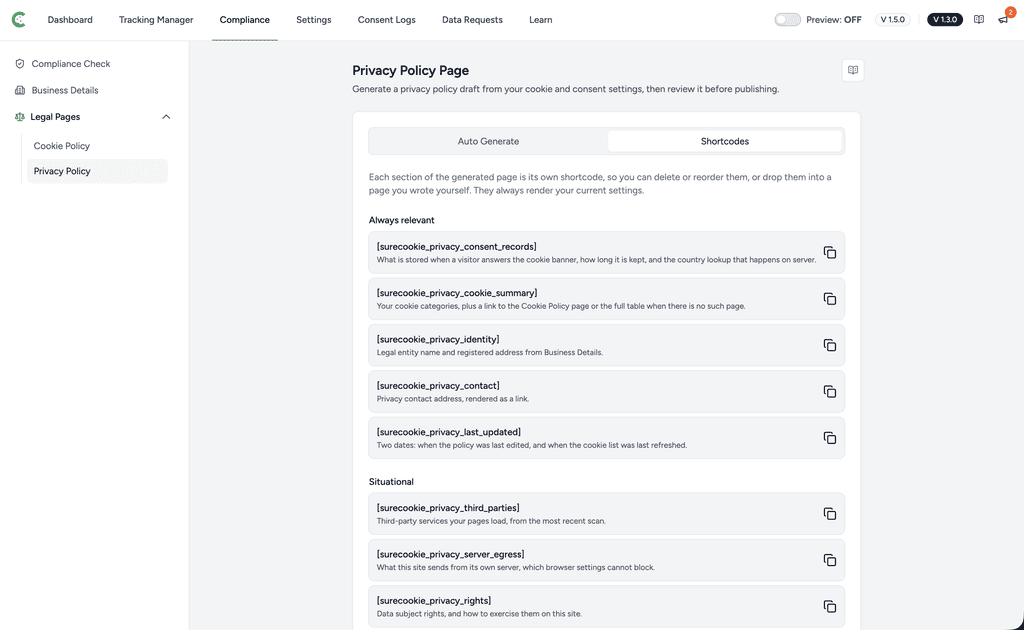
Always Relevant
– What is stored when a visitor answers the cookie banner, how long it is kept, and the country lookup that happens on server.– Your cookie categories, plus a link to the Cookie Policy page or the full table when there is no such page.– Legal entity name and registered address from Business Details.– Privacy contact address, rendered as a link.– Two dates: when the policy was last edited, and when the cookie list was last refreshed.
Situational
– Third-party services your pages load, from the most recent scan.– What this site sends from its own server, which browser settings cannot block.– Data subject rights, and how to exercise them on this site.– Where information is processed. Renders nothing until you set a transfer safeguard.– Region-specific consent rules. Needs SureCookie Pro to say anything beyond “the same everywhere”.– One privacy regime’s rights section. Acceptsgdpr,uk_gdpr,cpra,dpdporcoppa.
Troubleshooting
- The third-party services section says the site has not been scanned. Run a scan under SureCookie → Tracking Manager → Scanning. That section lists what the most recent scan found, so it has nothing to report until one has run.
- A regime section says it is not finished. That law needs an extra detail in Business Details: transfer safeguards for GDPR and UK GDPR, the grievance officer for the DPDP Act, or the sale or sharing answer for CCPA / CPRA.
- A section I expected is missing. Some sections only appear when they apply. The data transfers section renders nothing until you set a transfer safeguard, and a regime section only appears when you select that regime.
- Mark as Publish is still greyed out after I saved my business details. This screen re-reads them for up to 30 seconds. Wait a moment and reload.
- The notice on Business Details cleared but publishing is still blocked. That count reflects what is on screen; publishing checks what is saved. Click Save on Business Details.
- The screen says the linked page is gone. It was deleted or moved to the trash. Generate a new one to replace it. SureCookie does not silently forget which page you chose, so generate a replacement when you are ready.
- My page still lists a cookie I removed. The cookie sections read your current cookie list, so check the cookie is gone from Tracking Manager → All Cookies rather than looking for a stale copy on the page.
- The page shows a marker naming a missing detail. Only logged-in administrators see that. Visitors see nothing in its place. Fill the detail in on Business Details to clear it.
Next Steps
Pair the privacy policy with a cookie policy: see How to Generate a Cookie Policy Page. To reuse your business details in pages you wrote yourself, see Setting Up Your Business Details.
We don't respond to the article feedback, we use it to improve our support content.