
- SureCookie Installation Guide
- Installing SureCookie Pro
- Updating SureCookie
- How to Set Up SureCookie: Onboarding Wizard Guide
- SureCookie Dashboard Overview
- Connecting Your Site to SureCookie (Scanner Setup)
- Using SureCookie on Multiple Sites
- Uninstalling SureCookie & Data Cleanup
- SureCookie Shortcodes Reference
- Preferences Settings (Menu, Branding, Analytics)
- Customizing Banner Content
- Customizing Banner Layout
- Custom CSS for Banner Styling
- How to Configure the Floating Widget
- Customizing the Preference Modal
- Controlling Where the Cookie Banner Appears
- Customizing Banner Colors (Custom Colors, WCAG)
- Customizing the Blocked Content UI
- Banner Text in the Wrong Language (WPML, Polylang, and Locales)
- Re-Consent
- Understanding SureCookie Logs
- How to Set Up Geographic Targeting
- Block Scripts Until Consent (Resource Blocking)
- Setting Up Google Consent Mode v2
- Consent Models Explained (Opt-in vs Opt-out)
- Exporting Consent Logs (PDF Proof + CSV)
- Consent & Data Settings (Duration, Retention, Renew)
- Consent Forwarding Across a Multisite Network
- Resource / Script Blocking (Add Embeds + Fixes)
- Troubleshooting SureCookie
- Fix a Stuck or Failed Cookie Scan
- Why Some Cookies Aren’t Detected
- Banner Not Appearing: Troubleshooting
- Settings or Cookie Categories Not Saving or Loading
- Embeds Blocked After Consent (YouTube, Maps, Vimeo)
- Site Performance / Page Speed
- Scanning Your Site From Your Browser
- Importing and Exporting SureCookie Settings
- Verifying Your Domain With a DNS Record
How to Set Up SureCookie: Onboarding Wizard Guide
The SureCookie onboarding wizard launches automatically after you activate the plugin. It walks you through connecting your account, running your first cookie scan, and setting up your consent banner.
The wizard runs automatically on first activation. To open it again later, go to Plugins and click the Setup Wizard action link under SureCookie.
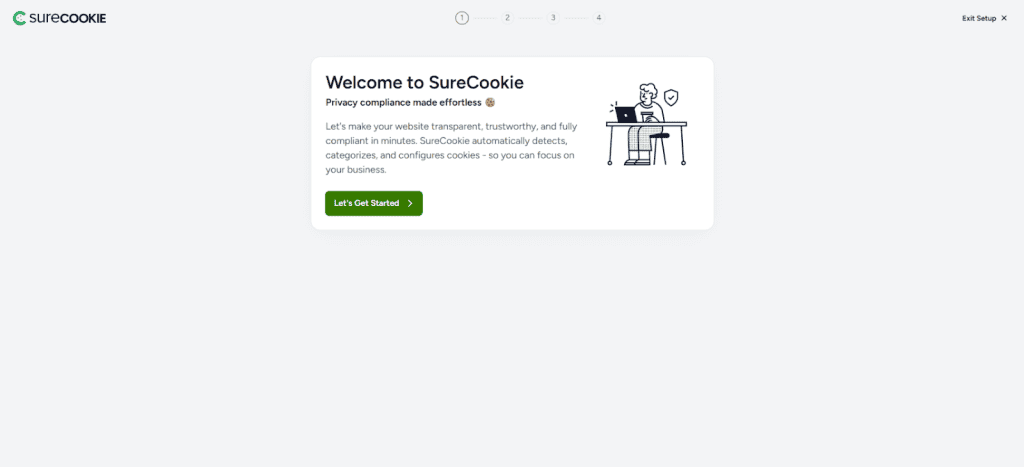
Welcome Screen
When you open SureCookie, a welcome screen appears. Click Let’s Get Started to move to the next step.
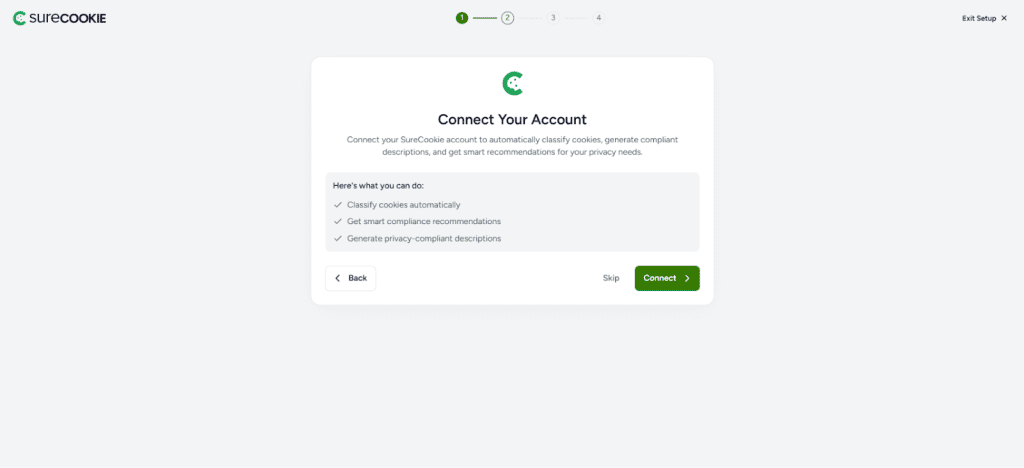
Connect Your SureCookie Account
This step connects your WordPress site to the SureCookie SaaS backend, which powers cookie scanning.
Click Connect to link your WordPress site with SureCookie.
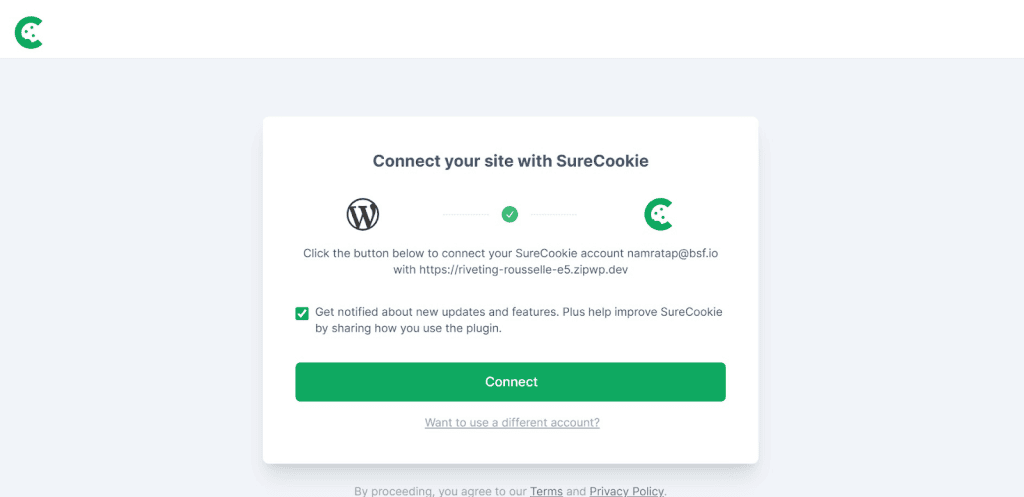
- Enter the email address associated with your SureCookie account and click Login.
- Review the permissions and verify your account.
- Once confirmed, your site will be connected and the setup wizard will continue.
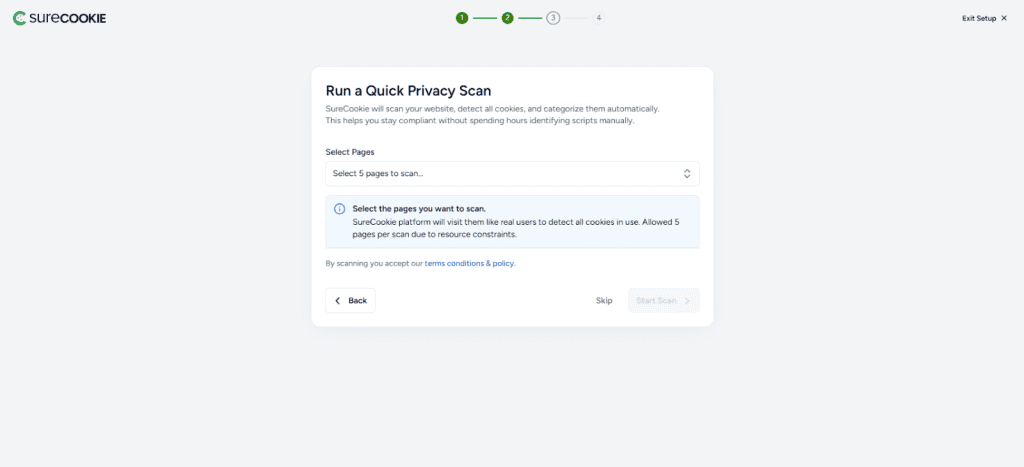
Run Your First Cookie Scan
Click Start Scan to begin scanning your site for cookies. Use the dropdown to select the pages you want to scan. On the free plan, you can select up to 5 pages.
After you start the scan, it will run in the background.
If the scan fails:
Make sure your site is publicly accessible and that no firewall or security plugin is blocking external requests, then try again.
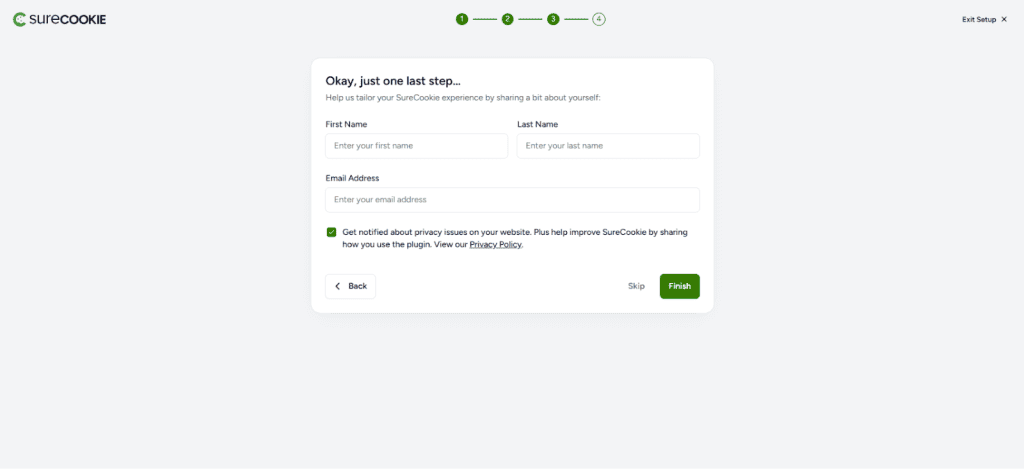
Complete Your Profile
Enter your first name, last name, and email address to complete the setup. You can also choose to receive notifications about privacy issues on your website. When you’re done, click Finish to complete the setup wizard.
After Completing the Wizard
- Use the Preview toggle at the top right to see how the consent banner will appear on your site.
- Click Configure to start designing and customizing your banner.
- Click X to close the guide and explore the dashboard.
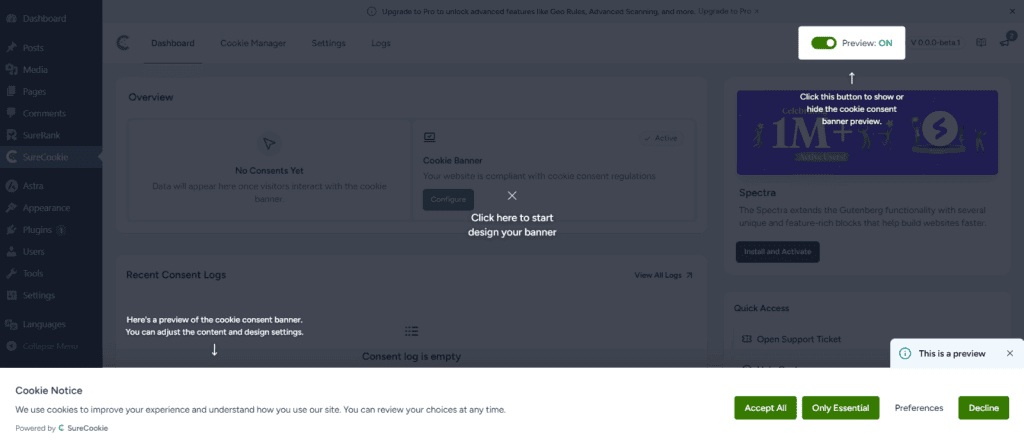
Your SureCookie setup is now complete. Your site has an active cookie consent banner. You can return to the dashboard at any time to adjust settings and customize your banner further.
We don't respond to the article feedback, we use it to improve our support content.