
- SureCookie Installation Guide
- Installing SureCookie Pro
- Updating SureCookie
- How to Set Up SureCookie: Onboarding Wizard Guide
- SureCookie Dashboard Overview
- Connecting Your Site to SureCookie (Scanner Setup)
- Using SureCookie on Multiple Sites
- Uninstalling SureCookie & Data Cleanup
- Preferences Settings (Menu, Branding, Analytics)
- Customizing Banner Content
- Customizing Banner Layout
- Custom CSS for Banner Styling
- How to Configure the Floating Widget
- Customizing the Preference Modal
- Controlling Where the Cookie Banner Appears
- Customizing Banner Colors (Custom Colors, WCAG)
- Customizing the Blocked Content UI
- Banner Text in the Wrong Language (WPML, Polylang, and Locales)
- Re-Consent
- Understanding SureCookie Logs
- How to Set Up Geographic Targeting
- Block Scripts Until Consent (Resource Blocking)
- Setting Up Google Consent Mode v2
- Consent Models Explained (Opt-in vs Opt-out)
- Exporting Consent Logs (PDF Proof + CSV)
- Consent & Data Settings (Duration, Retention, Renew)
- Consent Forwarding Across a Multisite Network
- Resource / Script Blocking (Add Embeds + Fixes)
- Troubleshooting SureCookie
- Fix a Stuck or Failed Cookie Scan
- Why Some Cookies Aren’t Detected
- Banner Not Appearing: Troubleshooting
- Settings or Cookie Categories Not Saving or Loading
- Embeds Blocked After Consent (YouTube, Maps, Vimeo)
- Scanning Your Site From Your Browser
- Importing and Exporting SureCookie Settings
- Verifying Your Domain With a DNS Record
- Why reCAPTCHA Is Blocked, and How to Release It
Customizing the Preference Modal
The preference modal is the window a visitor opens to choose categories individually, rather than accepting or rejecting everything. It is where a considered choice actually gets made, so the wording matters more here than on the banner itself.
This article covers the two fields you control: the modal’s title and its description. Both are available on the free plugin.
Before you begin: The Preference Modal tab only appears while Enable Cookie Banner is on, because the whole tab strip is hidden when the banner is off. Turn the banner on to reach these settings.
The modal itself does not depend on the banner. With the banner off it stays reachable through a Cookie Preferences menu item or the [surecookie_reconsent] shortcode, so visitors can still revisit their choice.
Step 1: Open the Preference Modal Tab
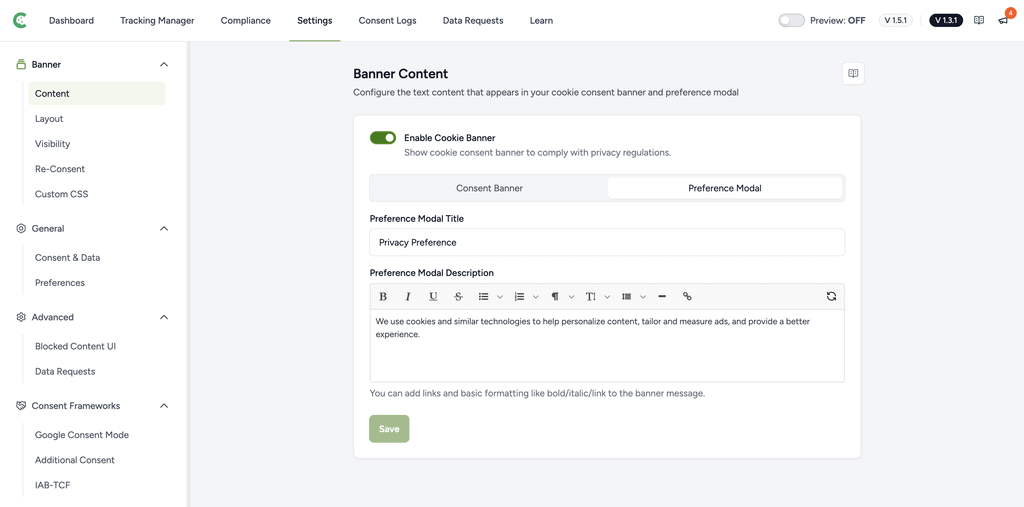
- Go to SureCookie > Settings > Banner > Content.
- Select the Preference Modal tab.
Step 2: Set the Title
The title is the first thing a visitor reads in the modal. Keep it short and plain.
- Enter your wording in Preference Modal Title.
- Click Save.
The default is Privacy Preference. The field is not optional: clear it and the default returns as the field’s value on the next render, so enter your own wording rather than trying to leave it blank.
Step 3: Write the Description
The description sits under the title and explains what the visitor is choosing between.
- Enter your text in Preference Modal Description.
- Click Save.
Good descriptions do three things: say that the site uses cookies, say the visitor can choose by category, and point to where the detail lives. Aim for two or three sentences.
Worth including:
- That choices can be changed later.
- The types of cookies you use, such as analytics, advertising, or functional.
- A link to your Cookie Policy for the full list.
Adding a Cookie Policy Link
As the Preference Modal Description field has editor as well, so utilizing link trigger can help you to link your cookie-policy page for any string from the msaage.
Styling the Modal
Colors carry over from your banner settings, so the modal matches without extra work. Visit Customizing Banner Layout to control colors and button styling.
The preference modal is always centered on screen. There is no position setting for it.
Troubleshooting
- The Preference Modal tab is missing. Enable Cookie Banner is off. The tab strip is hidden while it is off.
- The Cookie Policy link is not showing. Either the placeholder is absent from your description, or the Cookie Policy page is still a draft. Publish the page.
- The title reverted to Privacy Preference. The field was cleared. It falls back to the default rather than rendering an empty title.
- Your changes are not visible on the site. Check in a private window. A stored consent choice keeps the banner hidden, and caching plugins may serve an older page.
Next Steps
We don't respond to the article feedback, we use it to improve our support content.