
- SureCookie Installation Guide
- Installing SureCookie Pro
- Updating SureCookie
- How to Set Up SureCookie: Onboarding Wizard Guide
- SureCookie Dashboard Overview
- Connecting Your Site to SureCookie (Scanner Setup)
- Using SureCookie on Multiple Sites
- Uninstalling SureCookie & Data Cleanup
- Preferences Settings (Menu, Branding, Analytics)
- Customizing Banner Content
- Customizing Banner Layout
- Custom CSS for Banner Styling
- How to Configure the Floating Widget
- Customizing the Preference Modal
- Controlling Where the Cookie Banner Appears
- Customizing Banner Colors (Custom Colors, WCAG)
- Customizing the Blocked Content UI
- Banner Text in the Wrong Language (WPML, Polylang, and Locales)
- Re-Consent
- Understanding SureCookie Logs
- How to Set Up Geographic Targeting
- Block Scripts Until Consent (Resource Blocking)
- Setting Up Google Consent Mode v2
- Consent Models Explained (Opt-in vs Opt-out)
- Exporting Consent Logs (PDF Proof + CSV)
- Consent & Data Settings (Duration, Retention, Renew)
- Consent Forwarding Across a Multisite Network
- Resource / Script Blocking (Add Embeds + Fixes)
- Troubleshooting SureCookie
- Fix a Stuck or Failed Cookie Scan
- Why Some Cookies Aren’t Detected
- Banner Not Appearing: Troubleshooting
- Settings or Cookie Categories Not Saving or Loading
- Embeds Blocked After Consent (YouTube, Maps, Vimeo)
- Scanning Your Site From Your Browser
- Importing and Exporting SureCookie Settings
- Verifying Your Domain With a DNS Record
- Why reCAPTCHA Is Blocked, and How to Release It
Controlling Where the Cookie Banner Appears
Banner Visibility decides which pages show the cookie consent banner. Most sites never need it: the banner belongs on every page a visitor can reach, and hiding it where tracking still runs is a compliance risk rather than a tidy-up.
The cases where it earns its place are narrow. A landing page you run paid traffic to, a members-only area behind a login, a checkout flow you have already covered elsewhere.
Banner Visibility is a SureCookie Pro feature. On the free plugin the screen shows an upgrade notice instead of these controls.
Important: Hiding the banner does not stop tracking. Scripts still load according to your blocking rules, and a visitor on a hidden-banner page has no way to give or refuse consent. Only hide the banner on pages where nothing requiring consent runs.
Step 1: Open the Visibility Screen
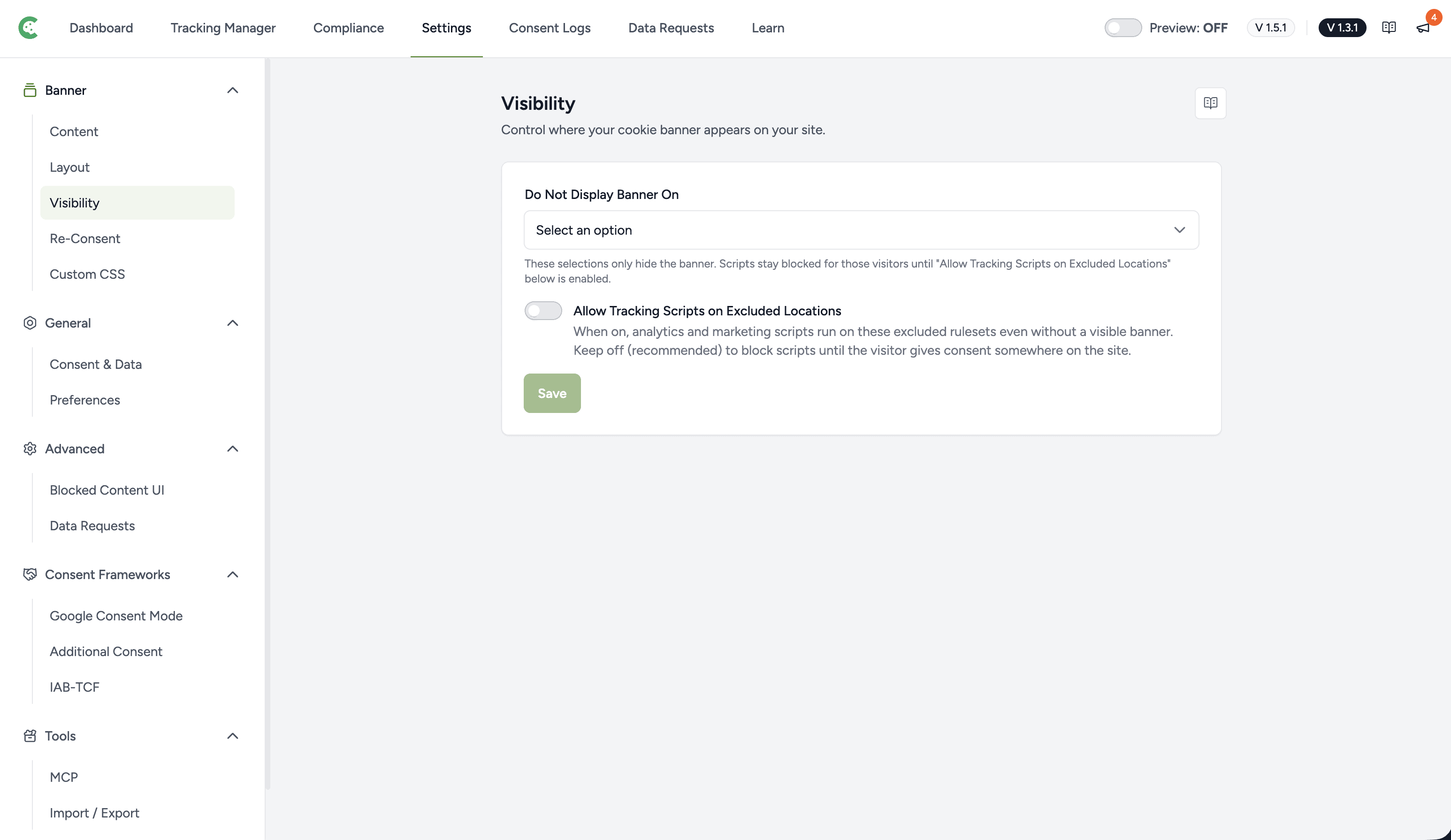
- Go to SureCookie > Settings > Banner > Visibility.
- Find the Do Not Display Banner On field.
Step 2: Choose What to Hide the Banner On
Do Not Display Banner On is a single multi-select. Open it and the options are grouped into five categories.
- Pages/Posts– Individual pages, posts and terms you pick by name.
- Specific URLs – A URL or URL fragment, for anything you cannot pick from a list.
- Archive Pages – Category, tag, author, date and search result pages.
- User Roles – Everyone logged in with the role you choose.
Pick as many as you need from any group. They combine: a page matching any rule hides the banner.
Pages/Posts
Select Specific Pages, Posts & Terms, then choose the individual items. This is the right choice when you can name the pages.
Specific URLs
Select Restrict URL(s) when the page is not something you can pick from a list, such as a dynamically generated or third-party route.
Enter one complete URL or URL fragment per line. Commas also work.
- Matching is a case-insensitive substring check. An entry of
/checkouthides the banner on/checkout,/checkout/step-2and/store/checkout-complete. - Wildcards and regular expressions are not supported. An asterisk is matched literally.
Keep entries specific. A fragment like /s matches almost everything.
Archive Pages
Select Specific Archives to cover category, tag, author, date or search pages as a group, rather than listing each one.
User Roles
Select Specific User Roles to hide the banner from logged-in users with that role. Administrators and editors are the common choice, so your own team is not asked for consent on every visit.
Note: This hides the banner for those roles. It does not exempt them from blocking. If you want your team to see the site with scripts running normally, that is a separate setting.
Step 3: Save
- Click Save.
- Open one of the excluded pages in a private window to confirm.
Use a private window or a different browser. Your own consent choice is already stored, so a normal tab will not show the banner regardless of these rules.
Letting Scripts Run on Excluded Pages
Hiding the banner and releasing the scripts are separate decisions. By default, a page with no banner still blocks scripts, which is usually what you want: no consent was given, so nothing loads.
If you deliberately want scripts to run on excluded pages, there is a separate toggle for it. Leave it off unless you are certain, because it releases tracking to visitors who were never asked. See Why Trackers Still Fire Before Consent.
Troubleshooting
- The banner still shows on an excluded page. Check you are testing in a private window. A stored consent choice hides the banner on its own and looks identical.
- The banner disappeared everywhere. A Restrict URL(s) entry is probably too short and matching every URL. Review your entries for fragments like
/or a single letter. - Your rule is not applying at all. Confirm SureCookie Pro is active and licensed. Without it the screen shows an upgrade notice and no rule is enforced.
Next Steps
We don't respond to the article feedback, we use it to improve our support content.