
- SureCookie Installation Guide
- Installing SureCookie Pro
- Updating SureCookie
- How to Set Up SureCookie: Onboarding Wizard Guide
- SureCookie Dashboard Overview
- Connecting Your Site to SureCookie (Scanner Setup)
- Using SureCookie on Multiple Sites
- Uninstalling SureCookie & Data Cleanup
- SureCookie Shortcodes Reference
- Preferences Settings (Menu, Branding, Analytics)
- Customizing Banner Content
- Customizing Banner Layout
- Custom CSS for Banner Styling
- How to Configure the Floating Widget
- Customizing the Preference Modal
- Controlling Where the Cookie Banner Appears
- Customizing Banner Colors (Custom Colors, WCAG)
- Customizing the Blocked Content UI
- Banner Text in the Wrong Language (WPML, Polylang, and Locales)
- Re-Consent
- Understanding SureCookie Logs
- How to Set Up Geographic Targeting
- Block Scripts Until Consent (Resource Blocking)
- Setting Up Google Consent Mode v2
- Consent Models Explained (Opt-in vs Opt-out)
- Exporting Consent Logs (PDF Proof + CSV)
- Consent & Data Settings (Duration, Retention, Renew)
- Consent Forwarding Across a Multisite Network
- Resource / Script Blocking (Add Embeds + Fixes)
- Troubleshooting SureCookie
- Fix a Stuck or Failed Cookie Scan
- Why Some Cookies Aren’t Detected
- Banner Not Appearing: Troubleshooting
- Settings or Cookie Categories Not Saving or Loading
- Embeds Blocked After Consent (YouTube, Maps, Vimeo)
- Site Performance / Page Speed
- Scanning Your Site From Your Browser
- Importing and Exporting SureCookie Settings
- Verifying Your Domain With a DNS Record
SureCookie Dashboard Overview
The SureCookie dashboard is the central control hub for managing cookie consent on your WordPress website. It provides a comprehensive view of your cookie banner configuration, consent logs, and compliance status. This guide explains each section of the dashboard and how to use them effectively.
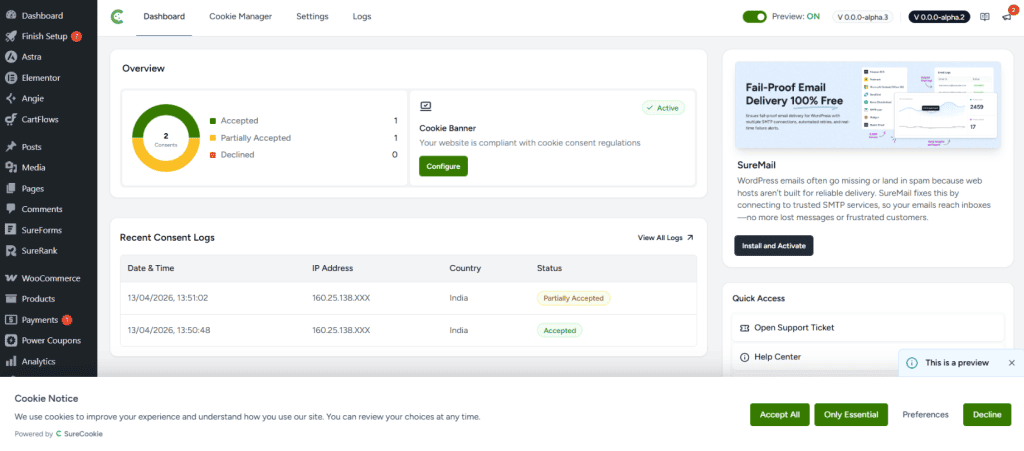
Dashboard Layout
The SureCookie dashboard is organized into several key sections:
Tab Navigation
At the top of the dashboard, you will find four primary tabs:
- Dashboard: Displays an overview of your cookie consent configuration and recent consent logs.
- Cookie Manager: Allows you to configure and manage the cookies your site uses.
- Settings: Configure cookie banner behavior, appearance, and compliance rules.
- Logs: View detailed records of user consent decisions.
Overview Section
The Overview section displays important status information about your cookie banner:
| Component | Description |
| Consent | The Consent dashboard displays your cookie consent activity at a glance with a consent chart (Accepted, Partially Accepted, Declined). |
| Cookie Banner Status | Shows whether your banner is active (with green checkmark) and if your website is compliant with cookie consent regulations. |
| Configure Button | A green button that takes you to the Cookie Manager to set up and customize your cookie consent banner. |
Recent Consent Logs
The Recent Consent Logs section displays a summary of user interactions with your cookie banner. When visitors accept or reject cookies, these decisions are logged and displayed here. The section includes:
- A list of recent consent events with timestamps.
- Information about which cookies users accepted or rejected.
- A ‘View All Logs‘ link to access the complete Logs section for detailed records
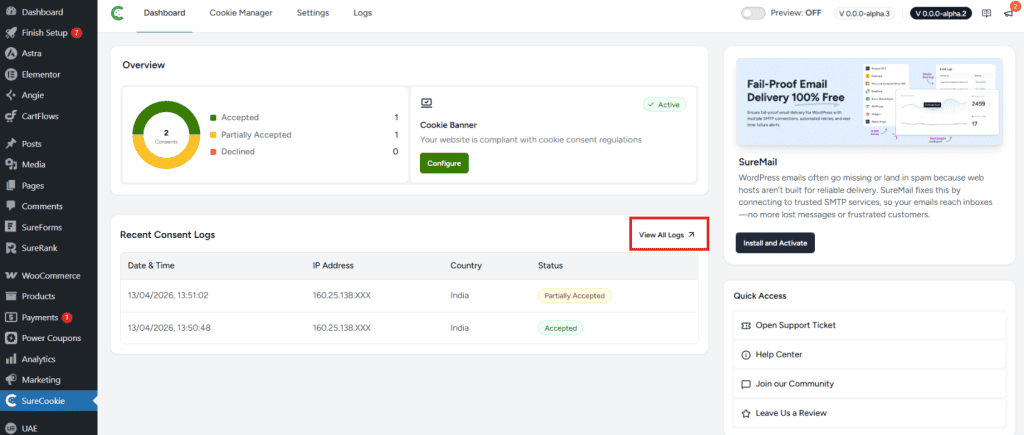
Note: The logs will be empty until your first visitor interacts with the cookie banner.
Getting Started
To begin configuring your cookie consent settings, follow these steps:
- Click the ‘Configure’ button in the Cookie Banner section.
- You will be directed to the Cookie Manager tab where you can add and organize cookies.
- Visit the Settings tab to customize banner appearance and compliance options.
- Publish your changes and test the banner on your live website
Tips for Effective Cookie Management
- Regularly monitor your consent logs to understand visitor preferences.
- Keep your cookie list updated as you add new analytics or tracking tools.
- Test your banner on different devices and browsers to ensure compliance.
- Review and update your Privacy Policy to include detailed cookie information.
We don't respond to the article feedback, we use it to improve our support content.