
- SureCookie Installation Guide
- Installing SureCookie Pro
- Updating SureCookie
- How to Set Up SureCookie: Onboarding Wizard Guide
- SureCookie Dashboard Overview
- Connecting Your Site to SureCookie (Scanner Setup)
- Using SureCookie on Multiple Sites
- Uninstalling SureCookie & Data Cleanup
- SureCookie Shortcodes Reference
- Preferences Settings (Menu, Branding, Analytics)
- Customizing Banner Content
- Customizing Banner Layout
- Custom CSS for Banner Styling
- How to Configure the Floating Widget
- Customizing the Preference Modal
- Controlling Where the Cookie Banner Appears
- Customizing Banner Colors (Custom Colors, WCAG)
- Customizing the Blocked Content UI
- Banner Text in the Wrong Language (WPML, Polylang, and Locales)
- Re-Consent
- Understanding SureCookie Logs
- How to Set Up Geographic Targeting
- Block Scripts Until Consent (Resource Blocking)
- Setting Up Google Consent Mode v2
- Consent Models Explained (Opt-in vs Opt-out)
- Exporting Consent Logs (PDF Proof + CSV)
- Consent & Data Settings (Duration, Retention, Renew)
- Consent Forwarding Across a Multisite Network
- Resource / Script Blocking (Add Embeds + Fixes)
- Troubleshooting SureCookie
- Fix a Stuck or Failed Cookie Scan
- Why Some Cookies Aren’t Detected
- Banner Not Appearing: Troubleshooting
- Settings or Cookie Categories Not Saving or Loading
- Embeds Blocked After Consent (YouTube, Maps, Vimeo)
- Site Performance / Page Speed
- Scanning Your Site From Your Browser
- Importing and Exporting SureCookie Settings
- Verifying Your Domain With a DNS Record
Installing SureCookie Pro
SureCookie Pro is a separate plugin that works alongside the free SureCookie plugin. This guide walks you through purchasing Pro, downloading the plugin, activating your license, and verifying the installation.
Before You Begin
Make sure the free SureCookie plugin is already installed and active on your site before installing Pro. SureCookie Pro extends the free plugin but does not replace it.
Install & Activate SureCookie Pro
Now that you’re ready to set up SureCookie Pro, follow the steps below to download the plugin, install it on your WordPress site, and activate your license. This process ensures that all Pro features are fully unlocked and working as expected.
Download the Pro Plugin
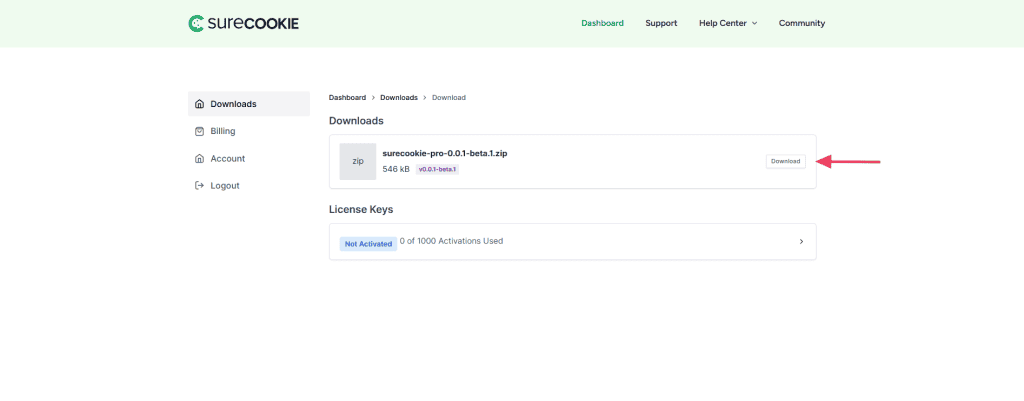
After purchasing SureCookie Pro, you will receive an email with your license key and a link to download the plugin ZIP file. You can also download it at any time from your account at my.surecookie.com. To do this, follow these steps:
- Log in to my.surecookie.com using the email address you used to purchase.
- Go to the Downloads section.
- Click “Download” next to SureCookie Pro to save the ZIP file to your computer.
Upload and Activate the Plugin
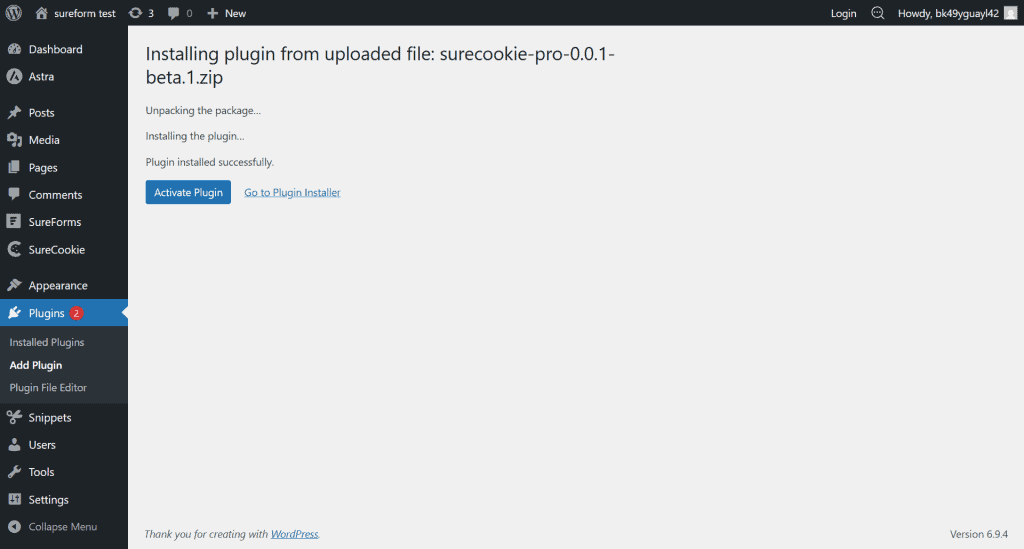
Once you have the ZIP file, install it on your WordPress site. To do this, follow these steps:
- Log in to your WordPress dashboard.
- Go to Plugins > Add New Plugin.
- Click “Upload Plugin” at the top of the page.
- Select the SureCookie Pro ZIP file and click “Install Now“.
- Once installed, click “Activate Plugin”.
Activate Your License Key
After activating the plugin, you need to enter your license key to unlock Pro features. To do this, follow these steps:
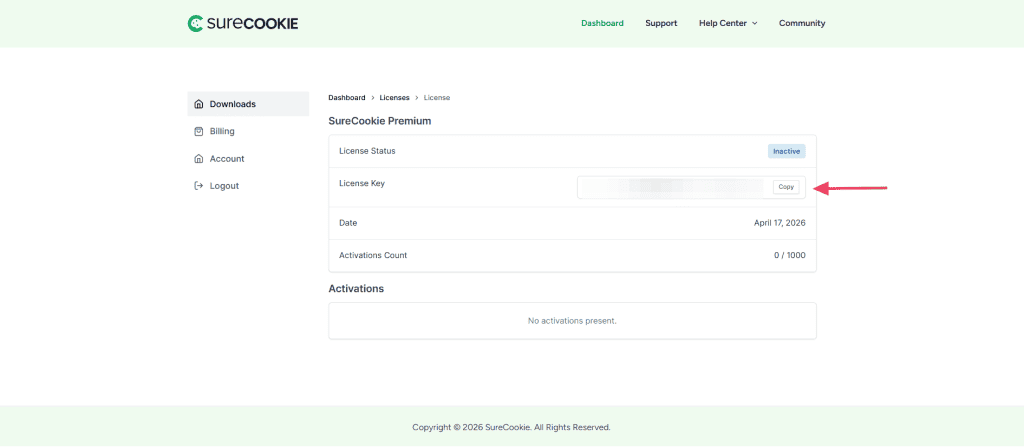
Find Your License Key
- Log in to your SureCookie Account.
- Navigate to SureCookie > License.
- Copy your license key.
Activate Your License
- Log in to your WordPress dashboard.
- Go to Settings > SureCookie.
- Open the Settings tab.
- Scroll down to the License section.
- Paste your license key into the License Key field.
- Click Activate License.
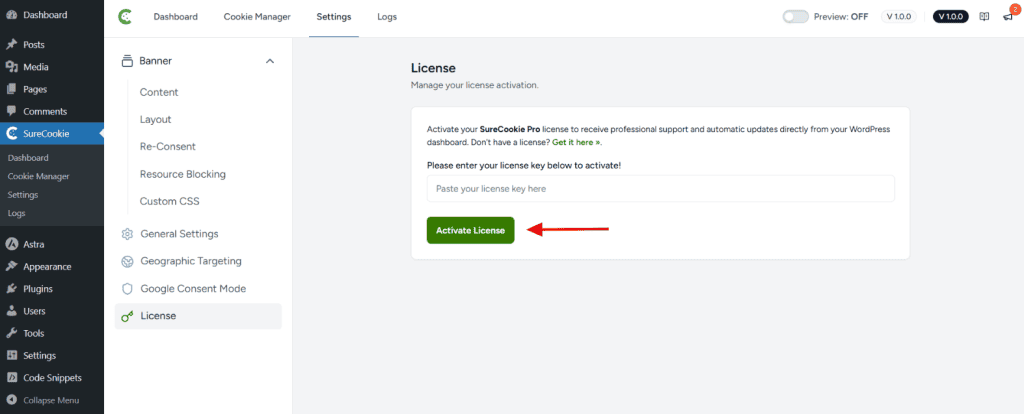
Once activated, you will see a confirmation message and your license details, including your plan name and expiry date.
Verifying the Installation
After activating your license, the following changes will be visible in your dashboard:
- A “Pro” badge appears next to the SureCookie menu item.
- Geographic Targeting settings are now available in the Settings tab.
- The Floating Widget option is now available.
- The “Remove Branding” toggle is now available in the Banner settings.
- Your scan page limit is increased based on your plan.
Using Pro on Multiple Sites
The number of sites you can activate SureCookie Pro on depends on your license plan. If you need to move your license to a different domain, deactivate it on the old site first. To deactivate, go to Settings > SureCookie > Settings > License and click “Deactivate License”.
Troubleshooting License Activation
- Invalid license key: Double-check that you have copied the key correctly from your purchase email or my.surecookie.com. Make sure there are no extra spaces.
- License already in use: Your license may already be active on another domain. Deactivate it there first, then try again.
- Pro features not appearing after activation: Clear your browser cache and reload the SureCookie dashboard. If Pro features are still not visible, deactivate and reactivate the Pro plugin.
We don't respond to the article feedback, we use it to improve our support content.