
- SureCookie Installation Guide
- Installing SureCookie Pro
- Updating SureCookie
- How to Set Up SureCookie: Onboarding Wizard Guide
- SureCookie Dashboard Overview
- Connecting Your Site to SureCookie (Scanner Setup)
- Using SureCookie on Multiple Sites
- Uninstalling SureCookie & Data Cleanup
- SureCookie Shortcodes Reference
- Preferences Settings (Menu, Branding, Analytics)
- Customizing Banner Content
- Customizing Banner Layout
- Custom CSS for Banner Styling
- How to Configure the Floating Widget
- Customizing the Preference Modal
- Controlling Where the Cookie Banner Appears
- Customizing Banner Colors (Custom Colors, WCAG)
- Customizing the Blocked Content UI
- Banner Text in the Wrong Language (WPML, Polylang, and Locales)
- Re-Consent
- Understanding SureCookie Logs
- How to Set Up Geographic Targeting
- Block Scripts Until Consent (Resource Blocking)
- Setting Up Google Consent Mode v2
- Consent Models Explained (Opt-in vs Opt-out)
- Exporting Consent Logs (PDF Proof + CSV)
- Consent & Data Settings (Duration, Retention, Renew)
- Consent Forwarding Across a Multisite Network
- Resource / Script Blocking (Add Embeds + Fixes)
- Troubleshooting SureCookie
- Fix a Stuck or Failed Cookie Scan
- Why Some Cookies Aren’t Detected
- Banner Not Appearing: Troubleshooting
- Settings or Cookie Categories Not Saving or Loading
- Embeds Blocked After Consent (YouTube, Maps, Vimeo)
- Site Performance / Page Speed
- Scanning Your Site From Your Browser
- Importing and Exporting SureCookie Settings
- Verifying Your Domain With a DNS Record
- Why reCAPTCHA Is Blocked, and How to Release It
- Is SureCookie a Google-Certified CMP?
- Where Banner and Widget Settings Live, and Which One Wins
- Why Trackers Still Fire Before Consent
- Is SureCookie GDPR Compliant? (Overview)
- Whitelisting the SureCookie Scanner
- Excluding the SureCookie Banner from LiteSpeed Cache
Why Some Cookies Aren’t Detected
The cookie scanner visits your site, watches which cookies get set, and saves them to your cookie list so your banner can categorize and block them correctly. It catches the large majority of cookies. Now and then a cookie you can see in your own browser doesn’t show up in the list, which almost always means the scanner never saw it get set.
This happens because the scanner captures one automated visit to the pages you choose. Any cookie that only appears under different conditions can slip past. A missed cookie is not a failure of your banner: consent logging and script blocking keep working, and you can add any cookie by hand in a minute. This article explains the common gaps and how to close them.
- You’ll find everything below under SureCookie > Tracking Manager.
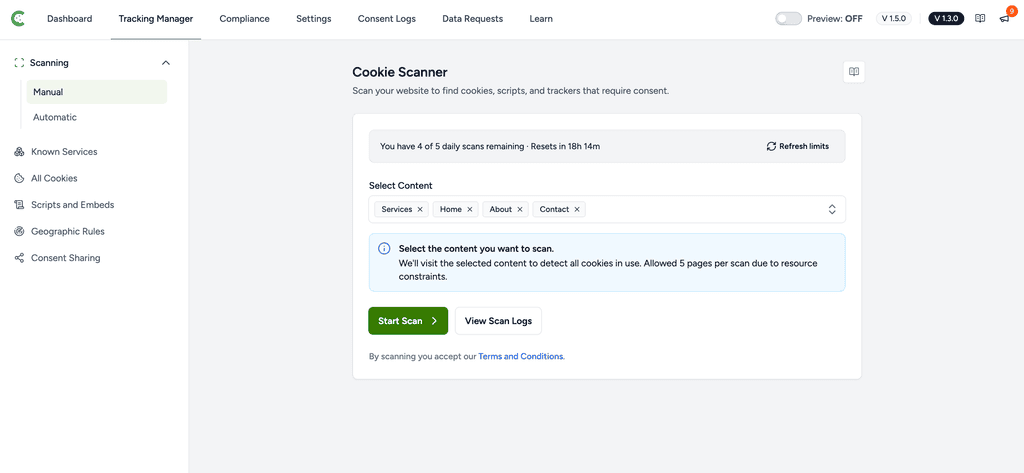
- Go to SureCookie > Tracking Manager > Scanning > Manual.
- Go to SureCookie > Tracking Manager > All Cookies.
How the Scanner Finds Cookies
The scanner loads each page you select in a real browser, the same way a visitor would, and records every cookie set during that visit. It detects cookies added by your theme, plugins, embeds, and tag managers, including ones injected by JavaScript after the page loads.
Because it captures a single, logged-out visit, it only sees what a first-time visitor would trigger. Cookies that depend on signing in, completing an action, or a specific visitor’s location are the ones most likely to be missed.
Common Reasons a Cookie Is Missed
- It loads only after an action – Some cookies are set when a visitor signs in, submits a form, adds to cart, plays a video, or clicks to load an embed. The scanner doesn’t perform those actions, so the cookie is never set during the scan.
- The page wasn’t scanned – Only the pages you select are visited. A cookie that fires on a page outside that selection won’t be found.
- It loads conditionally – Scripts that run only for certain regions, A/B-test groups, signed-in users, or referrers may not fire for the scanner.
- It’s behind a login or paywall – The scanner visits your site as a public, logged-out visitor and can’t reach members-only or gated pages.
- The script was blocked during the scan – If a script is held before consent, by SureCookie’s own blocking or another consent tool, it never runs, so its cookie is never set for the scanner to see.
- It’s set server-side on specific requests – Some cookies are written only on actions like checkout or a form submission, not on a normal page view.
- A cache served a different page – A page cache or CDN can return a stripped or cached version that differs from what a real visitor receives.
- It isn’t a site cookie at all – Cookies from a browser extension, your logged-in admin session, or a tag-debugging tool appear in your browser but aren’t part of your public site.
Scan the Page Where the Cookie Appears
If you know which page sets the missing cookie, scan that page directly.
- Go to SureCookie → Cookie Manager → Manual.
- Under Select Pages, choose the page or pages where the cookie is set.
- Click Start Scan.
- Open the All Cookies tab to confirm the cookie now appears.
Re-run a scan whenever you add a plugin, embed, or tracking script. Note what a scan does and does not do: it adds what it finds, and it never removes a cookie it stops seeing. Your list is the total of every scan so far, plus anything you added by hand or through Known Services.
This is deliberate. A cookie that loads on one page only, or only for visitors in one region, would otherwise drop off your cookie policy the first time a scan happened to miss it.
It also means the list never shrinks on its own. Remove the plugin that set a cookie and its row stays, however many times you rescan. Delete the row yourself on All Cookies when you are sure your site no longer sets it.
To keep the list current without remembering to re-scan, turn on Automatic Scanning.
Add a Missing Cookie Manually
A cookie you add by hand sits in the list beside the detected ones, so your banner and your cookie policy disclose it under the category you choose. What it does not do is stop the cookie being set. SureCookie holds back resources, not cookie names, so what keeps a tracker from loading before consent is its row under SureCookie > Tracking Manager > Scripts and Embeds.
- Go to SureCookie → Cookie Manager → All Cookies.
- Click New Cookie.
- Enter the Cookie Name, then choose a Category: Essential, Functional, Analytics, or Marketing.
- Optionally add the Domain, Provider, Purpose, Description, and Duration (Days).
- Click Save Cookie.
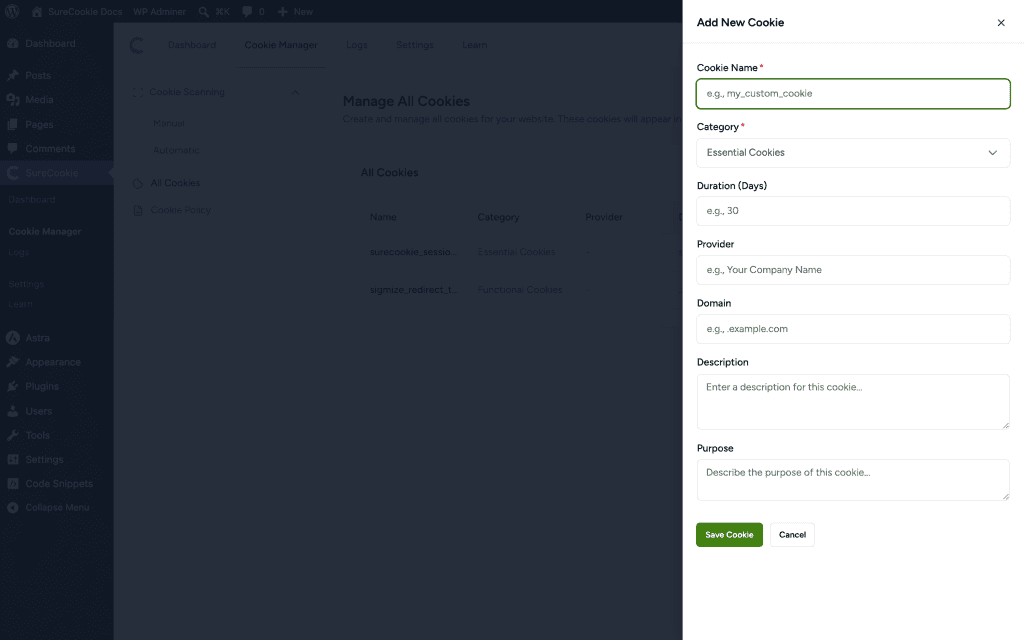
Note: The category you choose matters. Your banner blocks and discloses cookies by category, so a marketing cookie placed under Essential would load before consent.
Remove a Cookie Your Site No Longer Sets
Because a scan only ever adds, a cookie stays in your list after you remove the plugin or embed that set it. Delete the row when you are sure your site no longer sets it.
- Go to SureCookie > Tracking Manager > All Cookies.
- Find the cookie’s row and click the delete icon at the end of it.
- Confirm in Delete Scanned Cookie.
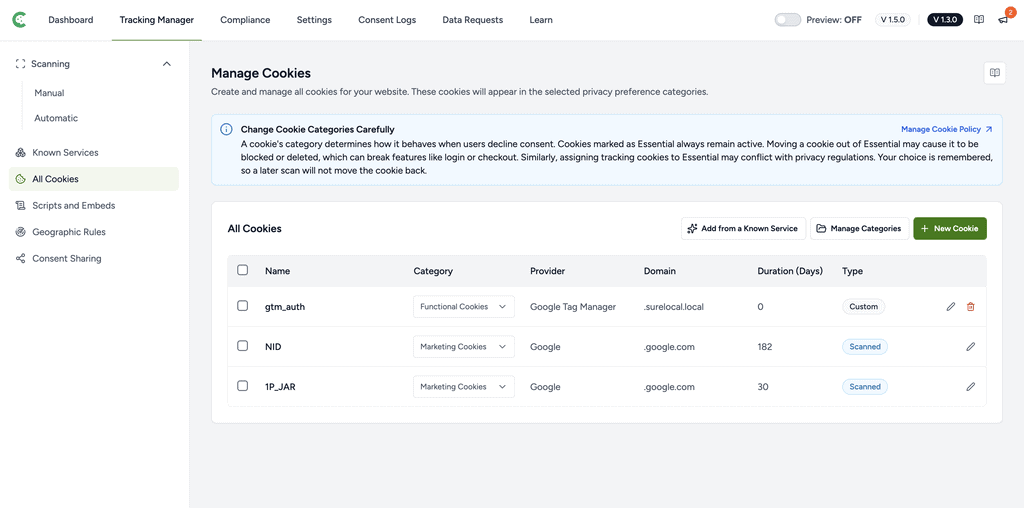
Deleting a scanned cookie is safe to try. If your site still sets it, the next scan finds it again and the row returns, which is itself the answer: something on the site is still setting that cookie. A cookie you added by hand is deleted for good.
Deleting a scanned cookie needs SureCookie 1.5.0 or later. On earlier versions the action is not there.
Some rows have no delete icon. Those cookies are declared for a service rather than observed by a scan, because a blocked embed never loads and so never sets its cookies for a scan to find. How you clear one depends on how the service got there. If it shows Added under SureCookie > Tracking Manager > Known Services, click Remove on its card and its cookies go with it. If SureCookie recognised the service from your own pages instead, there is no control to clear those rows yet, and we have that open as a defect. Cookie Manager: Add, Edit, and Manage Cookies covers both cases in full, and Using Known Services explains what a service declares on your behalf.
For the rest of what the cookie list can do, including editing a cookie’s details, see Cookie Manager: Add, Edit, and Manage Cookies.
Troubleshooting
- A cookie shows in your browser but not in SureCookie – It’s most likely set after an action or on a page the scan didn’t visit. Scan that page, or add the cookie manually.
- A third-party cookie never appears – Its script may be blocked before consent, so it never runs during the scan. Add the cookie by hand so your banner and cookie policy disclose it. To stop the script running before consent, set its behaviour on the matching row under Scripts and Embeds.
- A whole group of cookies is missing – The scan may have stopped at your daily page budget, or those pages sit behind a login. See Fix a Stuck or Failed Cookie Scan.
- Cookies you don’t recognize appear – Some may come from your admin session or a browser extension rather than the public site. Confirm them in a private browser window before categorizing.
- A cookie you removed is still listed – Scans only add, so rescanning will never clear it. Delete the row on All Cookies. If it comes back on the next scan, something on your site is still setting it.
Next Steps
After scanning or adding cookies, review their categories so your banner groups them correctly: see Manage Cookie Categories. If scans aren’t completing at all, see Fix a Stuck or Failed Cookie Scan.
We don't respond to the article feedback, we use it to improve our support content.