
- SureCookie Installation Guide
- Installing SureCookie Pro
- Updating SureCookie
- How to Set Up SureCookie: Onboarding Wizard Guide
- SureCookie Dashboard Overview
- Connecting Your Site to SureCookie (Scanner Setup)
- Using SureCookie on Multiple Sites
- Uninstalling SureCookie & Data Cleanup
- SureCookie Shortcodes Reference
- Preferences Settings (Menu, Branding, Analytics)
- Customizing Banner Content
- Customizing Banner Layout
- Custom CSS for Banner Styling
- How to Configure the Floating Widget
- Customizing the Preference Modal
- Controlling Where the Cookie Banner Appears
- Customizing Banner Colors (Custom Colors, WCAG)
- Customizing the Blocked Content UI
- Banner Text in the Wrong Language (WPML, Polylang, and Locales)
- Re-Consent
- Understanding SureCookie Logs
- How to Set Up Geographic Targeting
- Block Scripts Until Consent (Resource Blocking)
- Setting Up Google Consent Mode v2
- Consent Models Explained (Opt-in vs Opt-out)
- Exporting Consent Logs (PDF Proof + CSV)
- Consent & Data Settings (Duration, Retention, Renew)
- Consent Forwarding Across a Multisite Network
- Resource / Script Blocking (Add Embeds + Fixes)
- Troubleshooting SureCookie
- Fix a Stuck or Failed Cookie Scan
- Why Some Cookies Aren’t Detected
- Banner Not Appearing: Troubleshooting
- Settings or Cookie Categories Not Saving or Loading
- Embeds Blocked After Consent (YouTube, Maps, Vimeo)
- Site Performance / Page Speed
- Scanning Your Site From Your Browser
- Importing and Exporting SureCookie Settings
- Verifying Your Domain With a DNS Record
Customizing the Blocked Content UI
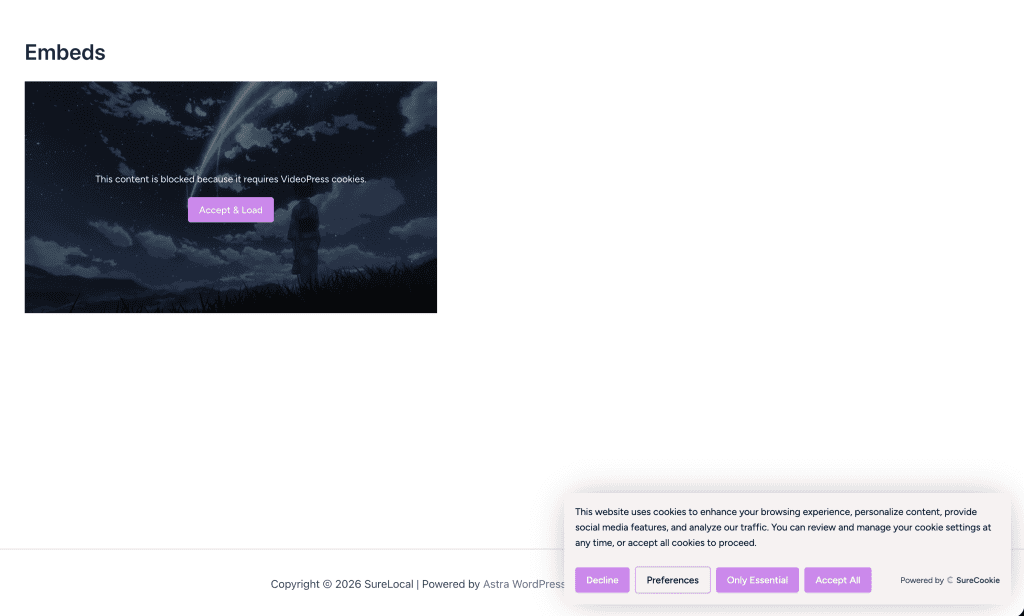
When SureCookie blocks a script or an embed before a visitor consents, it does not leave a hole in the page. It renders a placeholder in the same space: a short message explaining what is blocked, and a button the visitor can use to accept and load it.
The Blocked Content UI screen controls how that placeholder looks and reads. It is worth a few minutes of your time, because for many visitors this placeholder is the only explanation they get for why a video or a map is missing.
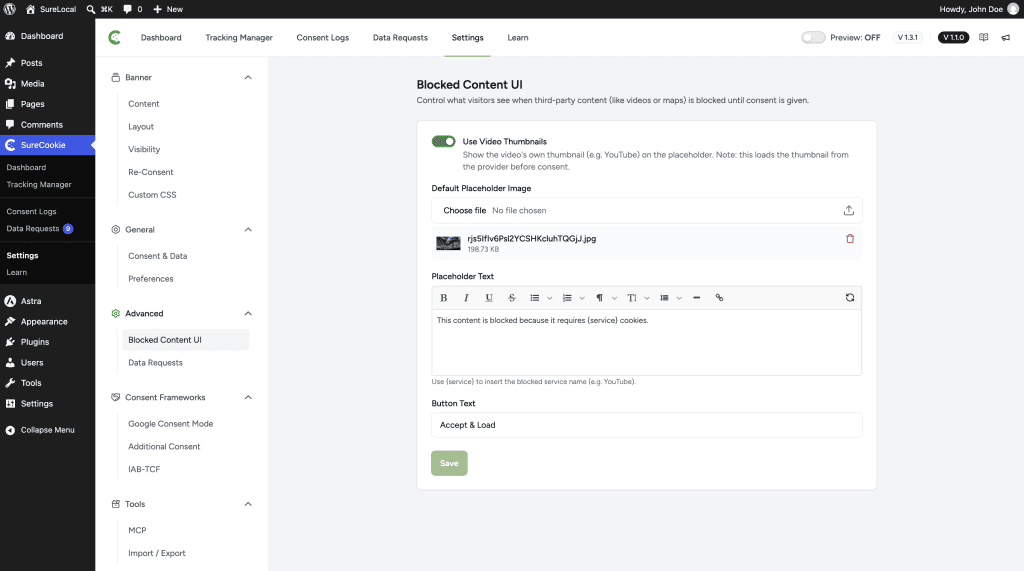
You will find these options at SureCookie → Settings → Advanced → Blocked Content UI.
How the Placeholder Behaves
The placeholder takes the place of the blocked content and keeps its original dimensions, so your layout does not shift when the visitor accepts.
The button grants consent for the category that governs the blocked resource. Accepting a blocked YouTube embed therefore releases everything else in that same category, not just that one video. That is intentional, and it is how a visitor gets a working page back in one click.
Note: Some resources have no button at all. If a resource sits in a category that consent can never grant, or in a category you have hidden from the preferences modal, SureCookie renders the explanation without the button rather than offering a choice that would not work.
The Settings
- Use Video Thumbnails – Show the video’s own thumbnail on the placeholder, so a blocked YouTube embed still looks like that video.
- Default Placeholder Image – A background image used when no more specific image is available. Click the field to open the media library, pick an image, then click Use this image.
- Placeholder Text – The message shown in place of the content. Supports basic formatting.
- Button Text – The label on the accept button. Defaults to Accept & Load.
Important: Use Video Thumbnails loads the thumbnail from the provider (for example YouTube) before the visitor has consented. That is a request to a third party, which is exactly what blocking is meant to prevent. Leave it off if your legal basis requires no third-party contact before consent, and use Default Placeholder Image instead.
Writing the Placeholder Text
The default text is:
This content is blocked because it requires {service} cookies.
The {service} token is replaced with the name of the blocked service, so one message covers every case. The example above renders as “This content is blocked because it requires YouTube cookies.” on a YouTube embed, and “…requires Google Maps cookies.” on a map.
- Go to SureCookie → Settings → Advanced → Blocked Content UI.
- Edit Placeholder Text, keeping
{service}wherever you want the service name to appear. - Edit Button Text if Accept & Load does not suit your tone.
- Click Save.
Tip: Keep the message to one sentence and say what the visitor gets by accepting. “Accept marketing cookies to watch this video” tells a visitor more than “This content is blocked.”
If you clear Placeholder Text entirely, SureCookie falls back to its own default sentence rather than showing an empty box. The same applies to Button Text.
Setting a Placeholder Image
An image makes the placeholder feel deliberate rather than broken.
- Click the Default Placeholder Image field to open the media library.
- Choose an image, then click Use this image.
- Click Save.
To remove it later, use the remove control on the image preview beneath the field.
Tip: Use a wide, low-contrast image. The placeholder text and button sit on top of it, so a busy photograph makes both harder to read.
Translating the Placeholder
Placeholder Text and Button Text are registered for translation, so WPML and Polylang can translate them like any other SureCookie string. Keep the {service} token in your translations. SureCookie translates the message first and inserts the service name afterwards, so the token needs to survive translation intact.
Troubleshooting
- You see the default message instead of yours. The field was saved empty, so SureCookie fell back to its own text. Re-enter your message and save again.
- The service name is missing from the message. The
{service}token was removed while editing. Add it back where you want the name to appear. - A blocked embed shows no button. Its category cannot be granted by consent, or you have hidden that category from the preferences modal. Check the category on the Scripts and Embeds page.
- Your changes are not visible on the front end. Clear your caching plugin, then reload in a private window. Placeholders are rendered into the page HTML, so a cached page keeps the old wording.
- No placeholder appears at all. Blocking may be switched off, or that resource may not be blocked. Confirm on Scripts and Embeds that the resource is listed and assigned to a non-essential category.
Next Steps
Check your work from a visitor’s point of view. Open your site in a private window, decline the banner, and look at every page that carries a video, a map, or a social embed.
We don't respond to the article feedback, we use it to improve our support content.