
- SureCookie Installation Guide
- Installing SureCookie Pro
- Updating SureCookie
- How to Set Up SureCookie: Onboarding Wizard Guide
- SureCookie Dashboard Overview
- Connecting Your Site to SureCookie (Scanner Setup)
- Using SureCookie on Multiple Sites
- Uninstalling SureCookie & Data Cleanup
- SureCookie Shortcodes Reference
- Preferences Settings (Menu, Branding, Analytics)
- Customizing Banner Content
- Customizing Banner Layout
- Custom CSS for Banner Styling
- How to Configure the Floating Widget
- Customizing the Preference Modal
- Controlling Where the Cookie Banner Appears
- Customizing Banner Colors (Custom Colors, WCAG)
- Customizing the Blocked Content UI
- Banner Text in the Wrong Language (WPML, Polylang, and Locales)
- Re-Consent
- Understanding SureCookie Logs
- How to Set Up Geographic Targeting
- Block Scripts Until Consent (Resource Blocking)
- Setting Up Google Consent Mode v2
- Consent Models Explained (Opt-in vs Opt-out)
- Exporting Consent Logs (PDF Proof + CSV)
- Consent & Data Settings (Duration, Retention, Renew)
- Consent Forwarding Across a Multisite Network
- Resource / Script Blocking (Add Embeds + Fixes)
- Troubleshooting SureCookie
- Fix a Stuck or Failed Cookie Scan
- Why Some Cookies Aren’t Detected
- Banner Not Appearing: Troubleshooting
- Settings or Cookie Categories Not Saving or Loading
- Embeds Blocked After Consent (YouTube, Maps, Vimeo)
- Site Performance / Page Speed
- Scanning Your Site From Your Browser
- Importing and Exporting SureCookie Settings
- Verifying Your Domain With a DNS Record
Migrating from WPConsent to SureCookie
Requires: SureCookie free 1.8.0 version or higher.
If you already run WPConsent, you do not have to rebuild your cookie consent setup by hand. SureCookie can read your WPConsent configuration and bring it across in one step: your banner text and buttons, how consent is asked for, your cookie categories, and the cookies you have documented.
The import copies data one way, from WPConsent into SureCookie. Your WPConsent settings, cookies and consent records are never changed or deleted, so you can take your time switching over.
Before you begin, make sure WPConsent is installed on the same site. SureCookie only offers the import when it finds a supported plugin.
Step 1: Open the Migration Screen
- Go to SureCookie → Settings → Tools → Migration.
- Under Import data from, select WPConsent.
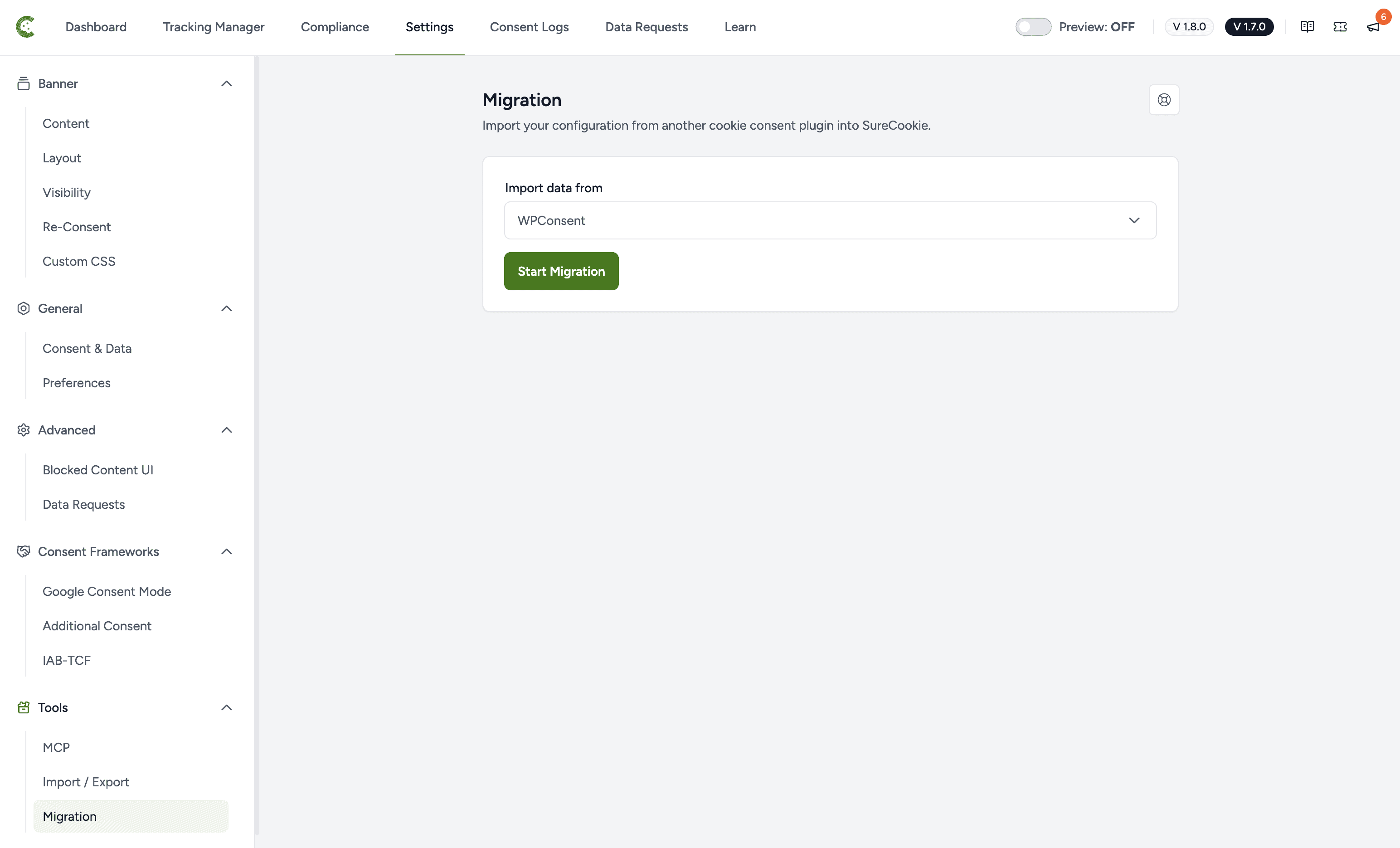
If you see No supported plugin found, SureCookie could not detect a plugin it can import from. Check that WPConsent is installed, then reload the page.
Step 2: Review What Will Be Replaced
Importing overwrites your current SureCookie configuration, so SureCookie shows you what it is about to change before anything is written.
- Click Start Migration.
- Read the list under These areas will be replaced:.
- Click Import and Replace to continue, or Cancel to back out.
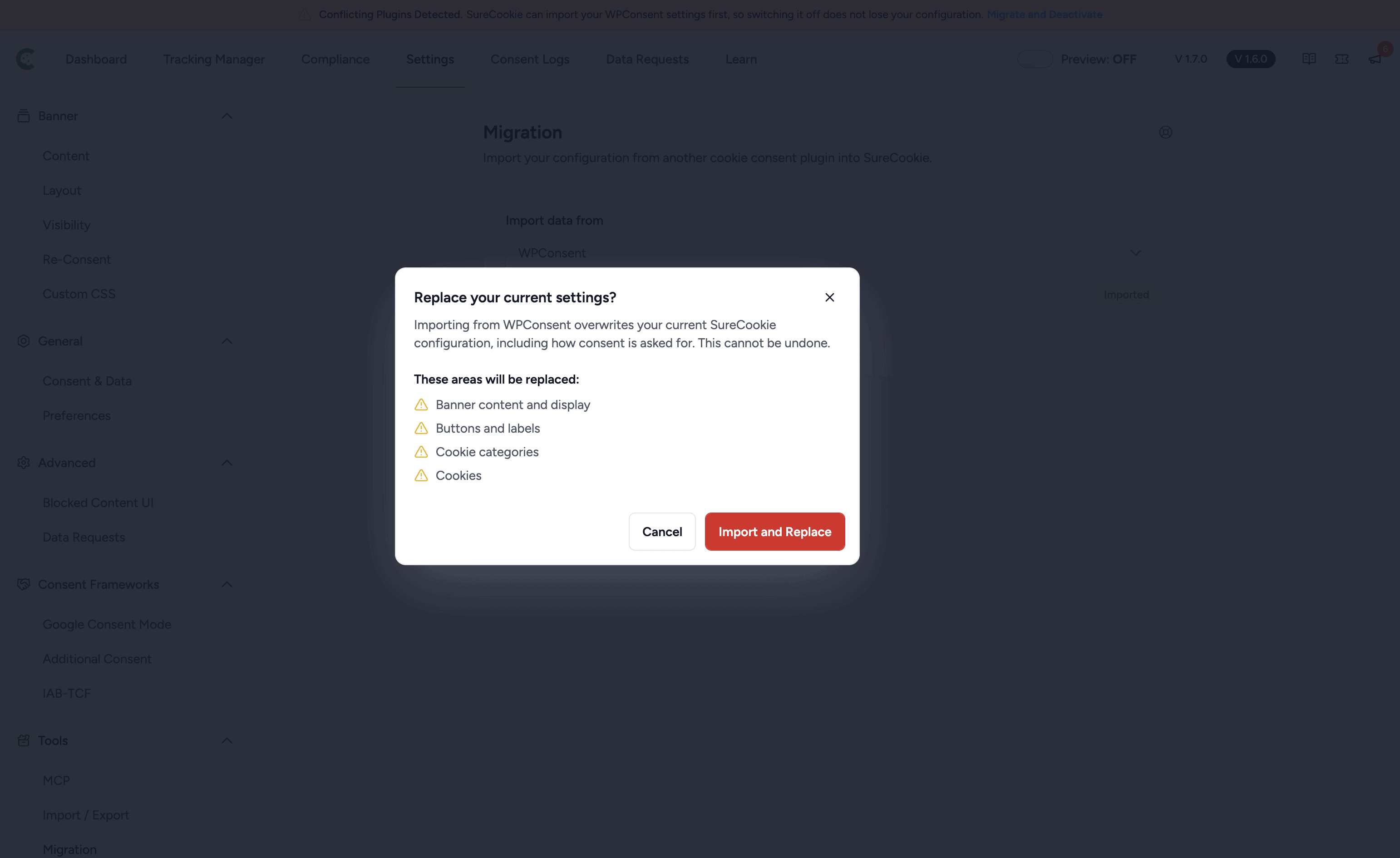
Important: This cannot be undone. If you have already customized SureCookie, note anything you want to keep before you confirm.
What Gets Imported
When the import finishes you will see We’ve imported your settings. Here’s what’s done: followed by the areas that came across:
- Banner content and display – Your banner message, preferences window heading and description, logo, and where the banner sits on screen.
- Buttons and labels – Your Accept, Decline and Preferences button text, which buttons are shown, and the order they appear in.
- Consent behavior – Your consent model (opt-in or opt-out) and how long a visitor’s choice is remembered.
- Script and content blocking – Whether blocking is switched on.
- Cookie policy page – The page you selected as your cookie policy.
- Google Consent Mode – Whether Consent Mode is switched on.
- Cookie categories – Your categories, including any custom ones you added.
- Cookies – Every cookie you documented in WPConsent, with its description, duration and provider.
Two more are imported when they apply, and are listed with a count:
- Consent logs – Your records of consent, if you used WPConsent Pro. These are added to SureCookie’s consent log with their original dates, so your audit trail carries over.
- Known services – Where a WPConsent service matches one in SureCookie’s catalog, that service is added, which brings its full set of known cookies with it.
Note: Your cookie banner is only ever switched on by an import, never off. If the banner was disabled in WPConsent, SureCookie leaves yours as it is rather than stopping your site collecting consent. You will see this listed as Cookie banner left enabled (it was off in the source plugin).
What Does Not Carry Over
SureCookie and WPConsent are different products, so some settings have no equivalent. The summary screen lists whichever of these apply to your site:
- Banner layout – The exact shape and corner are matched as closely as SureCookie’s own layouts allow, so check the result.
- Custom banner colors – Needs SureCookie Pro.
- Hide branding – Needs SureCookie Pro.
- Floating preferences button – Needs SureCookie Pro.
- Geographic / region targeting – Needs SureCookie Pro.
- Do Not Sell / CCPA form – Set this up again in SureCookie.
- GPC override messaging – Set this up again in SureCookie.
- Shared-consent / cookie domain – Set this up again in SureCookie.
- Consent Mode URL passthrough and Consent Mode ads data redaction – SureCookie’s Google Consent Mode does not offer these two options.
Because this was an automatic migration, review your banner and preferences window before you consider the switch finished.
Step 3: Deactivate WPConsent
Running two consent plugins at once can show visitors two banners and record conflicting consent, so switch WPConsent off once you are happy with the result.
- On the summary screen, click Deactivate WPConsent.
- Wait for the page to reload.
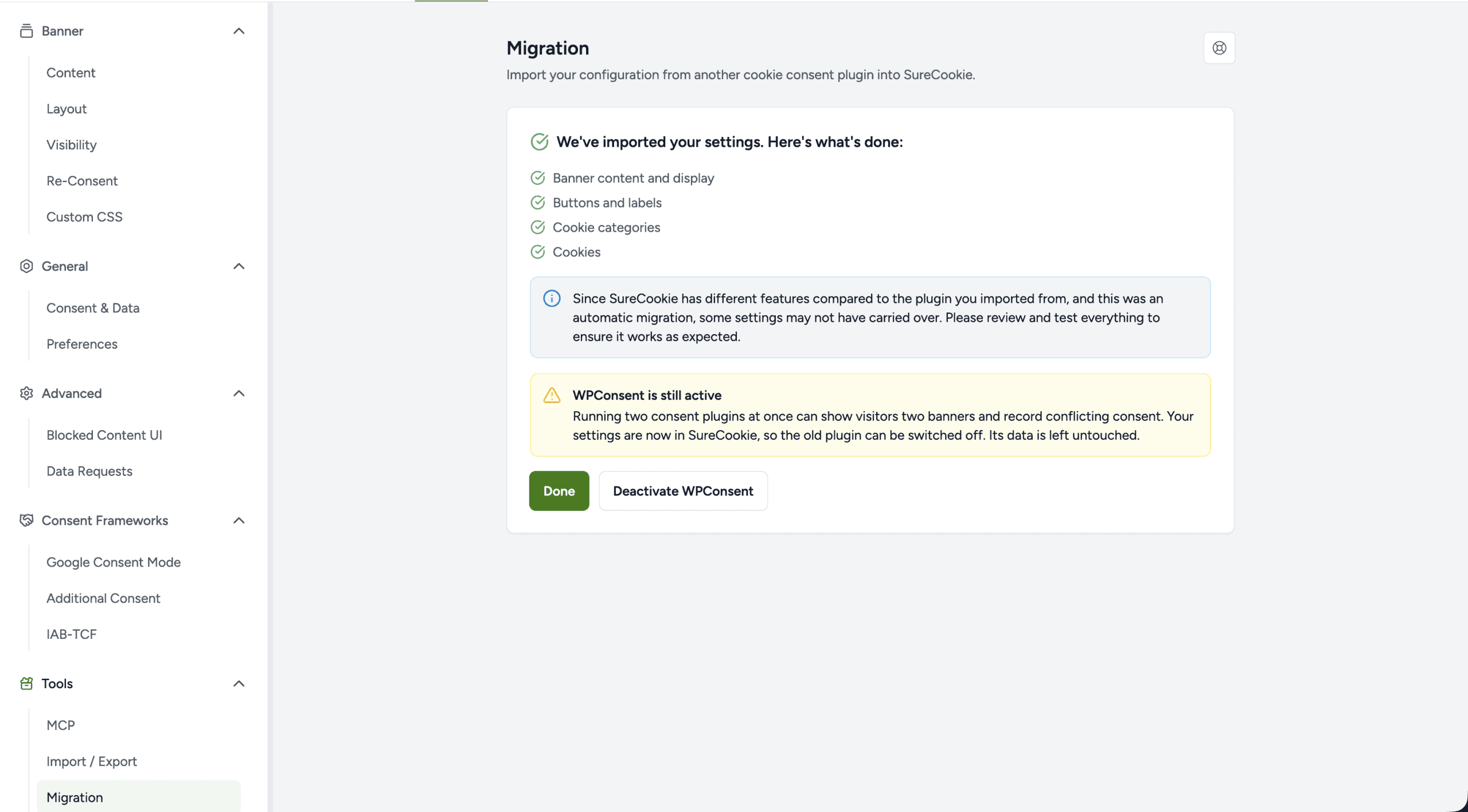
Deactivating leaves all of WPConsent’s data in place. If you want to go back, reactivate it from Plugins and your old settings are still there.
Tip: SureCookie also offers this from the Conflicting Plugins Detected notice, where the button reads Migrate and Deactivate. Use that route and it brings you to this same screen, so you import before switching anything off.
Running the Import More Than Once
Running it again is safe. Categories and cookies are matched to what the previous run created rather than duplicated, and consent records resume from where they left off instead of being imported twice.
The screen shows Last migrated with the date of your most recent run.
Troubleshooting
- The Migration screen says no supported plugin was found. SureCookie looks for the plugin itself, not leftover settings. Confirm WPConsent is installed, then reload.
- Your banner moved. WPConsent and SureCookie offer different layouts, so a floating banner in a top corner becomes the closest SureCookie position. Adjust it under SureCookie → Banner → Layout.
- Cookies appear that you did not document. Importing a known service also adds the cookies that service is known to set. Review them under SureCookie → Cookie Manager.
- No consent records came across. Consent logging is a WPConsent Pro feature. If you used the free version there were no records to import.
- Visitors see two banners. WPConsent is still active. Deactivate it as described above.
Next Steps
With your settings in place, run a cookie scan so SureCookie can find anything WPConsent had not documented, and publish your cookie policy page.
We don't respond to the article feedback, we use it to improve our support content.