
- SureCookie Installation Guide
- Installing SureCookie Pro
- Updating SureCookie
- How to Set Up SureCookie: Onboarding Wizard Guide
- SureCookie Dashboard Overview
- Connecting Your Site to SureCookie (Scanner Setup)
- Using SureCookie on Multiple Sites
- Uninstalling SureCookie & Data Cleanup
- Preferences Settings (Menu, Branding, Analytics)
- Customizing Banner Content
- Customizing Banner Layout
- Custom CSS for Banner Styling
- How to Configure the Floating Widget
- Customizing the Preference Modal
- Controlling Where the Cookie Banner Appears
- Customizing Banner Colors (Custom Colors, WCAG)
- Customizing the Blocked Content UI
- Banner Text in the Wrong Language (WPML, Polylang, and Locales)
- Re-Consent
- Understanding SureCookie Logs
- How to Set Up Geographic Targeting
- Block Scripts Until Consent (Resource Blocking)
- Setting Up Google Consent Mode v2
- Consent Models Explained (Opt-in vs Opt-out)
- Exporting Consent Logs (PDF Proof + CSV)
- Consent & Data Settings (Duration, Retention, Renew)
- Consent Forwarding Across a Multisite Network
- Resource / Script Blocking (Add Embeds + Fixes)
- Troubleshooting SureCookie
- Fix a Stuck or Failed Cookie Scan
- Why Some Cookies Aren’t Detected
- Banner Not Appearing: Troubleshooting
- Settings or Cookie Categories Not Saving or Loading
- Embeds Blocked After Consent (YouTube, Maps, Vimeo)
- Scanning Your Site From Your Browser
- Importing and Exporting SureCookie Settings
- Verifying Your Domain With a DNS Record
- Why reCAPTCHA Is Blocked, and How to Release It
- Is SureCookie a Google-Certified CMP?
- Where Banner and Widget Settings Live, and Which One Wins
- Why Trackers Still Fire Before Consent
- Is SureCookie GDPR Compliant? (Overview)
- Whitelisting the SureCookie Scanner
- Excluding the SureCookie Banner from LiteSpeed Cache
Where Banner and Widget Settings Live, and Which One Wins
SureCookie spreads banner, widget and re-consent options across several screens, and SureCookie Pro adds a second copy of some of them inside each Geographic Rule. Most reports of “I changed it and the front end did not move” come from editing the copy that loses.
This page is a map, not a tour. Use the first table to find a setting, the second to work out which copy a visitor sees, and the last sections to work out which surface appears at all. Every path starts from the SureCookie admin menu.
Where Every Option Lives
| Option | Where It Lives | Plan |
|---|---|---|
| Enable Cookie Banner | Settings > Banner > Content | Free |
| Banner Heading, Banner Message, Enable Accept All Button, Button Order | Settings > Banner > Content > Consent Banner | Free |
| Preference Modal Title, Preference Modal Description | Settings > Banner > Content > Preference Modal | Free |
| Logo, Banner Type, Banner Width, Position, Banner Animation, Color Palette | Settings > Banner > Layout | Free |
| Custom Palette | Settings > Banner > Layout | Pro |
| Do Not Display Banner On: pages and posts, URLs, page templates, archives, user roles | Settings > Banner > Visibility | Pro |
| Button Label for the Cookie Preferences link | Settings > Banner > Re-Consent | Free |
| Select Menu, which adds that link to a WordPress menu | Settings > Banner > Re-Consent > Menu Level | Free |
The Cookie Preferences shortcode | Settings > Banner > Re-Consent > Shortcode | Free |
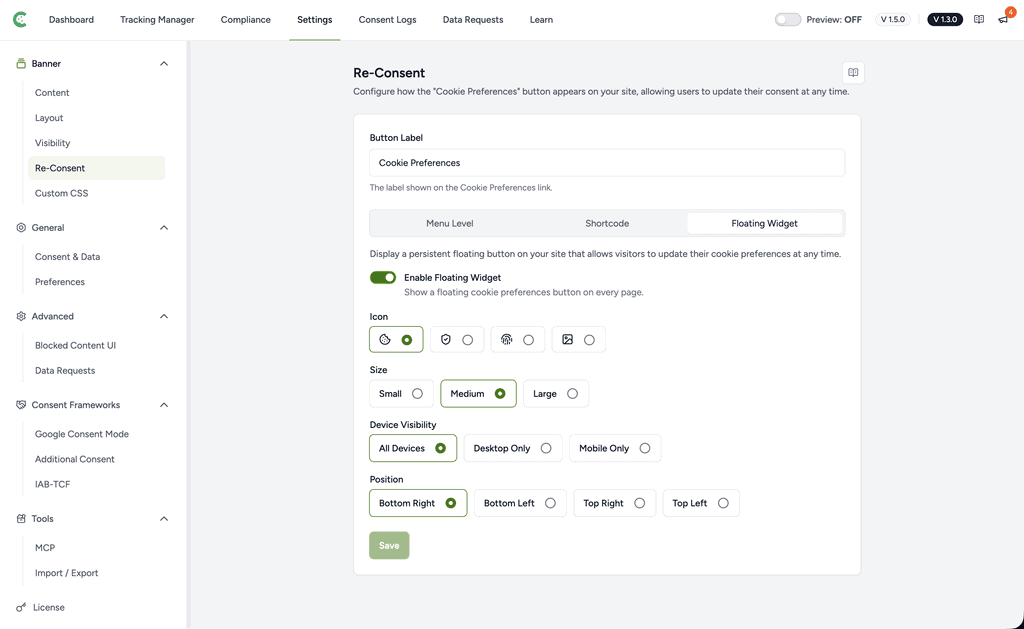
| Enable Floating Widget, Icon, Size, Device Visibility, Position | Settings > Banner > Re-Consent > Floating Widget | Pro |
| Custom CSS | Settings > Banner > Custom CSS | Free |
| Consent Duration (in days), Re-request Consent | Settings > General > Consent & Data | Free |
| Hide SureCookie Branding | Settings > General > Preferences | Pro |
| Where should the banner appear? | Tracking Manager > Geographic Rules | Worldwide free, Show only where required by law Pro |
| Per-region Show Consent Banner, Show Floating Widget, Use Custom Configuration | Tracking Manager > Geographic Rules > Configure > Configuration | Pro |
| A cookie’s category, Purpose, Duration (Days), Provider | Tracking Manager > All Cookies | Free |
The floating widget switch lives under Re-Consent, not under Content or Layout. That is the placement people reliably look for in the wrong place.
The Icon row offers four choices: a cookie, a shield, a fingerprint and a logo. The logo choice opens the WordPress media library and accepts any image file, not only SVG.
Which Setting Wins
When a visitor matches a Geographic Rule, that rule supplies part of the banner configuration and the global settings supply the rest.
| What the Visitor Sees | Global Setting | What a Matched Geographic Rule Does |
|---|---|---|
| Whether a banner appears | Enable Cookie Banner | Show Consent Banner can hide it for that region. It cannot show a banner you switched off globally. |
| Banner message | Banner Message | With Use Custom Configuration on, the rule’s Banner Description replaces it. With it off, the law template’s own default message replaces it. Your global message reaches only visitors that no rule matches. |
| Banner heading | Banner Heading | Nothing. The heading is always the global one. |
| Button order and button text | Button Order | With Use Custom Configuration on, the rule’s order and label fields replace them. With it off, the law template’s own button set applies. |
| The Accept All button | Enable Accept All Button | A rule can drop Accept All. It cannot add it back once the global toggle is off. |
| Floating widget | Enable Floating Widget | Show Floating Widget can hide it for that region. It cannot show a widget that is off globally. |
| Consent model | Opt-in | The rule’s Consent Model applies, for example opt-out under CCPA/CPRA. |
One sentence covers the table: a Geographic Rule can only narrow what the global settings allow, never broaden it.
Editing the Rule Instead of the Global Copy
- Go to SureCookie > Tracking Manager > Geographic Rules.
- Click Configure on the rule that covers your visitors, for example EU, EEA, UK (GDPR).
- Open the Configuration tab.
- Turn on Use Custom Configuration.
- Edit Banner Description, drag the buttons into the order you want, fill in the button text fields, then save.
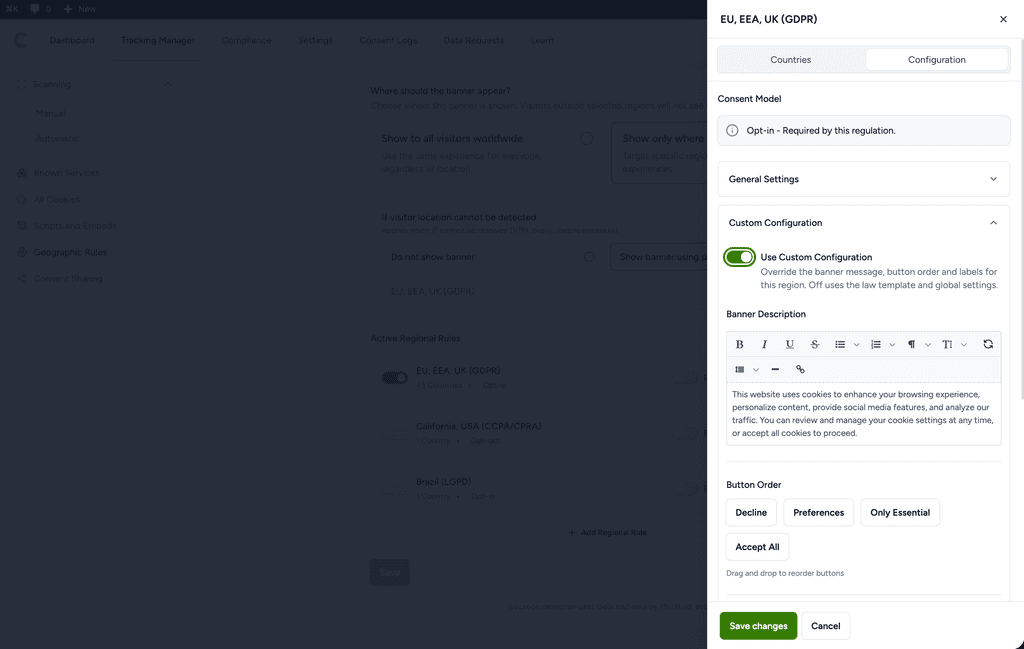
Note: The Button Order control warns you about this when Geographic Rules are active.
Which Surface Appears When
Three visitor-facing surfaces:
- Consent banner appears on a visitor’s first view, and again once their stored consent passes Consent Duration (in days) or after you use Re-request Consent. It does not appear once they have answered.
- Preferences modal is the category list. It opens from the banner’s Preferences button, and directly from any re-consent entry point. Where the consent model is opt-out, a re-consent click re-opens the banner instead.
- Floating widget is a persistent button for visitors who have already answered. It stays hidden while the banner is on screen.
Every re-consent surface is gated on the banner being available to that visitor. Where the banner is hidden for someone, the floating widget renders nothing and the menu item and the shortcode are normally not output at all. On a cached page that already shipped the link, it stays on screen but does nothing. Three things hide the banner this way: a Geographic Rule with Show Consent Banner off for their country, a Visibility rule excluding the page they are on, and a country no enabled rule covers.
Switching Enable Cookie Banner off globally behaves differently. The menu item and the shortcode keep working and still open the preferences modal, so a site with no banner can still offer a Privacy Choices link. The floating widget does not, because it is drawn only for a visitor whose banner is enabled.
Checking Which Version You Have
If a screen shown in the documentation is not in your install, check your version first.
- Open any SureCookie screen in wp-admin.
- Read the version badge at the top right, for example V 1.5.0. With Pro active, a second badge shows the Pro version.
- Compare it against the version the article names.
The current releases are SureCookie 1.5.0 and Pro 1.3.0. Known Services arrived in free 1.3.0 and the Compliance section in free 1.5.0, so an older install genuinely does not have them.
Troubleshooting
- A scanned cookie’s purpose or duration looks wrong: open Tracking Manager > All Cookies and edit the row. On a scanned row you can correct the category, Purpose, Duration (Days) and Provider; name and domain stay read-only. A row you added by hand is fully editable. A row declared by a Known Service is built from the catalogue on the fly, so it has no Delete.
- A cookie is gone from the site but still on the policy: a scan never removes a cookie it stops seeing. Delete the row. If something on the site still sets it, the next scan brings it back.
- The floating widget is missing for some visitors only: check the Geographic Rule covering their country and any Visibility rule covering the page they landed on.
- A re-consent link is visible but clicking it does nothing: the visitor is in a region or on a page where the banner is hidden, so the link is inert there by design.
- The option is not on your screen at all: Visibility, the floating widget, Custom Palette and per-region rules all require SureCookie Pro.
Next Steps
The per-screen guides cover the options themselves: Customizing Banner Content, Customizing Banner Layout, How to Configure the Floating Widget, Re-Consent and How to Set Up Geographic Targeting. If the banner renders for nobody, start with Banner Not Appearing Troubleshooting. For the cookie list, see Cookie Manager; for the admin itself, SureCookie Dashboard Overview.
We don't respond to the article feedback, we use it to improve our support content.