
- SureCookie Installation Guide
- Installing SureCookie Pro
- Updating SureCookie
- How to Set Up SureCookie: Onboarding Wizard Guide
- SureCookie Dashboard Overview
- Connecting Your Site to SureCookie (Scanner Setup)
- Using SureCookie on Multiple Sites
- Uninstalling SureCookie & Data Cleanup
- SureCookie Shortcodes Reference
- Preferences Settings (Menu, Branding, Analytics)
- Customizing Banner Content
- Customizing Banner Layout
- Custom CSS for Banner Styling
- How to Configure the Floating Widget
- Customizing the Preference Modal
- Controlling Where the Cookie Banner Appears
- Customizing Banner Colors (Custom Colors, WCAG)
- Customizing the Blocked Content UI
- Banner Text in the Wrong Language (WPML, Polylang, and Locales)
- Re-Consent
- Understanding SureCookie Logs
- How to Set Up Geographic Targeting
- Block Scripts Until Consent (Resource Blocking)
- Setting Up Google Consent Mode v2
- Consent Models Explained (Opt-in vs Opt-out)
- Exporting Consent Logs (PDF Proof + CSV)
- Consent & Data Settings (Duration, Retention, Renew)
- Consent Forwarding Across a Multisite Network
- Resource / Script Blocking (Add Embeds + Fixes)
- CCPA / CPRA Compliance with SureCookie
- Handling Data Requests
- Setting Up Your Business Details
- Generating a Privacy Policy Page
- Recording Consent Without Storing Visitor IP Addresses
- Generating a Cookie Policy Page
- Troubleshooting SureCookie
- Fix a Stuck or Failed Cookie Scan
- Why Some Cookies Aren’t Detected
- Banner Not Appearing: Troubleshooting
- Settings or Cookie Categories Not Saving or Loading
- Embeds Blocked After Consent (YouTube, Maps, Vimeo)
- Site Performance / Page Speed
- Scanning Your Site From Your Browser
- Importing and Exporting SureCookie Settings
- Verifying Your Domain With a DNS Record
Setting Up Your Business Details
Requires SureCookie 1.5.0 or later version.
Privacy law expects a visitor to be able to tell who is responsible for a website and how to reach them about their data. Business Details is where you record that once, so SureCookie can use it everywhere it is needed.
These details appear in your privacy policy and cookie policy, and they are available as shortcodes you can place anywhere in your own content. Fill them in before you generate either policy page: the privacy policy cannot be published until the required ones are saved.
Where to Find Business Details
Go to SureCookie → Compliance → Business Details. It is the first screen in the Compliance section.
The screen has two tabs: Configure, where you enter the details, and Shortcodes, where you copy them for use elsewhere.
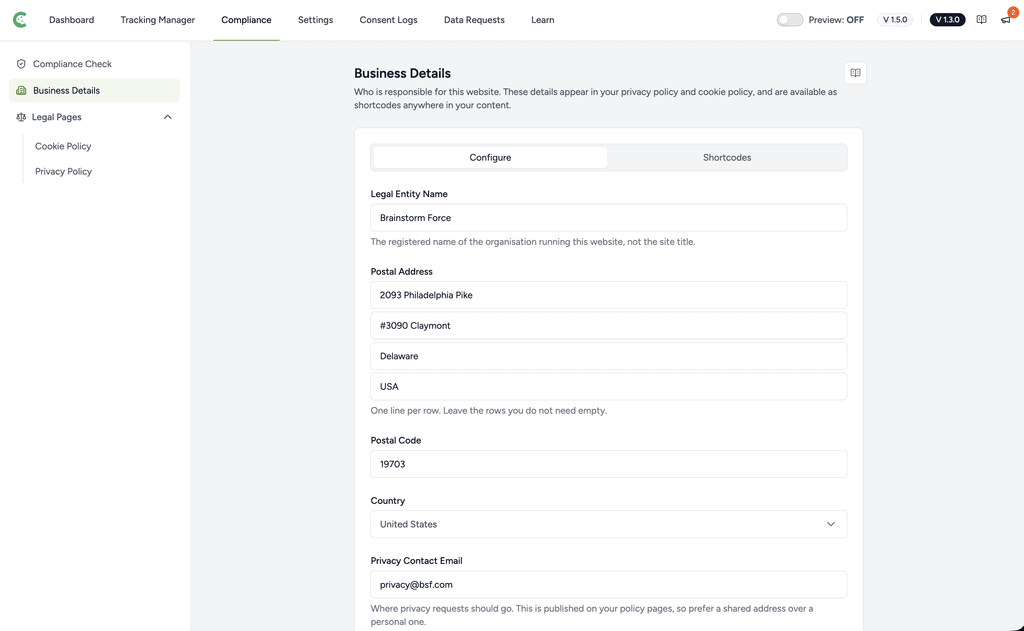
Step 1: Enter Who Is Responsible
Start with the four details every policy page needs.
- In Legal Entity Name, enter the registered name of the organisation running this website, not the site title. If you trade as “Acme Blog” but the registered company is “Acme Holdings Ltd”, enter the latter.
- In Postal Address, enter your registered address using one line per row. Leave the rows you do not need empty.
- Enter your Postal Code and select your Country.
- In Privacy Contact Email, enter the address privacy requests should go to.
Tip: the privacy contact email is published on your policy pages. Prefer a shared address such as [email protected] over a personal one, so requests are not lost when someone leaves.
Step 2: Select the Privacy Regimes That Apply
Applicable Privacy Regimes tells SureCookie which laws to write about. Each one you select adds a rights section to the generated privacy policy, and some ask for an extra detail.
- Open Applicable Privacy Regimes and choose from the list: More options may be added over time.
| Regime | Who it covers |
|---|---|
| GDPR (European Economic Area) | Organisations established in, or targeting, the EEA |
| UK GDPR | The United Kingdom’s separate regime, with its own regulator |
| CCPA / CPRA (California) | Businesses meeting California’s thresholds |
| DPDP Act (India) | Organisations handling the data of people in India |
| COPPA (children, United States) | Services directed at children under 13 in the US |
- Fill in any extra field that appears.
- Click Save.
Important: only select the laws this site is actually subject to. Which law binds you depends on where you are established and who you target, not on where your visitors happen to be. Selecting everything does not make a site more compliant; it publishes claims you may not be able to stand behind.
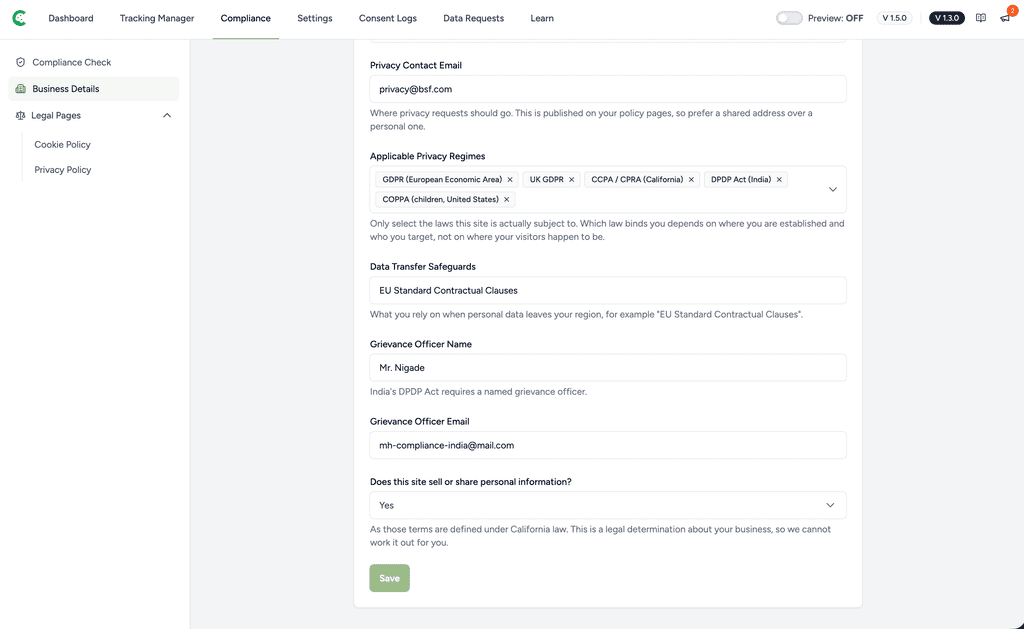
Extra Details Some Regimes Require
These fields only matter, and only become required, when you select the matching regime.
- Data Transfer Safeguards – Required by GDPR and UK GDPR. What you rely on when personal data leaves your region, for example “EU Standard Contractual Clauses”.
- Grievance Officer Name and Grievance Officer Email – Required by the DPDP Act (India), which requires a named grievance officer.
- Does this site sell or share personal information? – Asked when you select CCPA / CPRA (California). Answer Yes or No, or leave it as Not decided yet.
The sale or sharing question is a legal determination about your business, as those terms are defined under California law, so SureCookie cannot work it out for you. The California section of your privacy policy stays unfinished until you answer it.
Step 3: Use the Details Elsewhere With Shortcodes
Open the Shortcodes tab to reuse any detail in your own pages and posts. Use these anywhere shortcodes work and they are replaced with the details on the Configure tab.
Each row shows the shortcode, what it currently produces, and a copy button. A detail you have not filled in shows as Not set.
| Shortcode | Outputs |
|---|---|
| Legal entity name |
| Privacy contact email |
| Postal address, with the postal code and country on the last line |
| Postal code |
| Country name |
| Grievance officer name |
| Grievance officer email |
https://surecookie.com/cookie-policy/ | Address of your Cookie Policy page |
| Address of your Privacy Policy page |
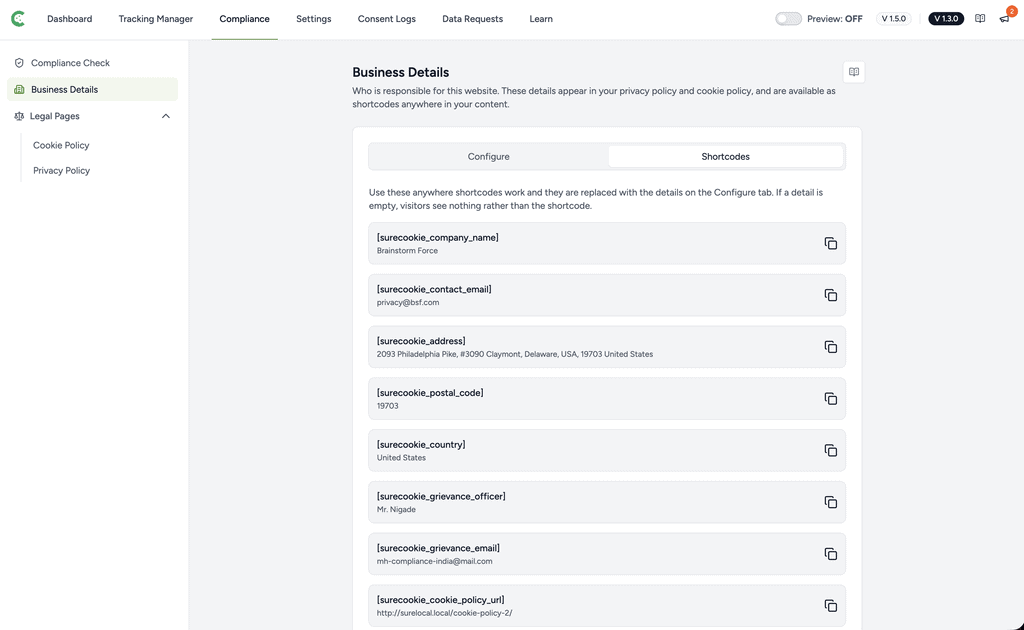
Because they read the saved details rather than a copy of them, a policy you wrote yourself stays in step with this screen. Change your address here and every page using updates.
Note: if a detail is empty, visitors see nothing rather than the shortcode. Logged-in administrators see a small marker naming the missing detail, so you can spot the gap while editing without exposing it to the public.
What Happens When a Detail Is Missing
- The generated privacy policy stays a draft. Publishing is unavailable until your business details are complete.
- A newly generated cookie policy leaves its contact section out entirely until both a legal entity name and a valid privacy contact email are saved. It does not publish a blank section or placeholder text.
- Shortcodes for the missing detail render nothing for visitors.
Filling in the missing detail is enough. There is nothing to regenerate: both policy pages read these values as they are rendered.
Troubleshooting
- The Save button does nothing and the email field turns red. The privacy contact or grievance officer email is not a valid address. SureCookie rejects an invalid email rather than saving a broken one, because it gets published.
- A regime section on my privacy policy says it is not finished. That regime needs an extra detail. Check Data Transfer Safeguards for GDPR and UK GDPR, the grievance officer fields for the DPDP Act, and the sale or sharing question for CCPA / CPRA.
- My address prints on one line. Enter each part on its own row in Postal Address. Rows are what create the line breaks.
- A shortcode prints as text instead of my details. Shortcodes only resolve where WordPress runs them. Page and post content works, and so do the page builders that render shortcodes. A hand-written excerpt does not, because WordPress does not run shortcodes there.
- I changed a detail but an old page still shows the previous value. Check whether the page uses the shortcode or a value someone typed by hand. Only the shortcode follows this screen.
Next Steps
With your details saved, generate your policy pages: see Generating a Privacy Policy Page and How to Generate a Cookie Policy Page.
We don't respond to the article feedback, we use it to improve our support content.