
- SureCookie Installation Guide
- Installing SureCookie Pro
- Updating SureCookie
- How to Set Up SureCookie: Onboarding Wizard Guide
- SureCookie Dashboard Overview
- Connecting Your Site to SureCookie (Scanner Setup)
- Using SureCookie on Multiple Sites
- Uninstalling SureCookie & Data Cleanup
- SureCookie Shortcodes Reference
- Preferences Settings (Menu, Branding, Analytics)
- Customizing Banner Content
- Customizing Banner Layout
- Custom CSS for Banner Styling
- How to Configure the Floating Widget
- Customizing the Preference Modal
- Controlling Where the Cookie Banner Appears
- Customizing Banner Colors (Custom Colors, WCAG)
- Customizing the Blocked Content UI
- Banner Text in the Wrong Language (WPML, Polylang, and Locales)
- Re-Consent
- Understanding SureCookie Logs
- How to Set Up Geographic Targeting
- Block Scripts Until Consent (Resource Blocking)
- Setting Up Google Consent Mode v2
- Consent Models Explained (Opt-in vs Opt-out)
- Exporting Consent Logs (PDF Proof + CSV)
- Consent & Data Settings (Duration, Retention, Renew)
- Consent Forwarding Across a Multisite Network
- Resource / Script Blocking (Add Embeds + Fixes)
- CCPA / CPRA Compliance with SureCookie
- Handling Data Requests
- Setting Up Your Business Details
- Generating a Privacy Policy Page
- Recording Consent Without Storing Visitor IP Addresses
- Generating a Cookie Policy Page
- Troubleshooting SureCookie
- Fix a Stuck or Failed Cookie Scan
- Why Some Cookies Aren’t Detected
- Banner Not Appearing: Troubleshooting
- Settings or Cookie Categories Not Saving or Loading
- Embeds Blocked After Consent (YouTube, Maps, Vimeo)
- Site Performance / Page Speed
- Scanning Your Site From Your Browser
- Importing and Exporting SureCookie Settings
- Verifying Your Domain With a DNS Record
Setting Up Google Consent Mode v2
Google Consent Mode v2 is the way your site tells Google services whether a visitor has consented, so Google Analytics, Google Ads, and Tag Manager adjust how they behave. When you turn it on, SureCookie sends these consent signals automatically based on each visitor’s banner choices.
Google requires Consent Mode v2 for any site that uses Google services with visitors in the European Economic Area (mandatory since March 2024). Setting it up keeps your Google tags compliant without extra code.
Before you begin: SureCookie sends the consent signals, but it does not install your Google tags. Your Google tags (GA4, Google Ads, Tag Manager, and so on) must already be on your site for Consent Mode to have any effect.
What Consent Mode v2 Does
Consent Mode is a signal layer between your visitors and Google. Your Google tags read the signals and decide whether to use cookies, collect analytics, or personalize ads. SureCookie sets the signals to denied by default, before your tags run, then updates them the moment a visitor accepts or declines a category on your banner.
Because the signals follow your cookie categories, make sure your banner is set up and your cookies are categorized first.
What Consent Mode Does Not Block
Consent Mode is a signal, not a block. It tells Google tags what they may do with data. It does not stop a tag from running, and it does nothing at all for a non-Google tracker.
That has one consequence worth knowing before you turn it on. While Enable Google Consent Mode and Block Scripts Until Consent are both on, SureCookie exempts Consent Mode compatible Google services from file blocking, so each tag can load and receive the signal. On SureCookie > Tracking Manager > Scripts and Embeds those rows carry a Managed by GCM badge instead of Blocked until consent. Everything else on your site stays blocked by category until the visitor accepts, apart from Essential, which is the one category released without consent.
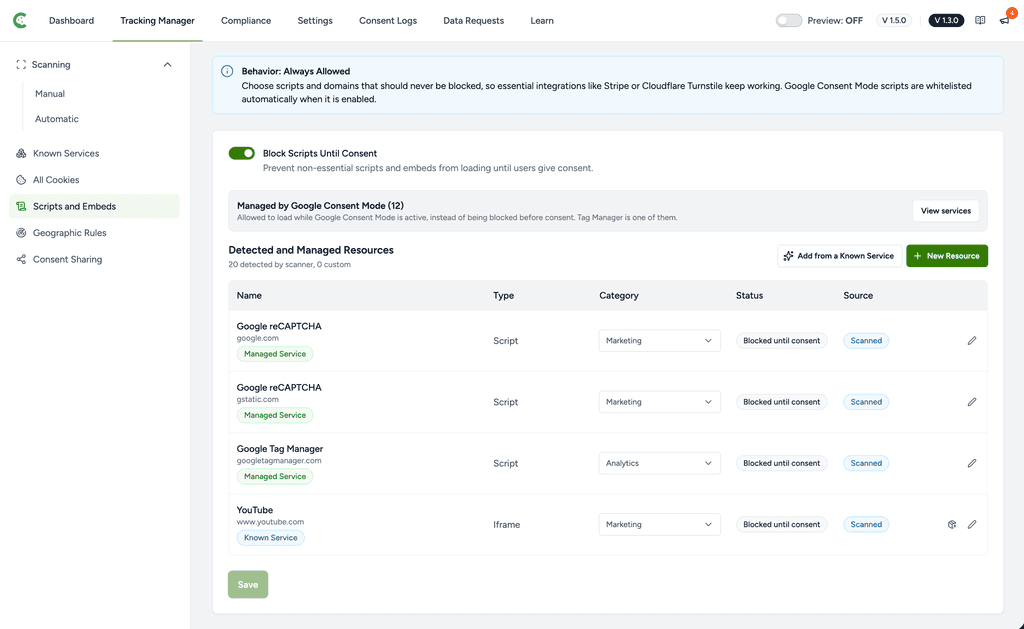
This is Google’s Advanced Consent Mode: the tag loads with every non-essential signal denied, rather than being held back until consent. Turn Enable Google Consent Mode off and the exemption ends, so those Google files are blocked like any other tracker and no consent signals are sent at all.
Note: Google Tag Manager is on the exempt list, and Consent Mode does not reach the non-Google tags you deploy through it. Each of those needs its own consent check inside Tag Manager.
For the full picture of what loads before consent and why, see Why Trackers Still Fire Before Consent.
Step 1: Enable Google Consent Mode
- Go to SureCookie → Settings → Consent Frameworks → Google Consent Mode.
- Turn on Enable Google Consent Mode.
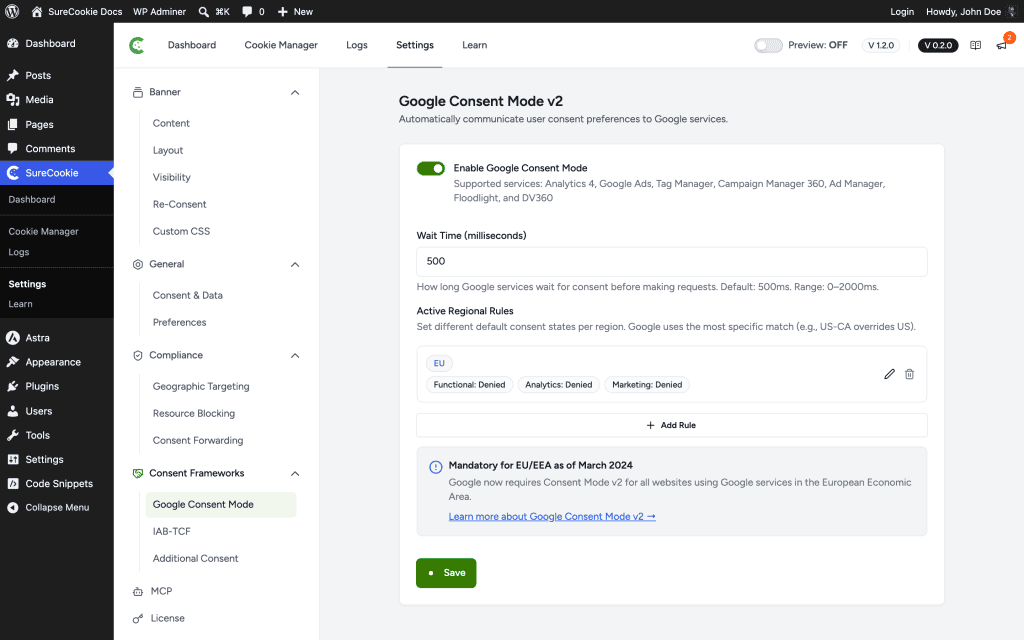
This covers the supported Google services: Analytics 4, Google Ads, Tag Manager, Campaign Manager 360, Ad Manager, Floodlight, and DV360.
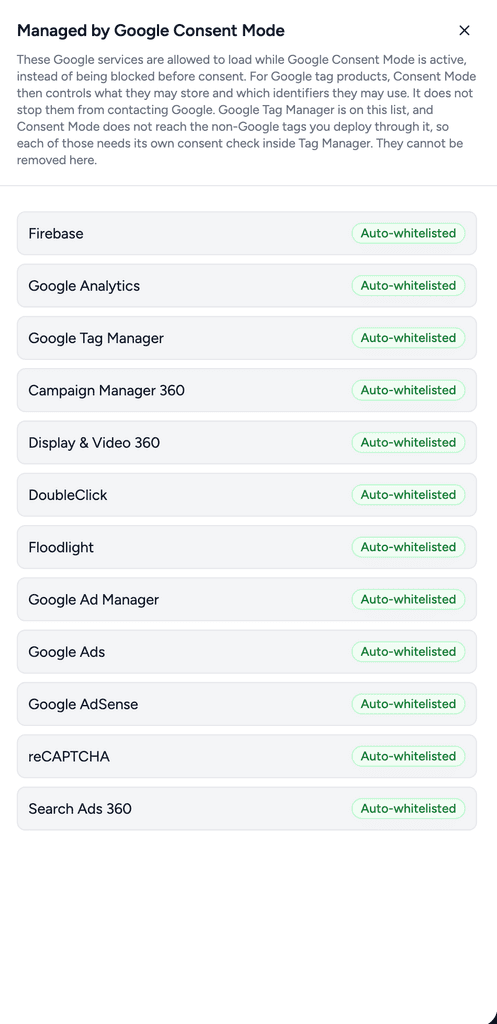
That list is the short version shown on the toggle. The services SureCookie exempts come from its service catalog, which is updated over time.
To see the current list for your site.
- Go to SureCookie > Tracking Manager > Scripts and Embeds
- Find Managed by Google Consent Mode, and click View services.
- That section appears only while both Enable Google Consent Mode and Block Scripts Until Consent are on.
Step 2: Set the Wait Time
The wait time is how long Google services pause for a consent update before sending their first requests. A longer wait gives the banner more time to report a choice; a shorter wait reduces any delay.
- In Wait Time (milliseconds), enter a value.
- Leave it at the default of 500 unless you have a reason to change it. The range is 0 to 2000.
How Consent Maps to Google Signals
SureCookie translates each visitor’s category choices into Google’s consent signals:
| SureCookie Category | Google Consent Signals |
|---|---|
| Marketing | ad_storage, ad_user_data, ad_personalization, personalization_storage |
| Analytics | analytics_storage |
| Functional | functionality_storage |
| Essential | security_storage (always granted) |
Until a visitor consents, every non-essential signal stays denied. When they accept a category, the matching signals switch to granted.
SureCookie also sends ads_data_redaction and url_passthrough as true on every page. The first strips ad identifiers from Google Ads requests while ad_storage is denied. The second carries ad click information in the URL instead of a cookie, so conversions still attribute for a visitor who declines. There is no setting for either. Both are the privacy-preserving side of Consent Mode, so SureCookie keeps them on.
Step 3: Add Regional Default Rules
Regional rules let you set different default consent states for different parts of the world, for example denying everything by default in the EU while granting more in regions without strict consent laws. Google applies the most specific match, so a rule for US-CA overrides a rule for US. This step is optional.
- Under Active Regional Rules, click Add Rule.
- To start from a template, click a Quick Preset: EU/EEA (GDPR), California (CCPA), United Kingdom, or Brazil (LGPD). This fills in the region codes and a sensible default.
- In Region Codes, enter one or more codes separated by commas, using a two-letter country code with an optional region (for example
US,US-CA, orGB). - Under Default Consent State, turn Functional Storage, Analytics Storage and Marketing / Ads Storage on to grant them by default, or leave them off to deny them.
- Click Add Rule in the drawer, then click Save on the settings screen. The rule is not stored until you save the screen.
- Click Save.
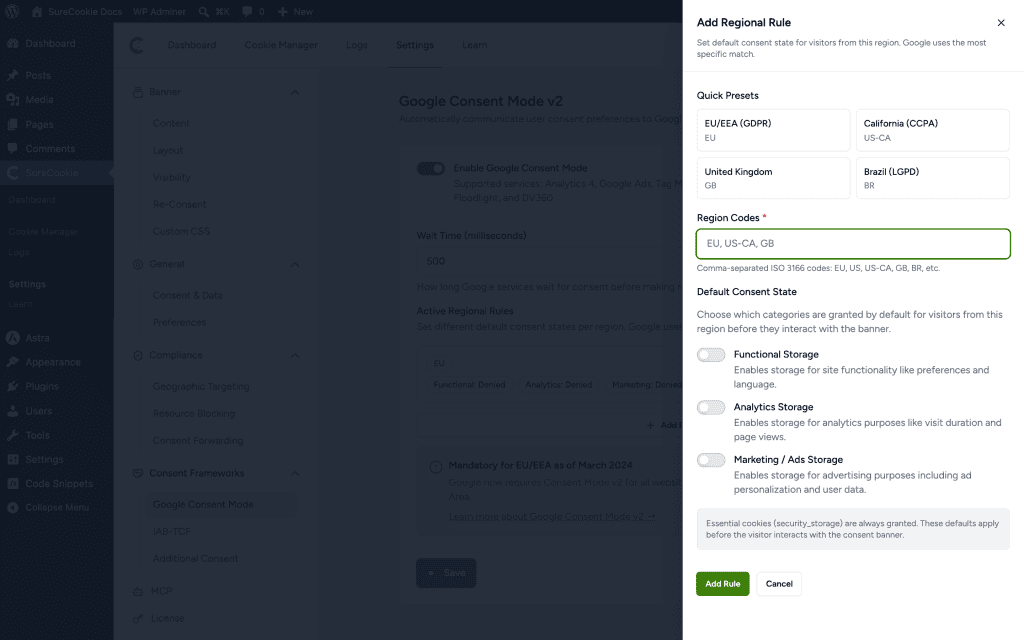
Note: Essential cookies (
security_storage) are always granted. These defaults apply before the visitor interacts with the banner.
Above your regional rules sits a Worldwide row. It covers every visitor that no regional rule matches, and you can edit it from the same drawer. SureCookie ships it denying Functional Storage, Analytics Storage and Marketing / Ads Storage, along with one regional rule that denies all three in the EU.
Important: granting a category on the Worldwide row tells Google the visitor consented before they were asked. Google tags then fire on the first page view, and a later Decline cannot recall what was already sent. Leave Worldwide denied unless you have taken advice on it.
Consent Mode Is Not CMP Certification
Google has two consent requirements, and they are routinely mixed up. Consent Mode v2 is what a site owner running Google tags owes Google, and SureCookie sends all of it. A Google-certified CMP is a separate rule, for publishers serving AdSense, Ad Manager or AdMob inventory to visitors in the EEA, the UK or Switzerland.
SureCookie is not on Google’s certified CMP list and does not implement the IAB Transparency and Consent Framework, in the free plugin or in SureCookie Pro. If you sell ad space through Google, read Is SureCookie a Google-Certified CMP? before deciding what to run.
Verifying It Works
Use Google Tag Assistant or GA4 DebugView to confirm the signals are firing.
- Consent Mode has no effect: Confirm your Google tags are actually installed and loading on the page. SureCookie only sends signals; it can’t work without the tags.
- Signals always show denied: That is expected before consent. Accept a category on the banner and check that the matching signals switch to granted.
- A Google tag loads before the visitor answers: That is Consent Mode working, not a fault. While Consent Mode is on, SureCookie exempts Consent Mode compatible Google services from file blocking, so each tag can load and read the signal. Blocking the file and sending the signal at once gives you neither. Until the visitor accepts, every non-essential signal stays denied, so the tag runs without storage or advertising identifiers. It does still contact Google.
- Anything else loads before the visitor answers: Consent Mode does not cover it. Blocking is what holds it back, so check that Block Scripts Until Consent is on under SureCookie > Tracking Manager > Scripts and Embeds.
We don't respond to the article feedback, we use it to improve our support content.